User management
Menu: Admin → User Management
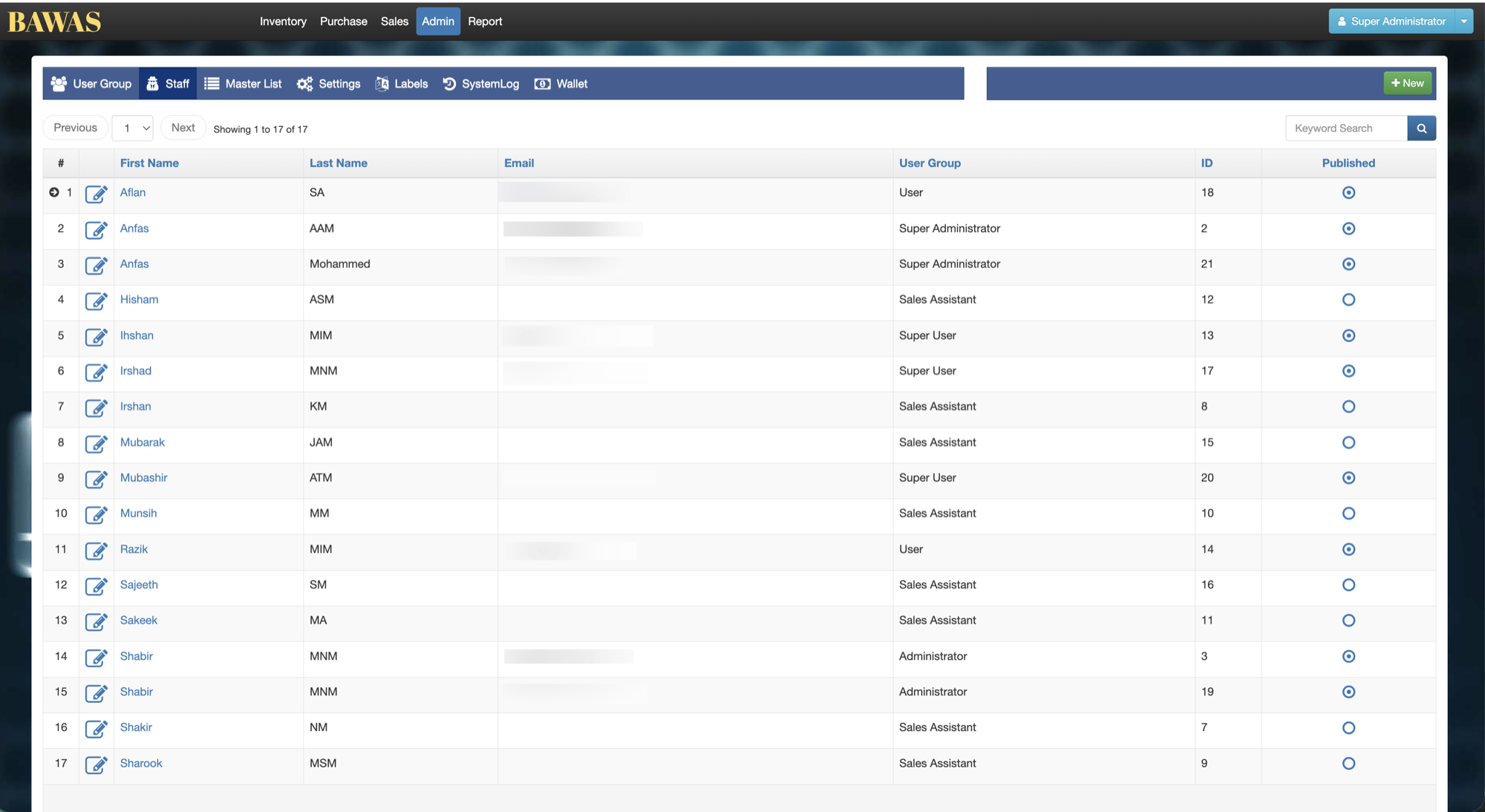
Admin → Staff lists everyone who can sign in to Bawas. Each person has a name, email, User Group (role), and published status.
Control who can access the system and what they are allowed to do in Inventory, Sales, and other modules.
Special features
- Admin sub-tabs: User Group, Staff, Master List, Settings, Labels, SystemLog, Wallet.
- Staff grid: First Name, Last Name, Email, User Group, ID, Published.
- + New to add a user; edit icon on each row.
- Keyword search and pagination on the list.
Workflows
Only trusted administrators should create or change Super Administrator accounts.
Steps
- Open Admin from the top menu, then the Staff tab.
- Use Keyword Search to find a person, or page through the list.
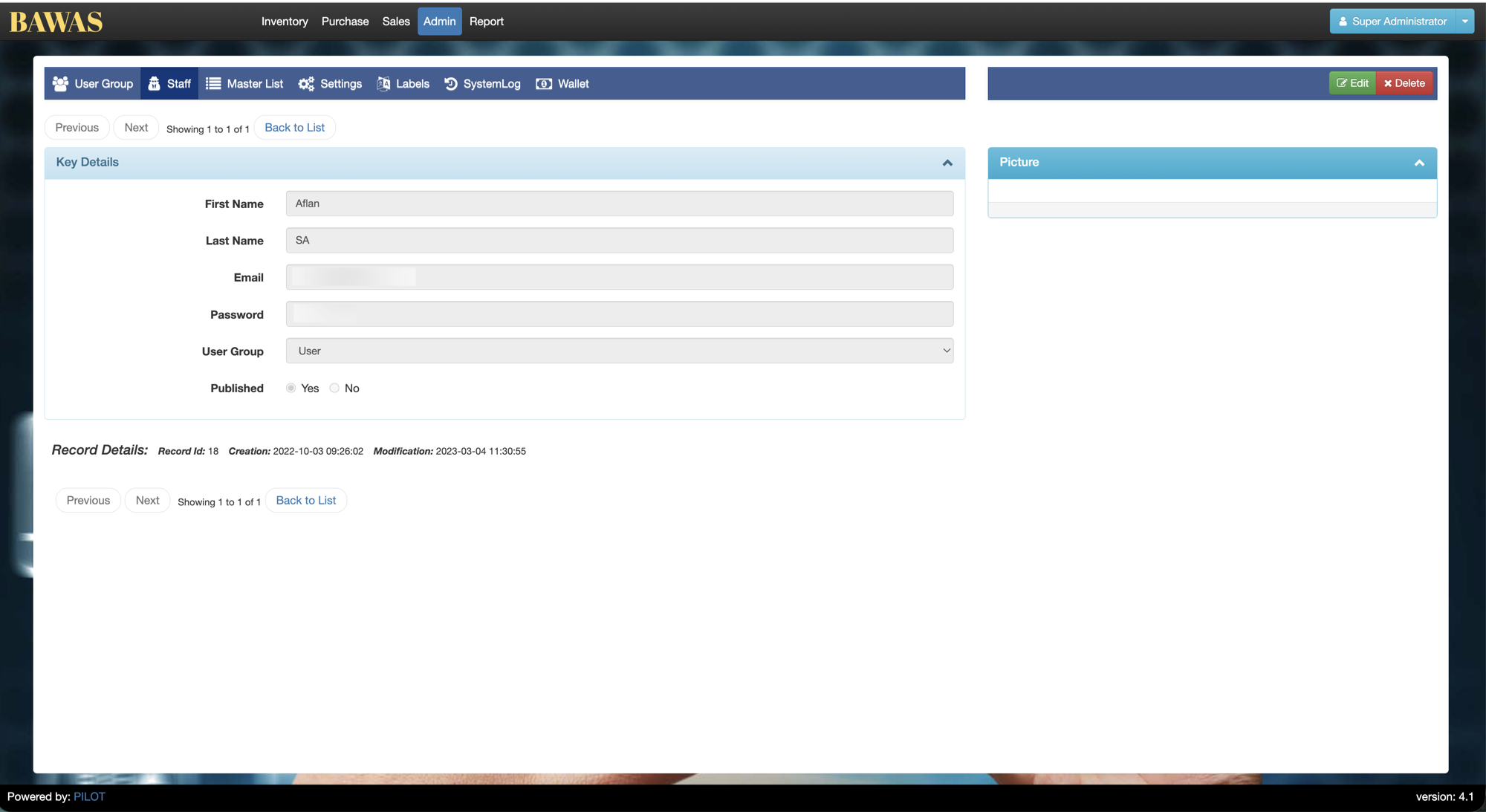
- Click the edit icon to change name, email, or User Group.
- Click + New to add a staff member and assign a group.
- Set Published so active users can log in; clear it to disable access.
- Save and ask the user to test login on the correct environment.
Validation rules
| Rule | Detail |
|---|---|
| Must be unique where your system enforces it | |
| User Group | Defines which menus and actions the user sees |
| Super Administrator | Keep this group small—full access to all modules |
| Published | Users who are not published should not sign in |
| Password | Set or reset through your IT process on create |
Manage Staff
Manage Staff — list view
Admin → Staff lists every sign-in account: First Name, Last Name, Email, User Group, Published. Use Keyword Search and + New for onboarding.
Staff Details
Open a staff row to set name, email, User Group, and Published. Assign one or more shops and a default shop — see Multi-Shop / Staff Management. Wrong User Group is a common cause of “access denied” in Sales or Report—see User groups.
Manage Staff — roles reference
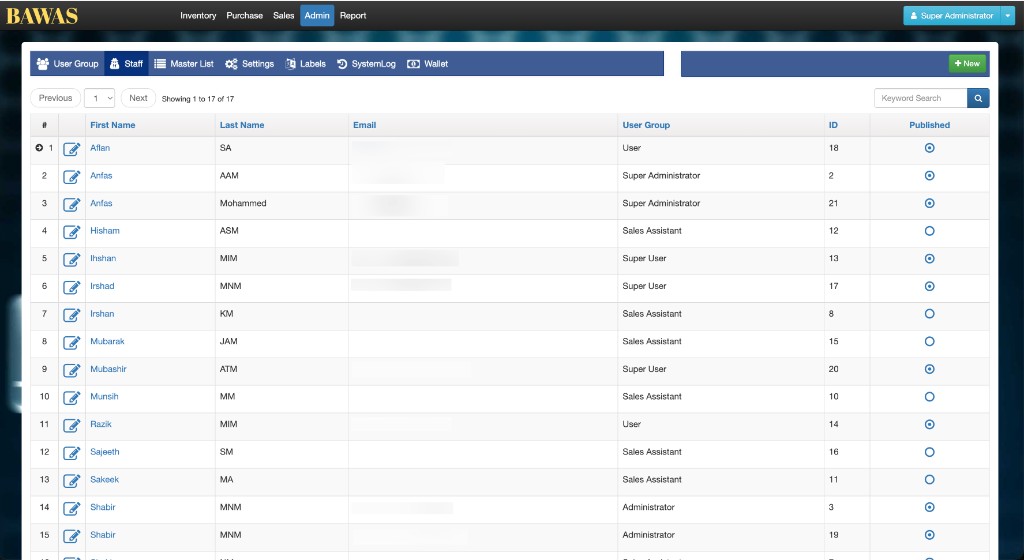
Check the User Group column for roles such as Super Administrator, Sales Assistant, or Administrator. The published flag controls whether the user can log in.