Stock Cat
Menu: Inventory → Stock Cat
Tab icon: List (category list)
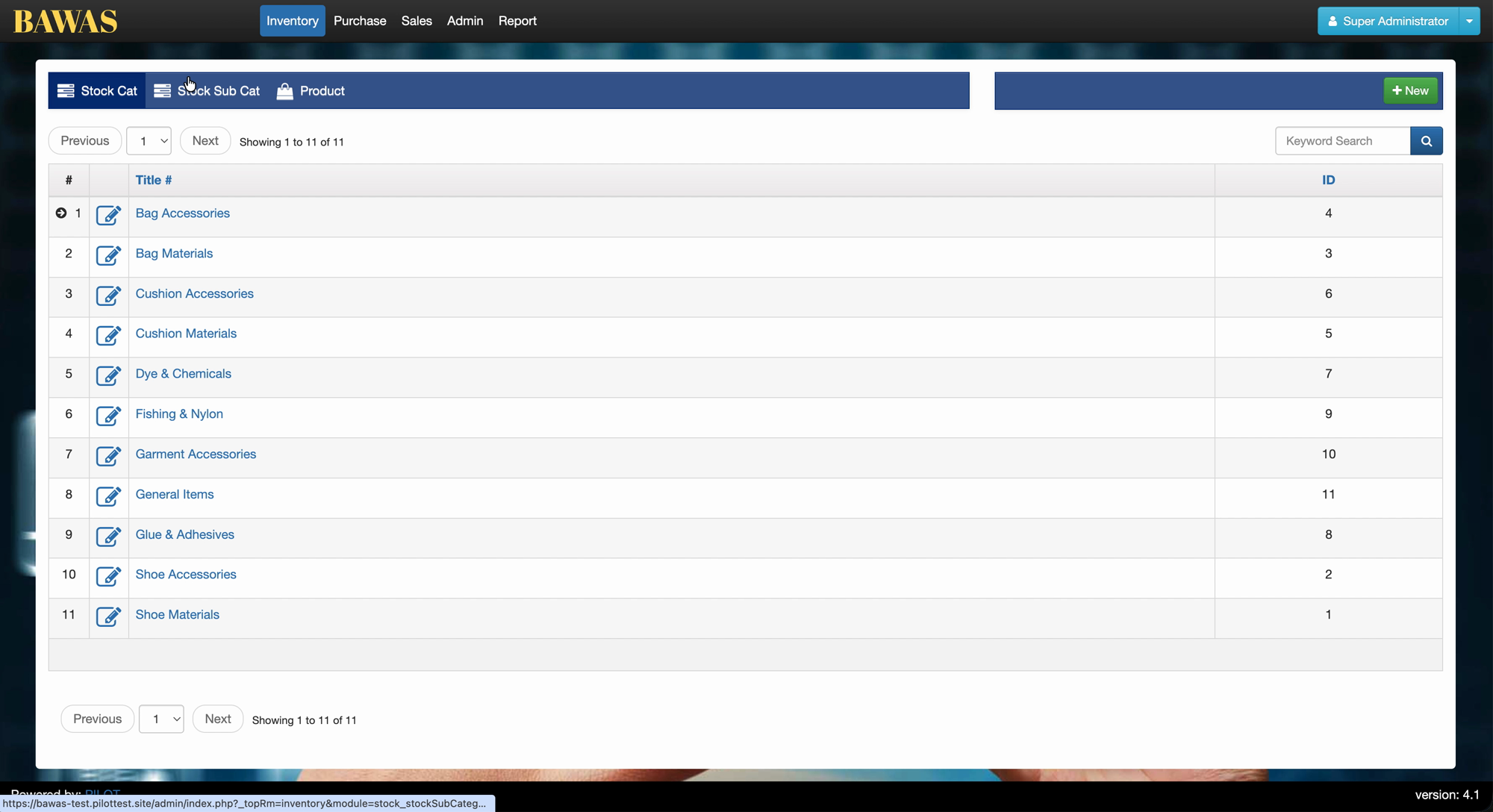
Stock categories group your inventory (for example Shoe Materials, Bag Accessories, Dye & Chemicals). Create and maintain categories here before you add sub-categories and products.
Manage Stock Categories
Open Inventory, then use the sub-tabs Stock Cat, Stock Sub Cat, and Product. On Stock Cat, the grid shows category Title (link), ID, pagination, and Keyword Search. Use + New to add a category and the edit icon on a row to change a record.
Stock Category Details
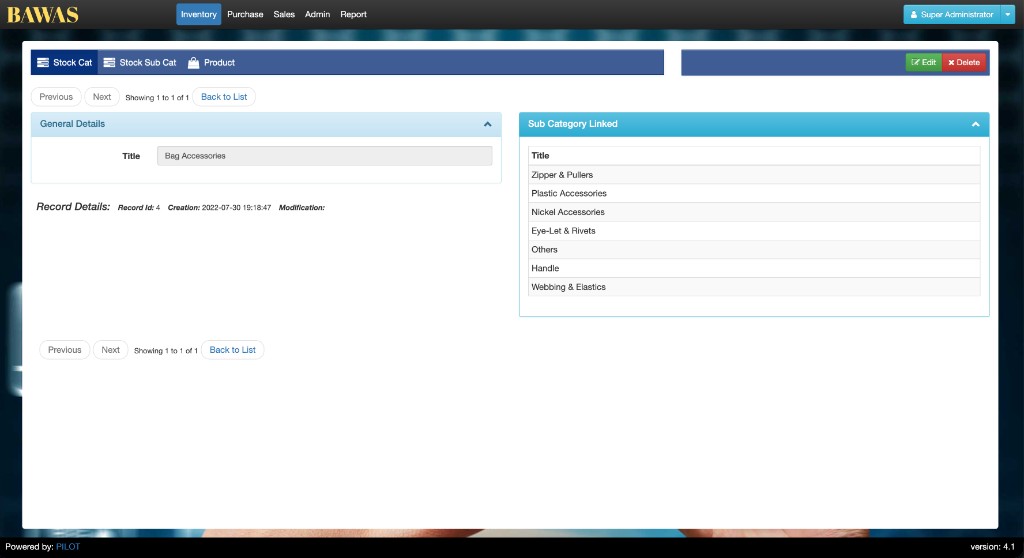
Click a category Title (blue link) or the row edit icon to open the detail view. The screen is read-only until you choose Edit; use Delete only when no sub-categories or products still depend on the record.
Page layout
| Area | Purpose |
|---|---|
| Inventory tabs | Stock Cat (active), Stock Sub Cat, Product — same module, different masters |
| Edit / Delete | Change or remove this category (role-dependent) |
| Previous / Next | Step through categories when the list has more than one row |
| Back to List | Return to the Stock Cat grid |
General Details (left panel)
Core fields for the selected category:
- Title — display name (example: Bag Accessories).
- Record Id — internal key (example:
4); sub-categories and reports reference this ID. - Creation — when the record was first saved (example:
2022-07-30 19:18:47). - Modification — last update timestamp; blank if never edited after create.
Use Edit to change the title; save returns you to this view with Modification filled in.
Sub Category Linked (right panel)
Read-only list of every Stock Sub Cat row whose parent is this category. For Bag Accessories, linked titles include Zipper & Pullers, Plastic Accessories, Nickel Accessories, Eye-Let & Rivets, Others, Handle, and Webbing & Elastics. Add or rename sub-categories under Inventory → Stock Sub Cat; they appear here automatically when linked to this category.
New sub-categories under Stock Sub Cat must reference a valid stock category. Products then pick up category and sub-category from those masters.
Special features
- + New creates a category without leaving the list.
- Each row shows a stable ID used by sub-categories and reporting.
- Categories are referenced from Stock Sub Cat and Product filters.
Workflows
Add a new stock category
- Open Inventory → Stock Cat.
- Click + New.
- Enter the category title and save.
- Confirm the new row appears in the list.
Rename or retire a category
- Open the category from the list (edit icon or title link).
- Update the title or active flag (if shown).
- Save and verify sub-categories still point to the correct category.