User groups
Menu: Admin → User Group
User groups define roles: which menus, reports, and actions each staff type may use.
Special features
- Admin sub-tab User Group.
- List: group name, description, published status.
- Detail: permissions per module (Inventory, Sales, Purchase, Report, Admin).
- Staff accounts link to one User Group—see User management.
Workflows
Steps
- Open Admin → User Group.
- Review existing groups (for example Super Administrator, sales, warehouse).
- Open a group to tick or clear module permissions.
- Save and ask a test user in that group to sign in and verify access.
Validation rules
| Rule | Detail |
|---|---|
| Super Administrator | Full access—assign only to trusted users |
| Report tiles | Report menu visibility follows group rights |
| Published | Unpublished groups cannot be assigned to new staff |
Manage User Groups
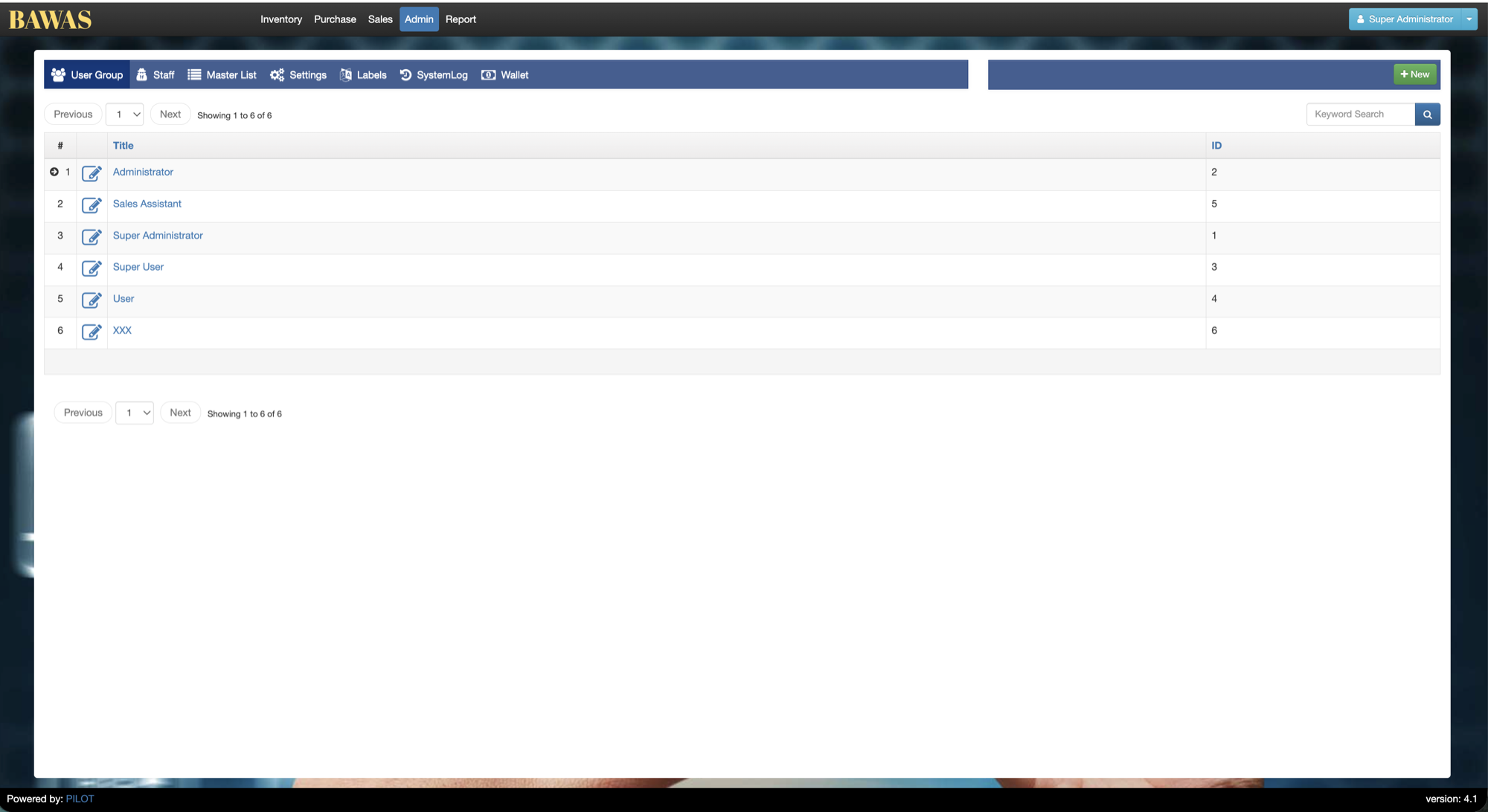
Manage User Groups — list view
The User Group list shows all roles. + New creates a custom group; edit an existing group to tighten report or admin access.
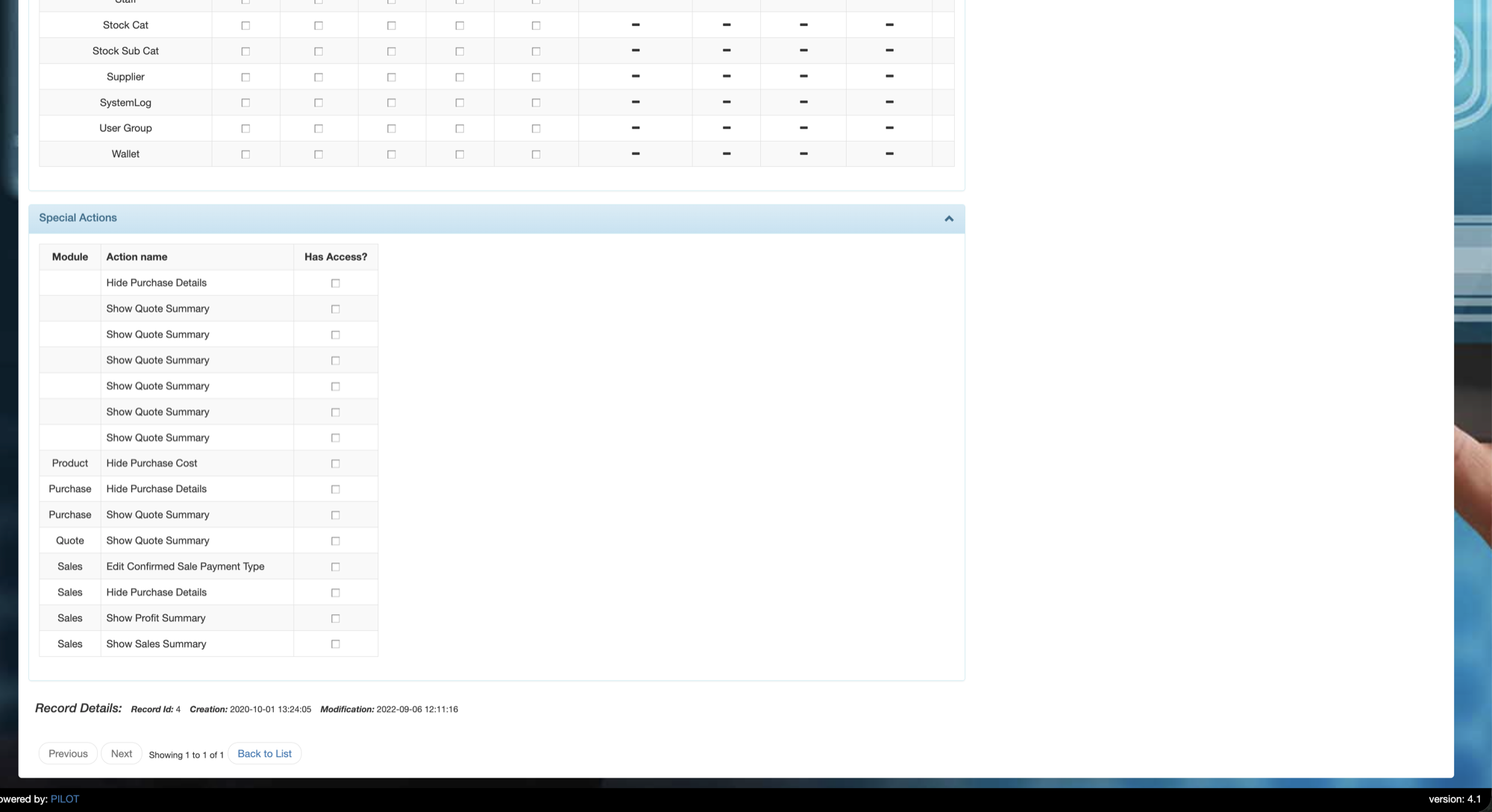
User Group Details
The detail screen lists permissions by module. Match each group to real job roles—sales staff rarely need Admin → Settings.
Related pages
- User management — assign User Group on each staff record.
- Reports — report access is controlled by group.