Customer management
Menu: Sales → Customer
[BAWAS] Customer: Add Phone Number in Print & List View-completed. Sales → Customer stores the customer master. The customer list shows Phone and Mobile columns ( Fax removed from the grid). Customer phone prints on sales ORDER and INVOICE PDFs (Print Mini and Print Large) from the same master data. Keyword Search still auto-focuses when the list opens ([BAWAS] Sales: Customer search focus).
Give staff one place to maintain customers used on quotes, sales, returns, and receipts, scan contact numbers from the list, and find customers quickly.
Special features
- Customer list columns: Code, Customer Name, Phone, Mobile, Email, Contact, Status, ID.
- Fax no longer shown on the list (still editable on the customer Main tab if needed).
- Status filter and Keyword Search with auto-focus on load.
- Pagination (for example 1 to 50 of 469).
- + New to create a customer.
- Main, Contacts, and Addresses tabs on the edit screen.
- Phone, mobile, email, website, and payment terms on the profile.
- Wallet Amount with history and transfer options.
- Shortcuts: Wallet History, Sales Invoice History, Receipt History, Sales Return History.
- Phone and mobile on sales ORDER print-see Sales print-phone and mobile.
Workflows
Start on the list when you only need to find someone or check numbers; open the edit screen when you need to change data.
Steps
- Open Sales → Customer from the top menu.
- Confirm the cursor is in Keyword Search (focused border).
- Scan Phone and Mobile in the grid before opening a row.
- Type part of the name or code and run search, or use Status to filter.
- Open a customer to edit Main contact fields.
- Enter or update Phone and Mobile on the profile; click Save.
- Re-print any open sales orders if contact details changed-see Sales print-phone and mobile.
Validation rules
| Rule | Detail |
|---|---|
| List columns | Phone and Mobile visible; Fax not on list |
| Search focus | Keyword Search focused when the list first opens |
| Keyword | Partial match on name or code filters the grid |
| Customer name | Required on active accounts when editing |
| Phone / mobile | Values on the profile should match list and print |
| Wallet transfer | Only users with permission may move balance between customers |
| Code uniqueness | Customer code must stay unique across the directory |
Manage Customers
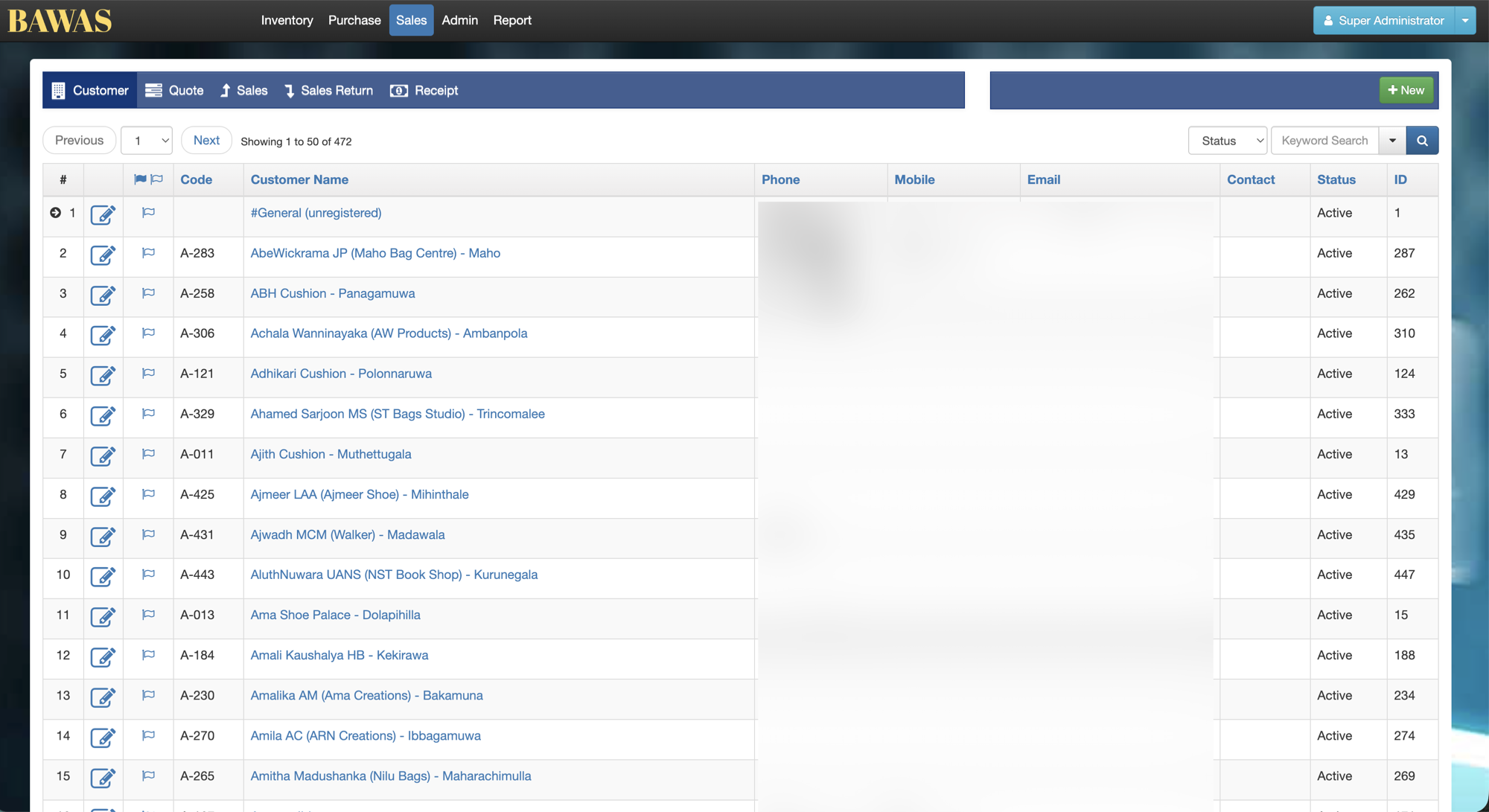
Manage Customers — list view
The Sales → Customer list shows customer Code, Customer Name, Phone, Mobile, Email, Contact, and Status. Use Status filter and Keyword Search; click + New or a name to open the profile. Phone and Mobile on the grid match values used on sales printouts—see Sales print-phone and mobile.
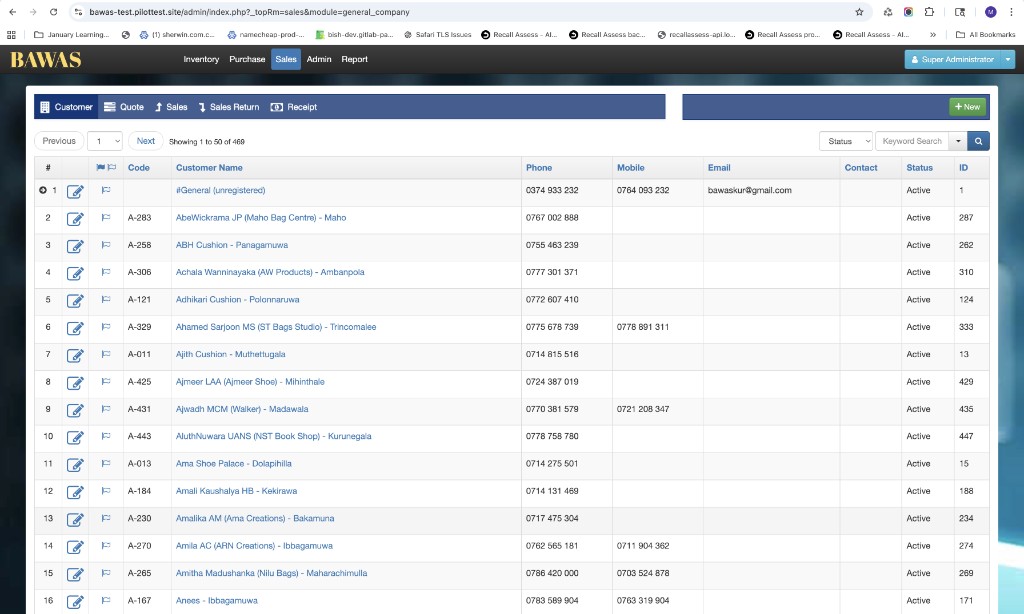
Manage Customers — phone and mobile columns
Fax is no longer on the list so staff see Phone and Mobile without extra clutter. Update contact fields on the Main tab; the list refreshes after save.

Manage Customers — keyword search
The list's Keyword Search can find customers by name, code, phone, mobile, email, or record ID. Try a partial value, then check the matching row before opening it. Search focus is shown in the existing screenshot above.
| Search by | Example screenshot |
|---|---|
| Phone | 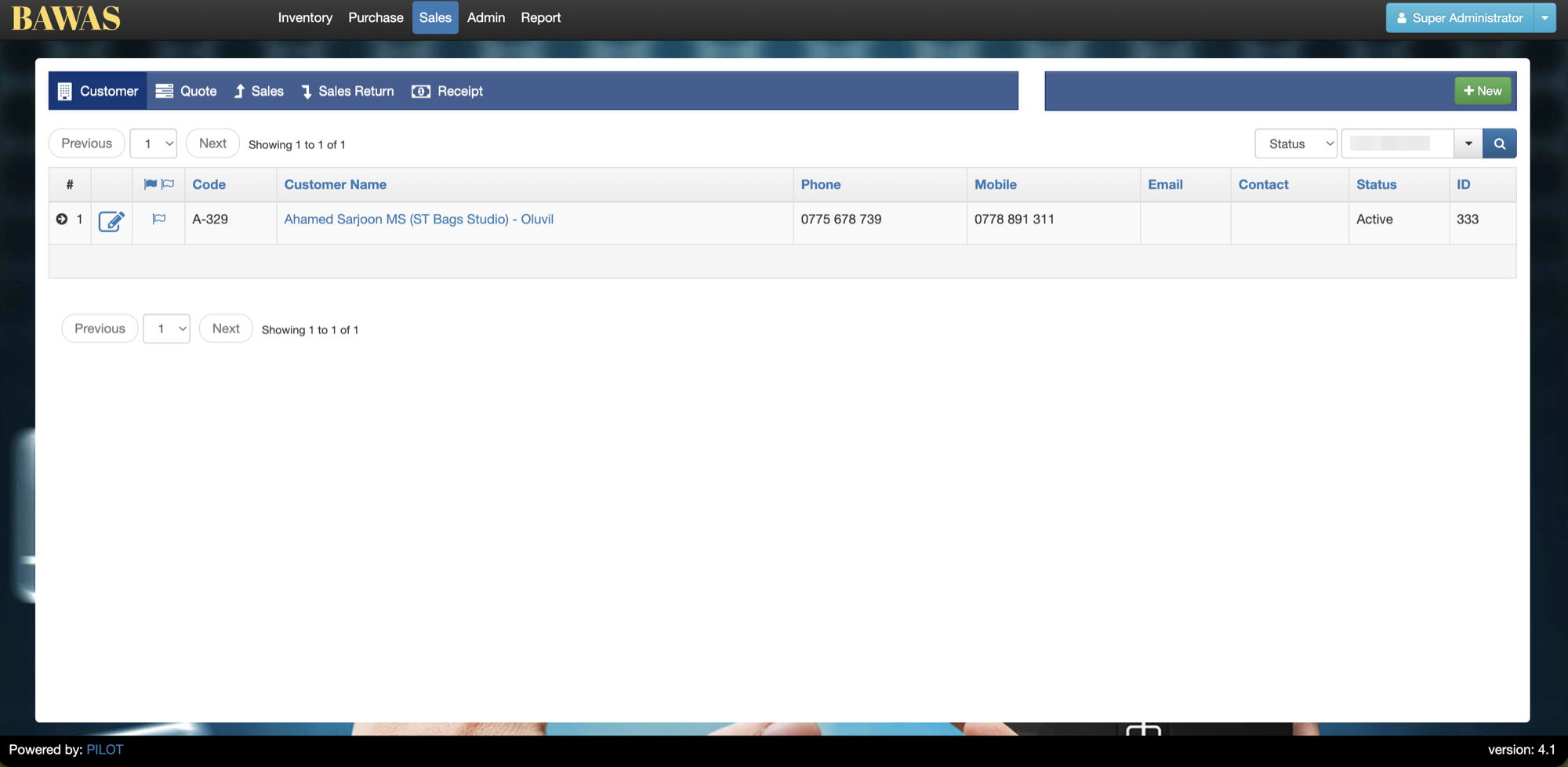 |
| Mobile | 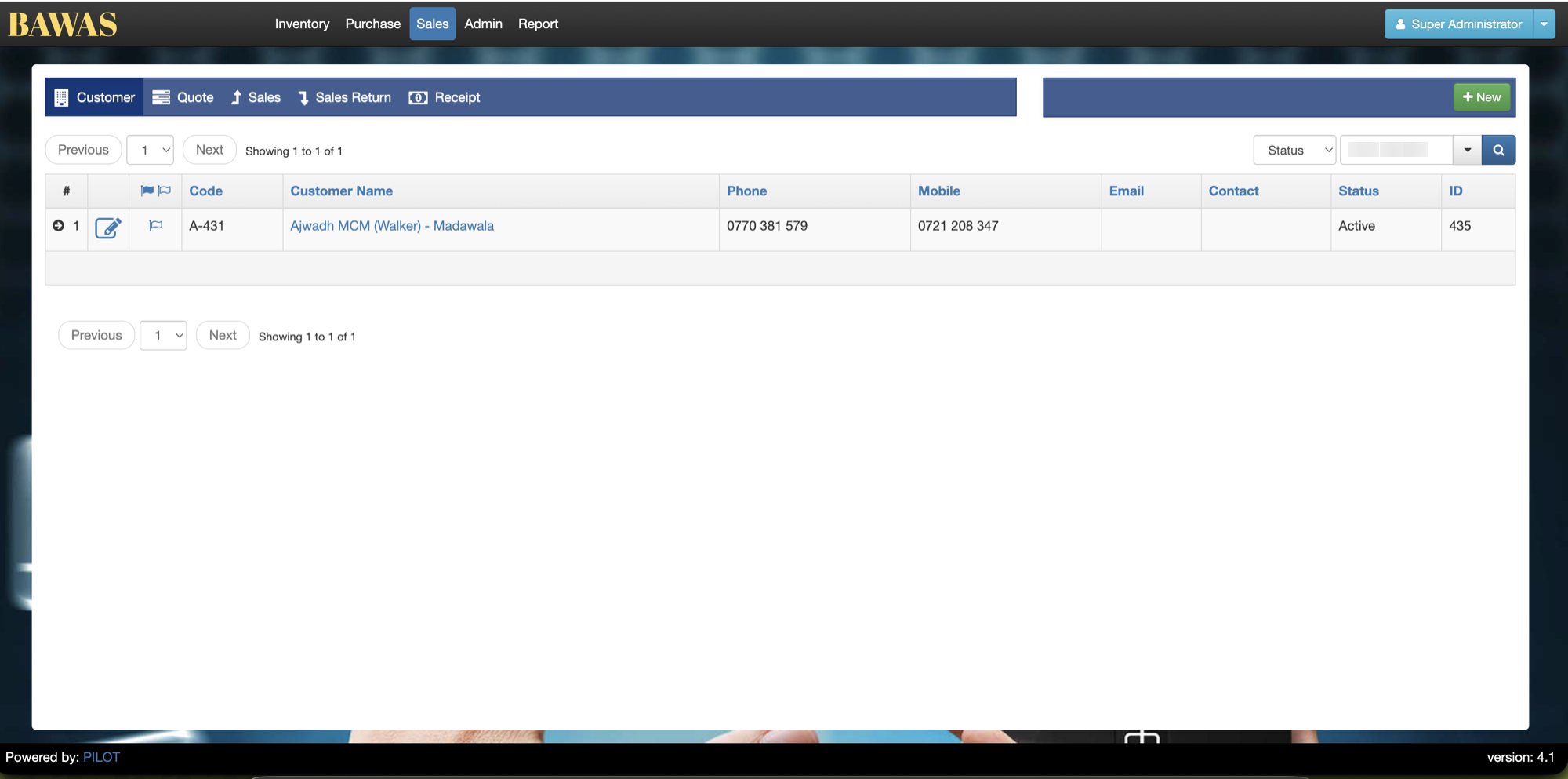 |
| Code | 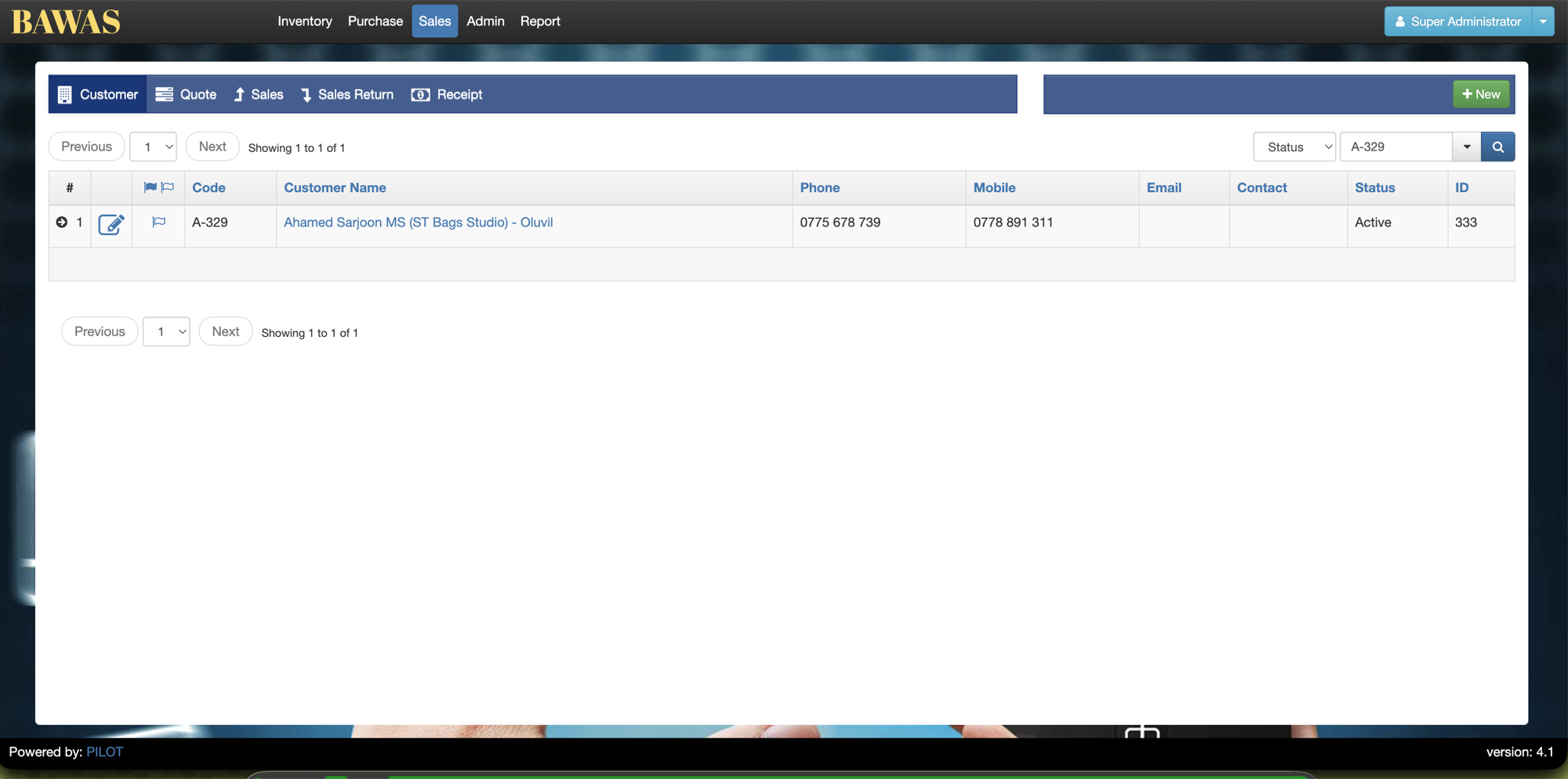 |
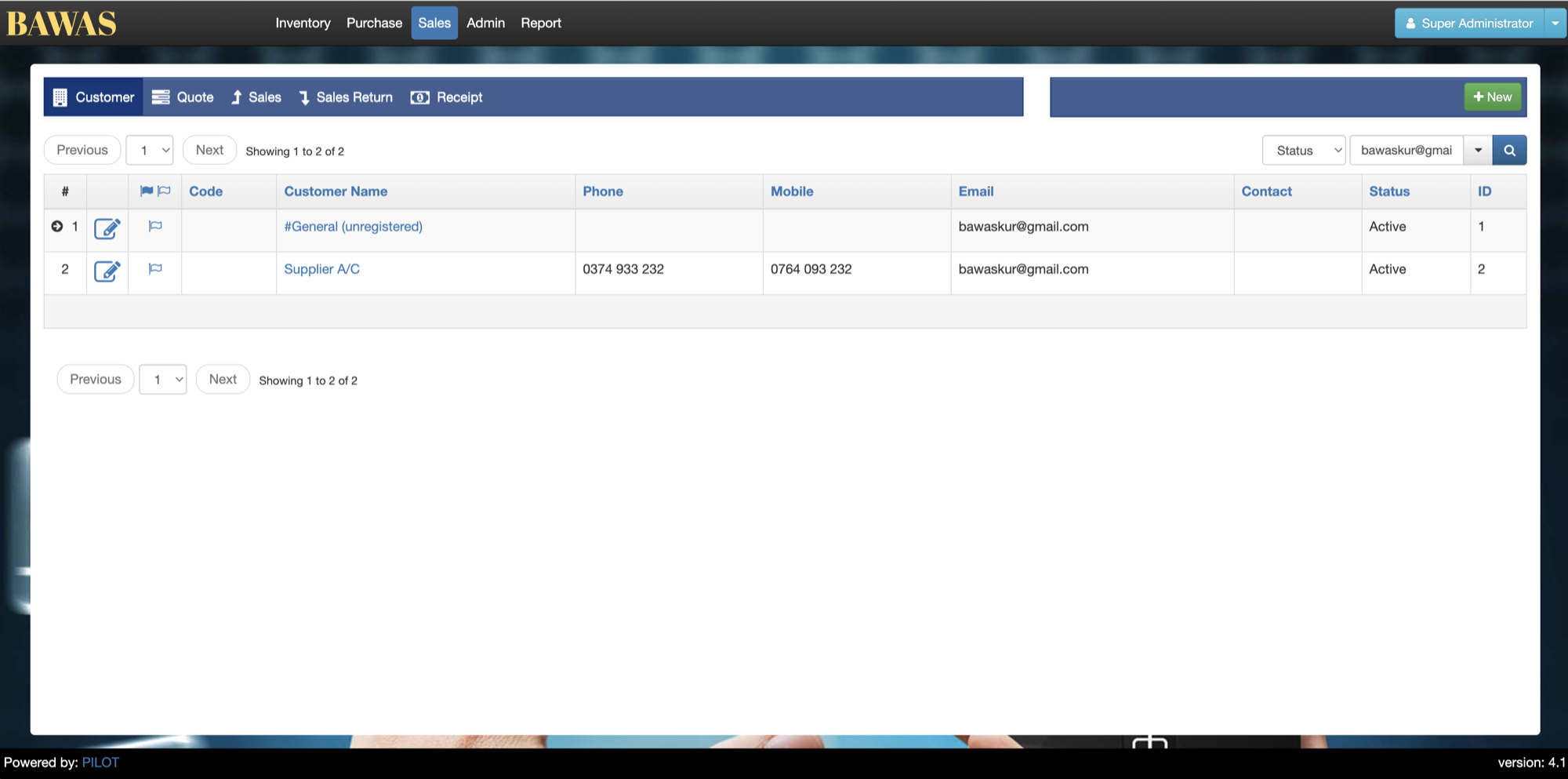 | |
| Record ID | 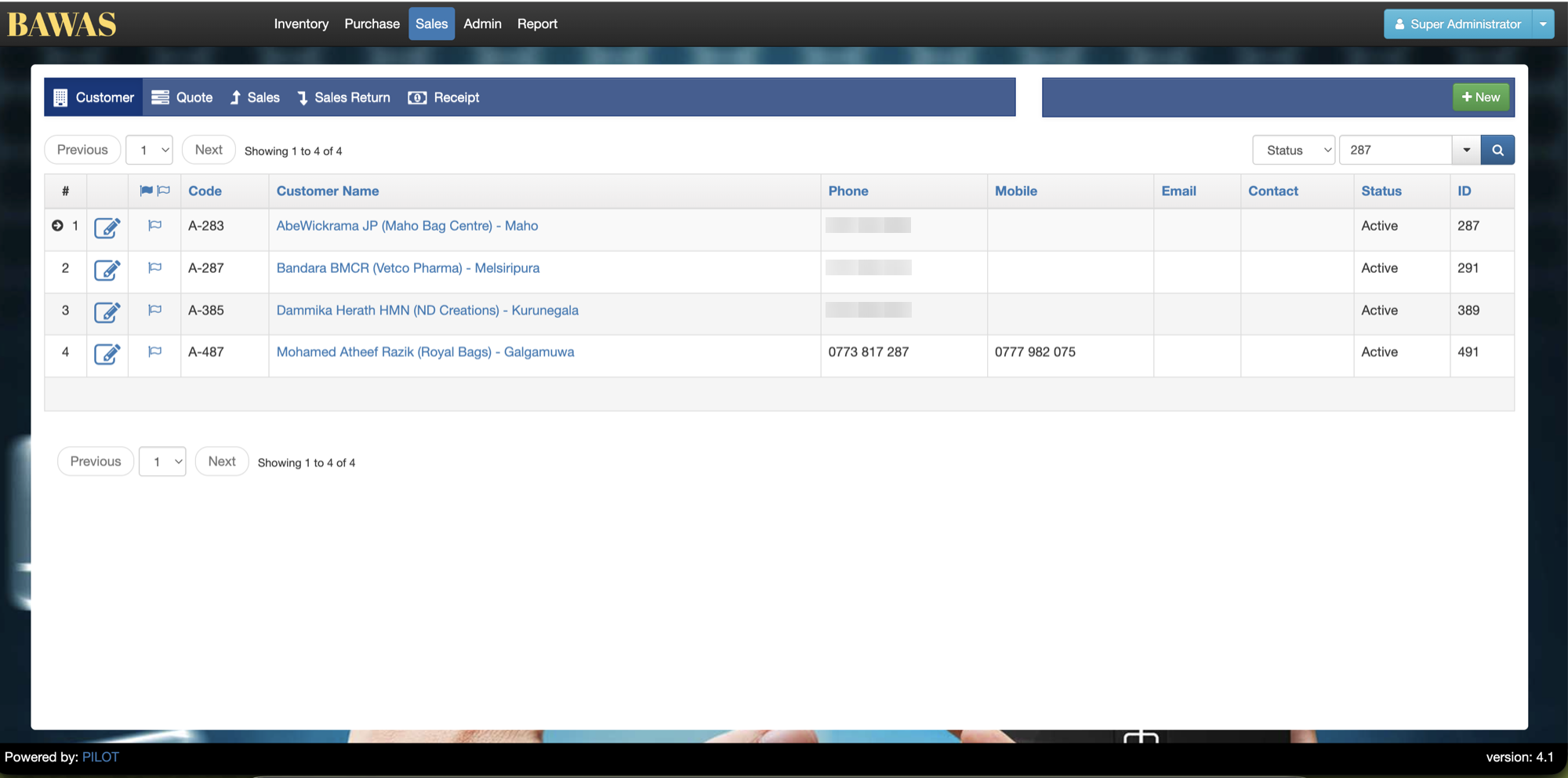 |
| Name | 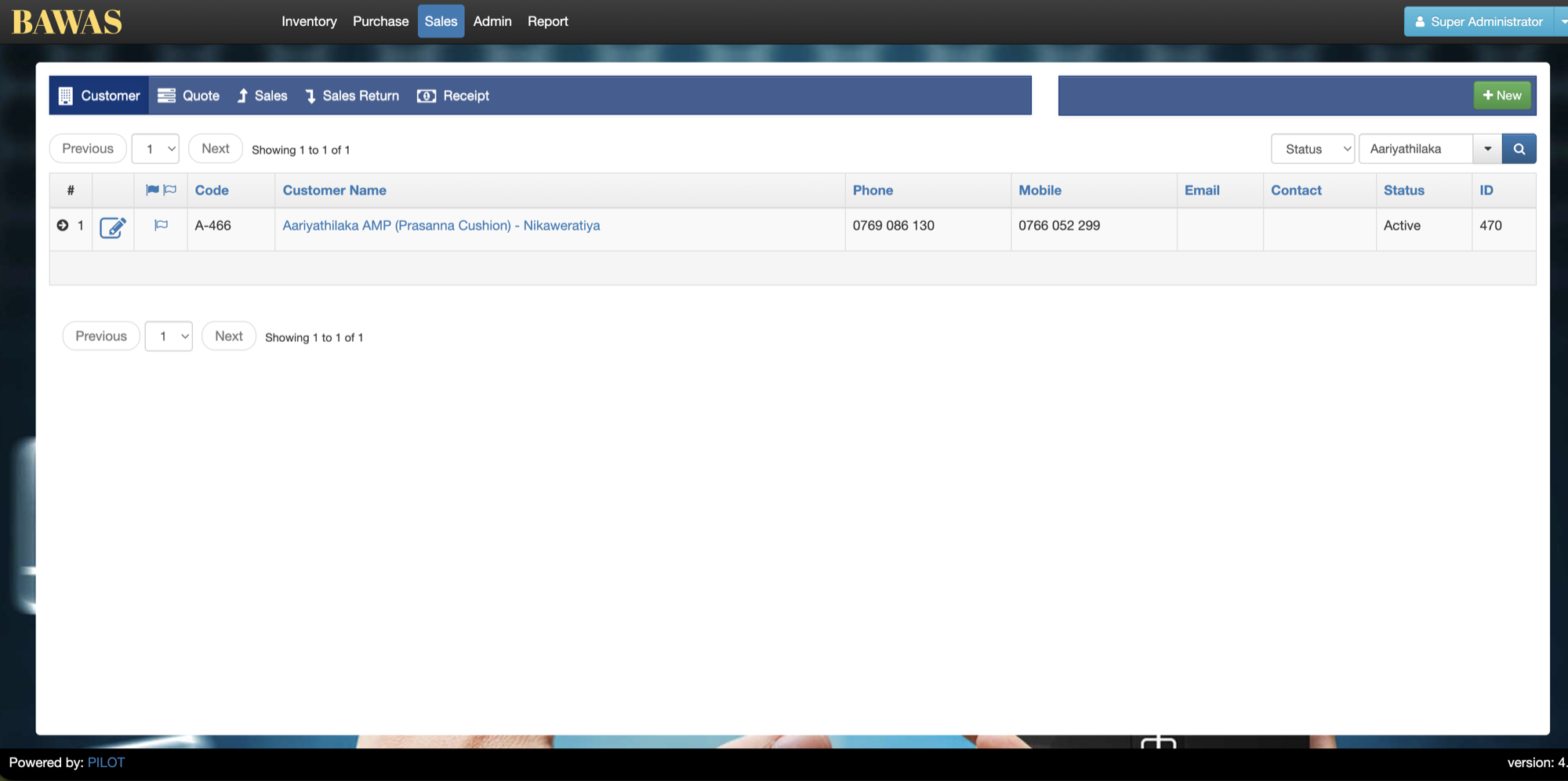 |
Keyword Search can still auto-focus when the list opens (for example query Ahm). Status and + New work as before alongside the new contact columns.
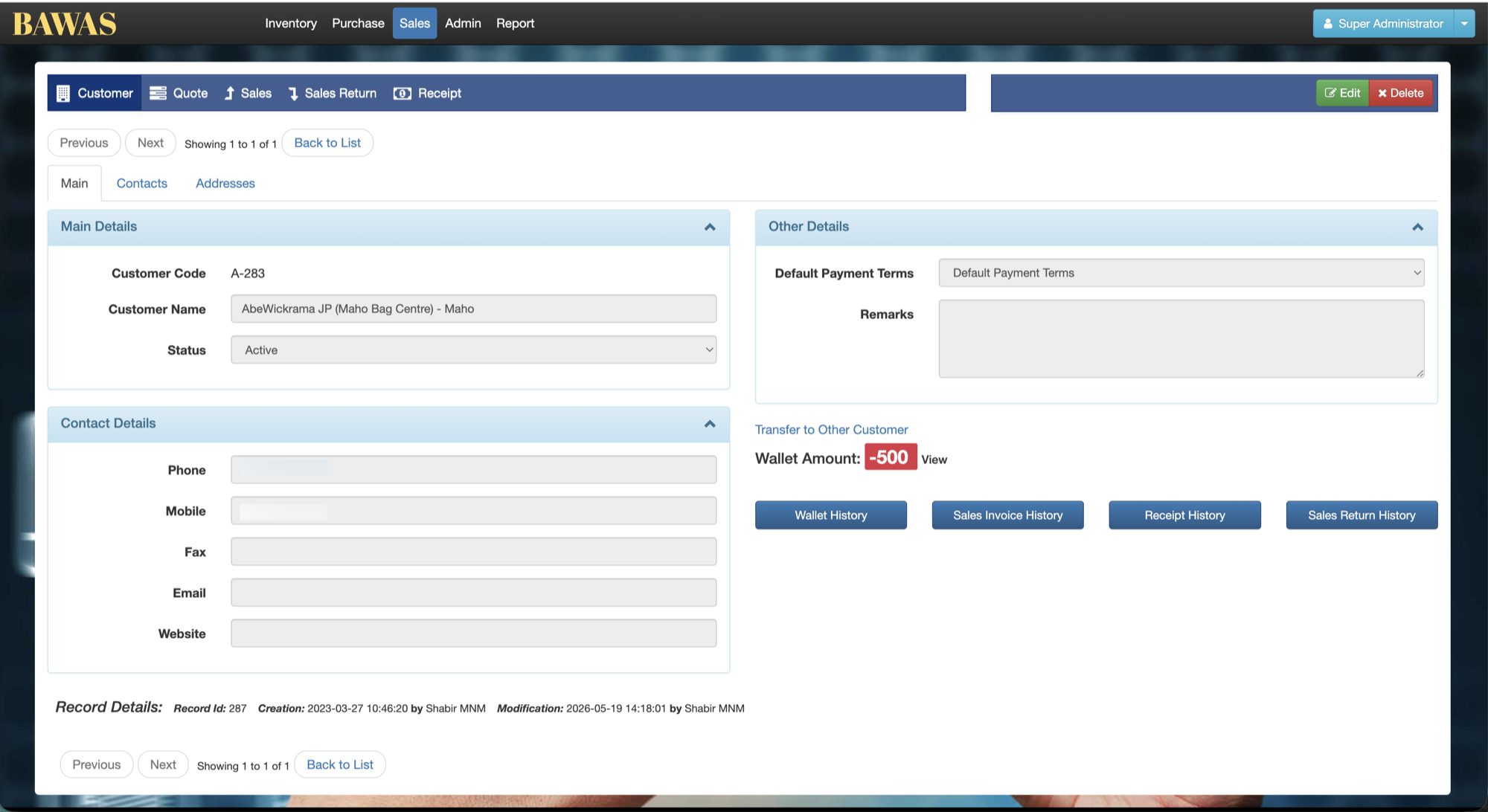
Customer Details
The customer Main tab shows Customer Name, Status, Contact Details, Payment Details, Wallet Amount, and shortcuts to Wallet History, Sales Invoice History, Receipt History, and Sales Return History. Save after any change that affects open sales or prints.
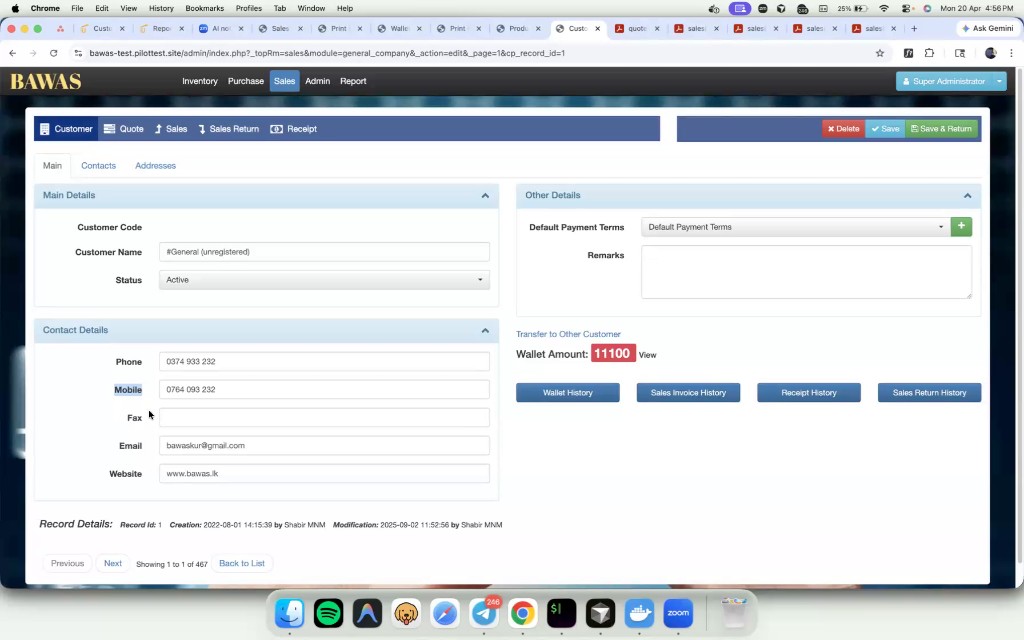
Customer Details — wallet and history
Use Transfer to Other Customer and Wallet Amount when moving credit between accounts—see Admin wallet.
Customer management covers the list (Phone, Mobile, no Fax on grid), search focus, and the edit screen. Keep contacts current before large orders. For discount and adjust / rounding on a sale, see Sales discount & adjustment. For print layout (phone, mobile, additional info), see Sales print-phone and mobile. For wallet transfers, see Admin-wallet.