Dashboard
Overview
After login, staff use the top menu (Inventory, Purchase, Sales, Admin, Report) to reach each backend area.
Purpose
Provide a consistent entry point for daily admin work without using the participant portal.
Features
- Role-based menu visibility.
- Sub-tabs per module (for example Sales → Customer, Quote, Sales).
- + New and search on list screens.
Workflow
There is no separate dashboard tile in all builds; navigation starts from the menu bar.
Steps
- Sign in to the admin URL.
- Choose the module for your task.
- Open the sub-tab (list or form).
- Complete save or confirm actions.
- Sign out on shared PCs.
Validation Rules
| Rule | Detail |
|---|---|
| Session | Expired sessions redirect to login |
| Role | Menus hide modules you are not allowed to use |
| Environment | Confirm hostname (test vs production) before data entry |
Screenshot Section
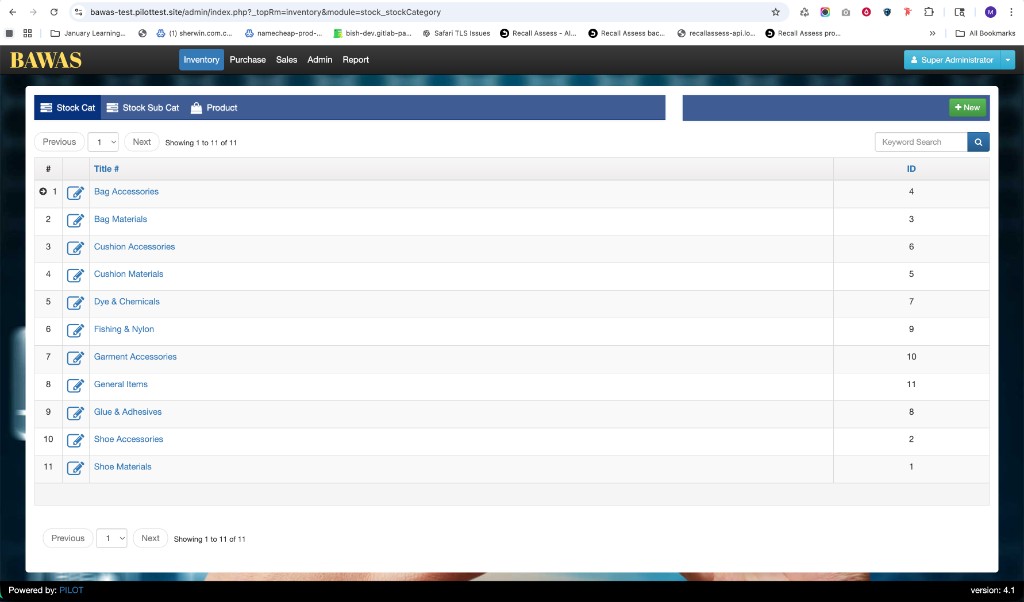
Replace with a capture of your landing menu or home module.
Summary
Know your module and sub-tab before entering data. Deep workflow guides live in the other Admin app pages.