Reports
Menu: Report
Manage Reports
Open Report from the top menu. The landing page lists Sales Reports tile buttons and a Choose Report Name dropdown. Pick a report, click Show Report, set filters on the next screen, then use PDF to export when the output is correct.
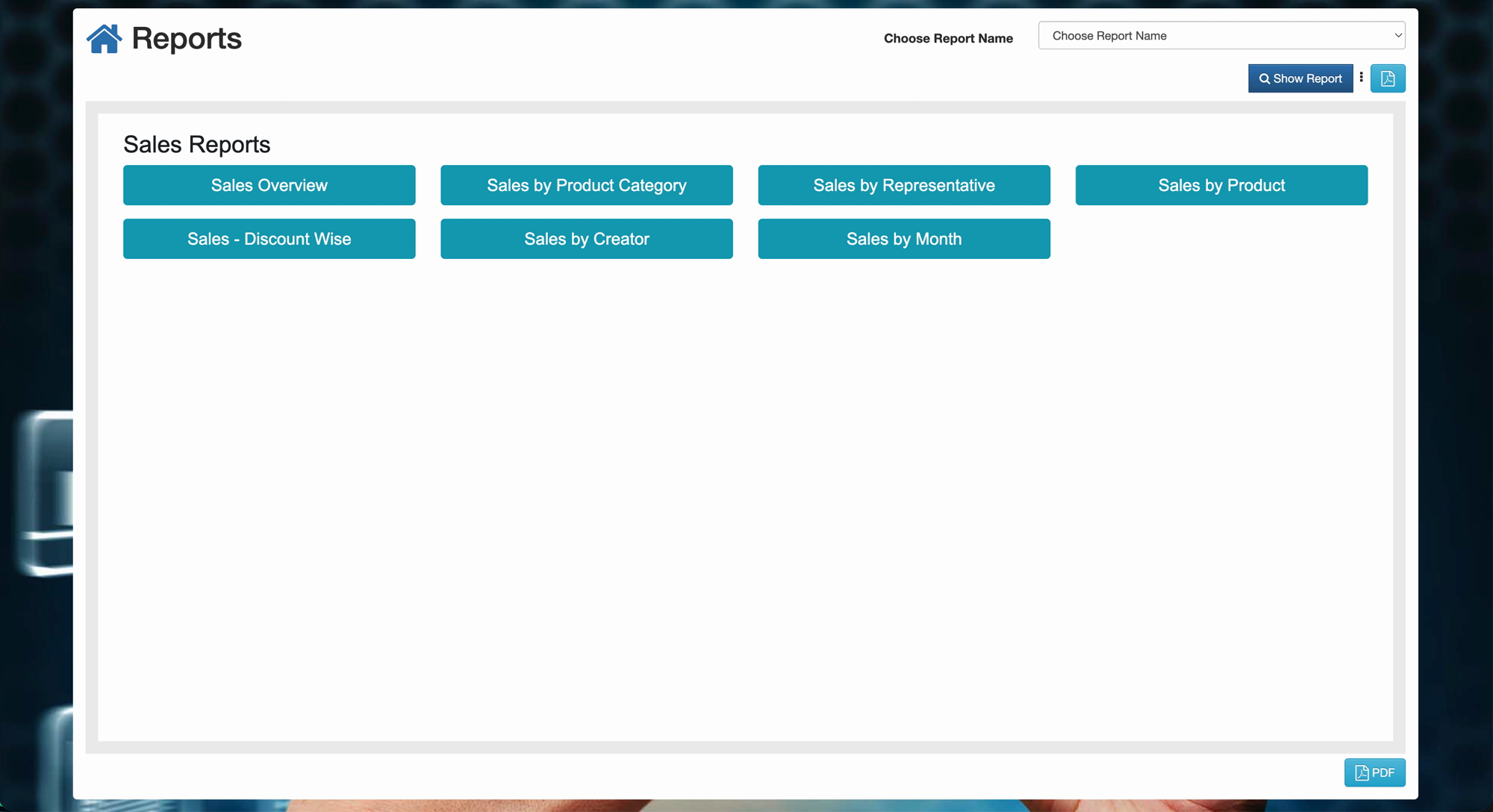
Give administrators one place to open standard sales reports without writing queries.
Special features
- Sales Reports tile buttons:
- Sales Overview
- Sales by Product Category
- Sales by Representative
- Sales by Product
- Sales - Discount Wise
- Sales by Creator
- Sales by Month
- Choose Report Name dropdown (searchable) at the top right.
- Show Report button to generate the selected report.
- PDF button to export the result (bottom right when a report is shown).
- Sales reports show Discount and Adjust / Rounding columns where the bill has those values — same as on the sales edit screen (see Sales discount & adjustment).
- Total on each row is the final bill amount after discount and adjustment.
- Shop multi-select filter on sales reports — choose one shop or several (see Multi-Shop / Staff Management).
Workflows
Use the hub to pick a report, then complete filters on the next screen (Shop, dates, customer, etc.) before you view or export.
Steps
- Open Report from the top menu.
- On the Sales Reports panel, click a tile (for example Sales Overview) or choose the same name from Choose Report Name.
- Click Show Report.
- On the report screen, set filters:
- Shop — keep the current shop, or select additional shops to combine.
- Date range, customer, and other fields shown for that report.
- Click Show Report again if you changed filters.
- Review the on-screen table and totals.
- Click PDF to download when the output is correct.
Validation rules
| Rule | Detail |
|---|---|
| Report selection | Select a report from a tile or the dropdown before Show Report |
| Role access | Your user group must allow the chosen report |
| Shop filter | Only shops assigned to you appear; default is the shop selected in the top bar |
| Filters | Each report may require dates or other fields—complete them on the report screen |
| Empty results | No rows usually means no data in range, wrong shop selection, or unconfirmed documents—check Sales and Receipts |
| PDF export | Available after the report loads; export only reviewed figures |
| Discount / Adjustment | Shown on sales reports; Total is after both |
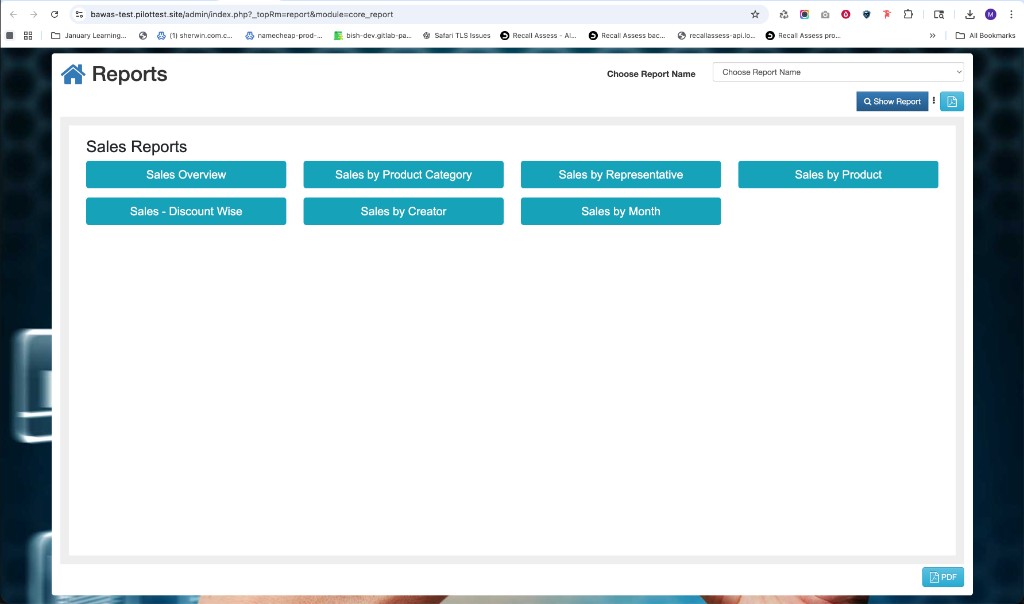
Manage Reports — hub
The Sales Reports hub is the starting point for all sales analytics. Pick the report type here, then apply filters on the next screen. If figures disagree with operations, correct Sales and Receipt data before re-running.
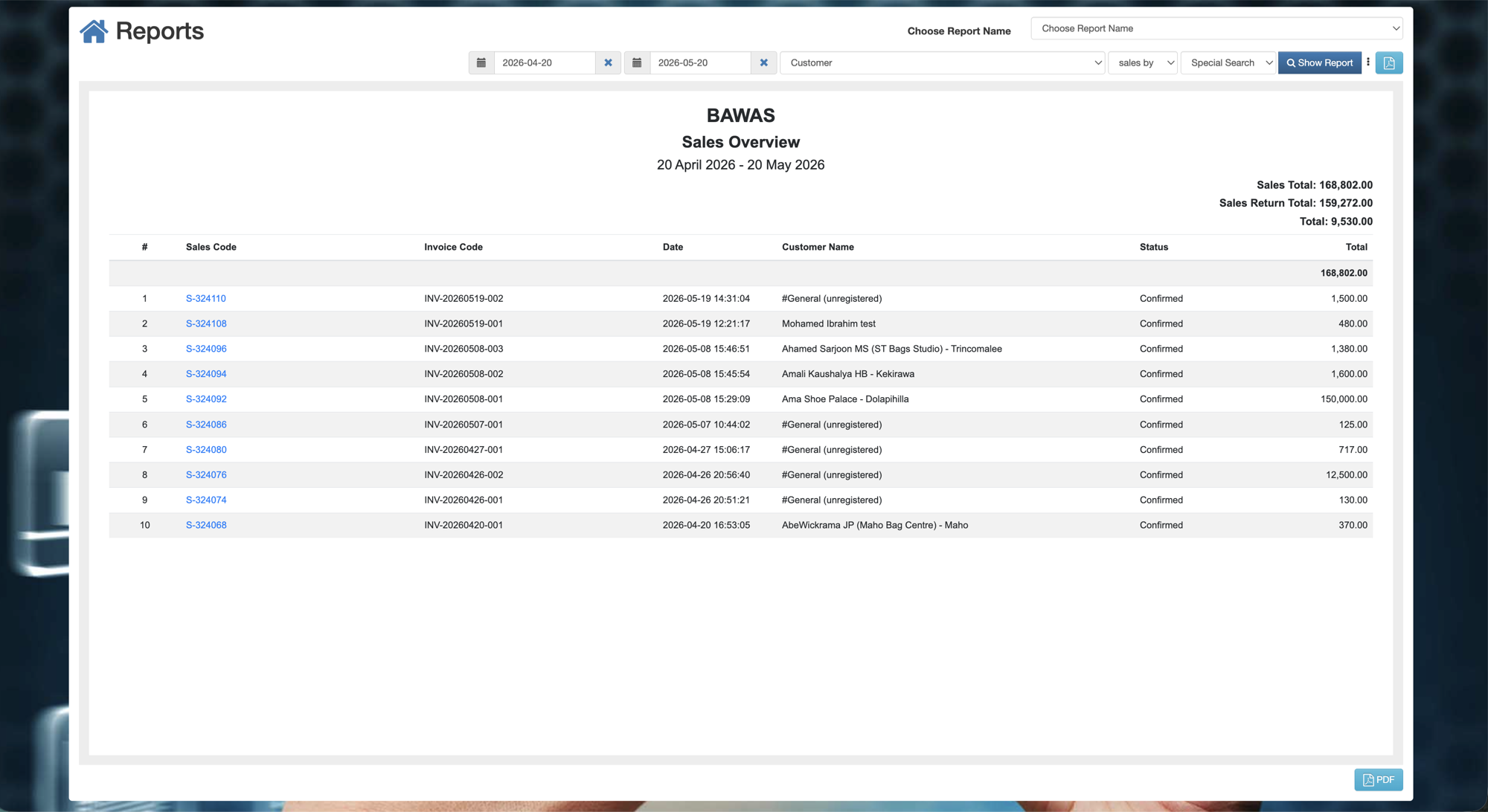
Manage Sales Summary — list view
The Sales Overview report lists confirmed sales with Sales Code, Invoice Code, Date, Customer Name, Status, Discount, Adjustment, and Total. Summary shows Sales Total, Sales Return Total, and net Total. Total matches the confirmed sale after discount and adjustment. Use PDF to export.
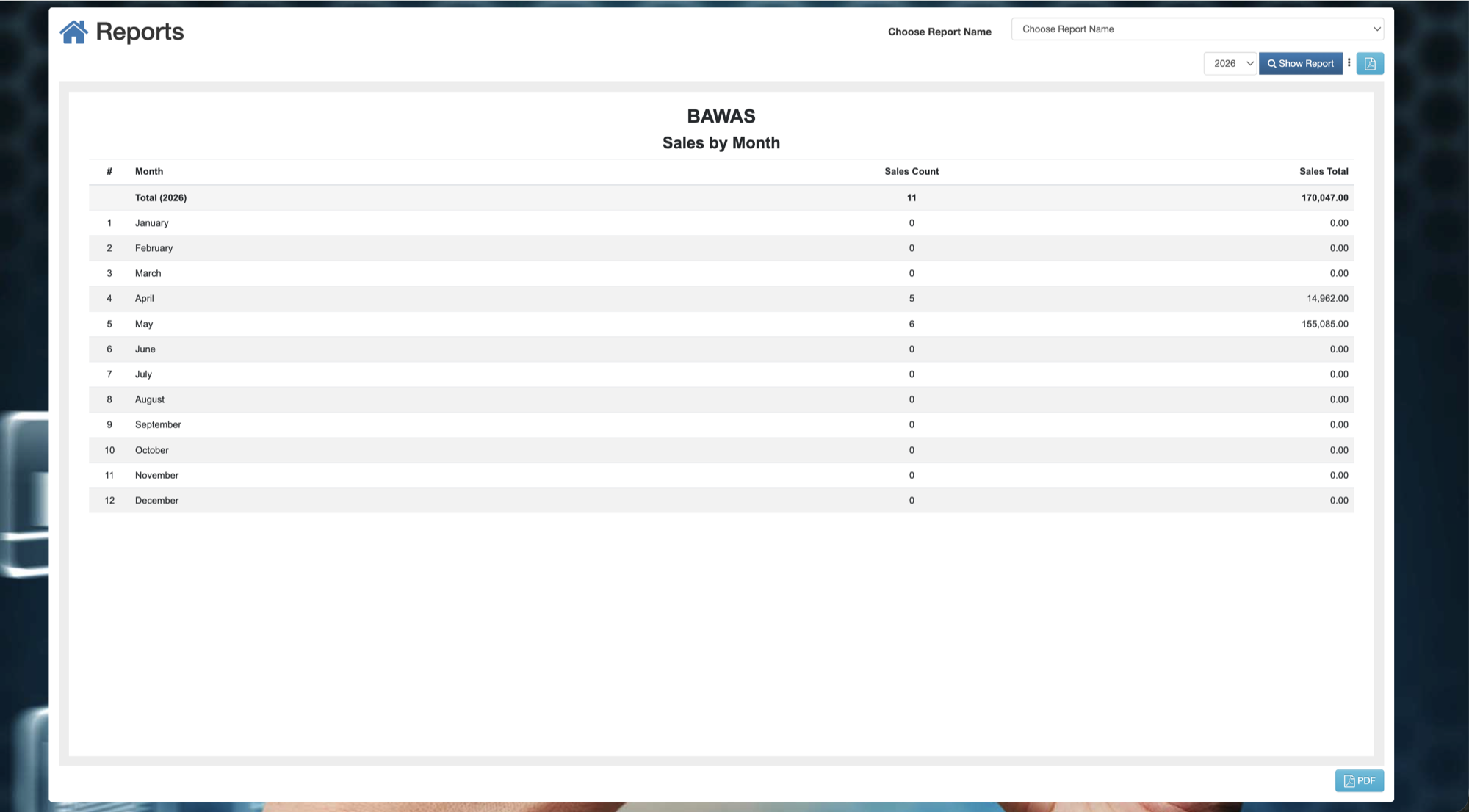
Manage Sales by Month — list view
Sales by Month groups confirmed sales by calendar month. Each month shows Discount and Adjustment totals plus Sales Total. Use it for period comparisons and month-end review.
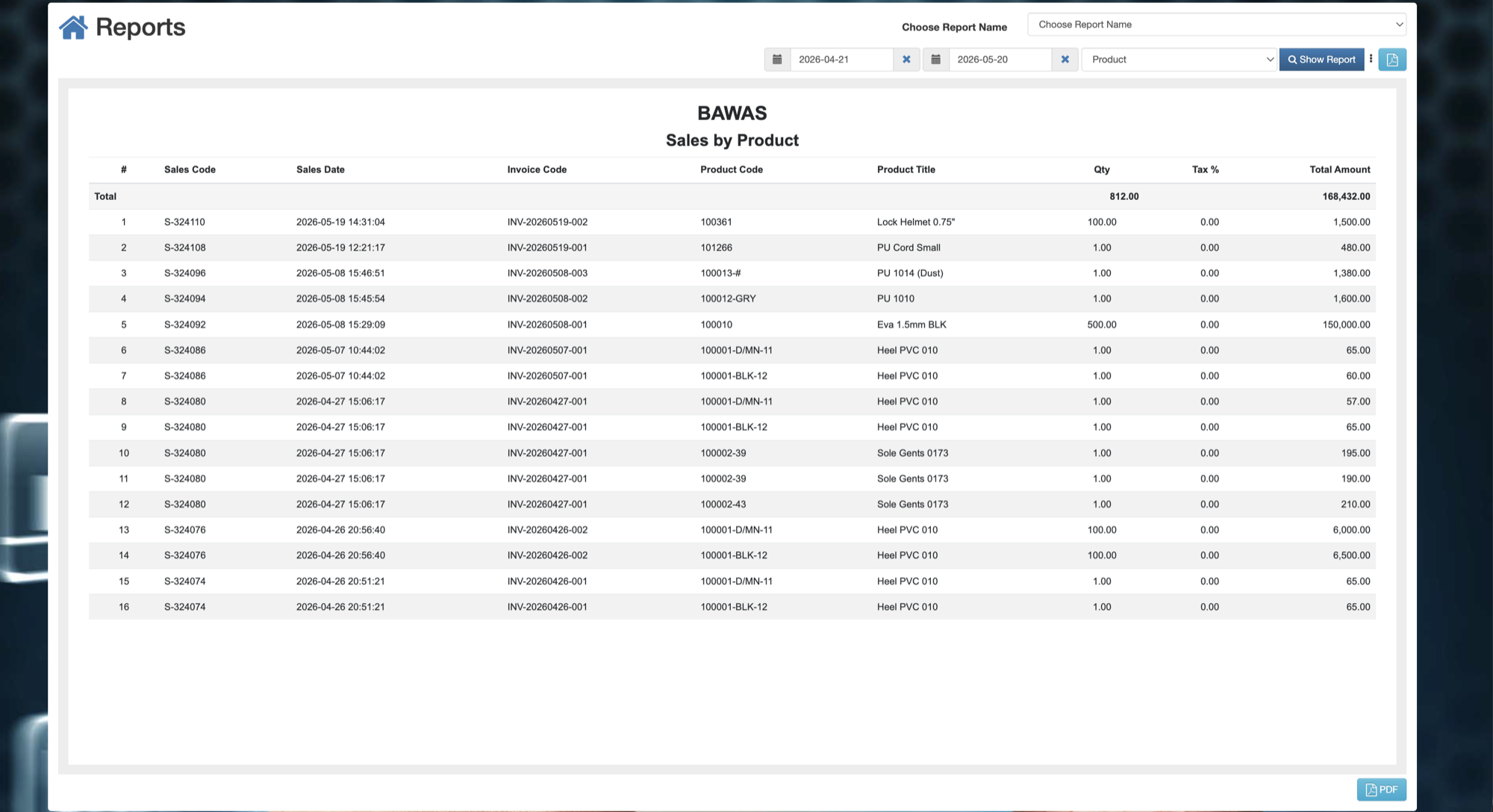
Manage Sales by Product — list view
Sales by Product shows quantity and value per product code, with Discount and Adjustment columns. Filter by date range and customer where the screen allows.
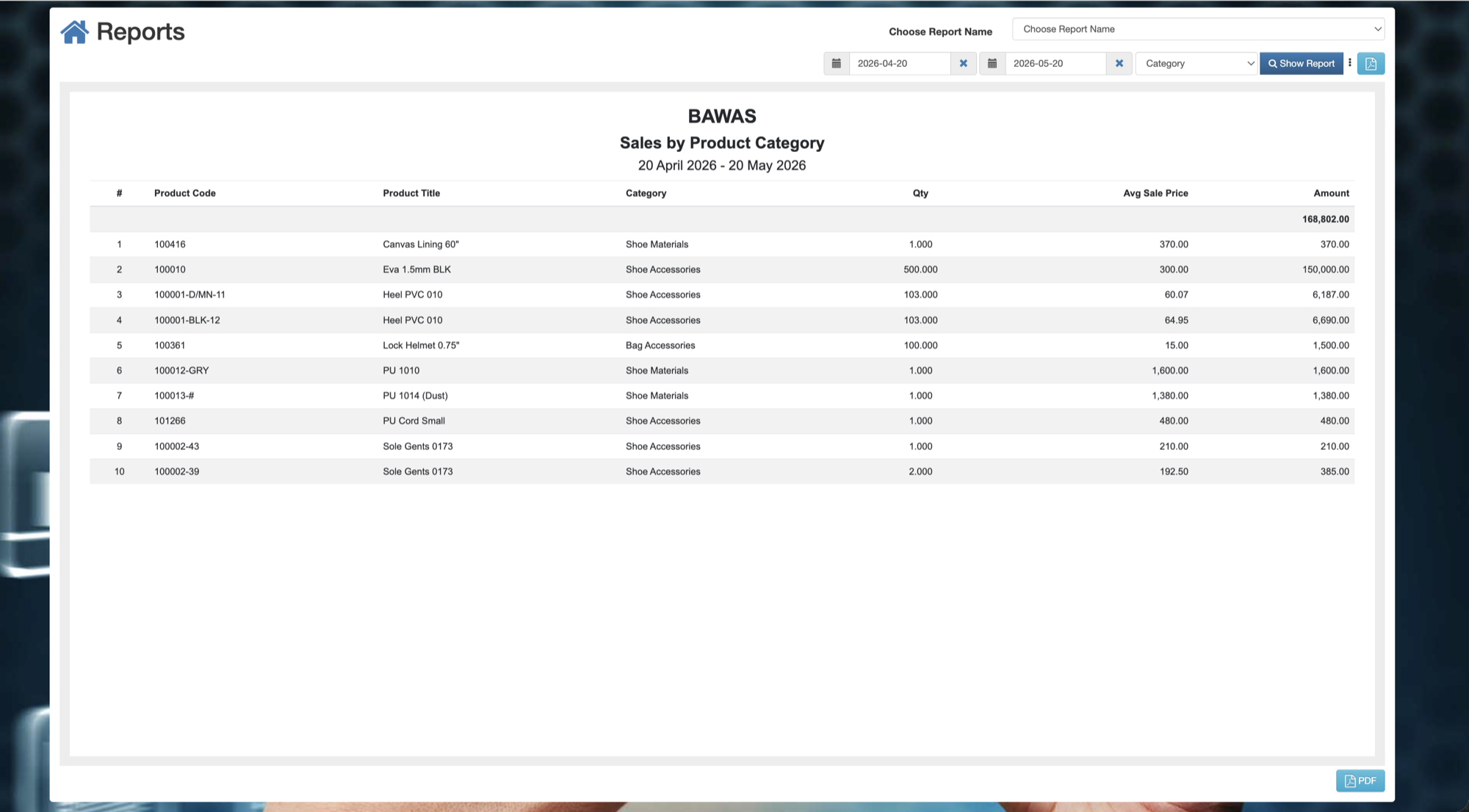
Manage Sales by Product Category — list view
Sales by Product Category rolls sales up to stock category level, including Discount and Adjustment totals, for range planning and buying decisions.
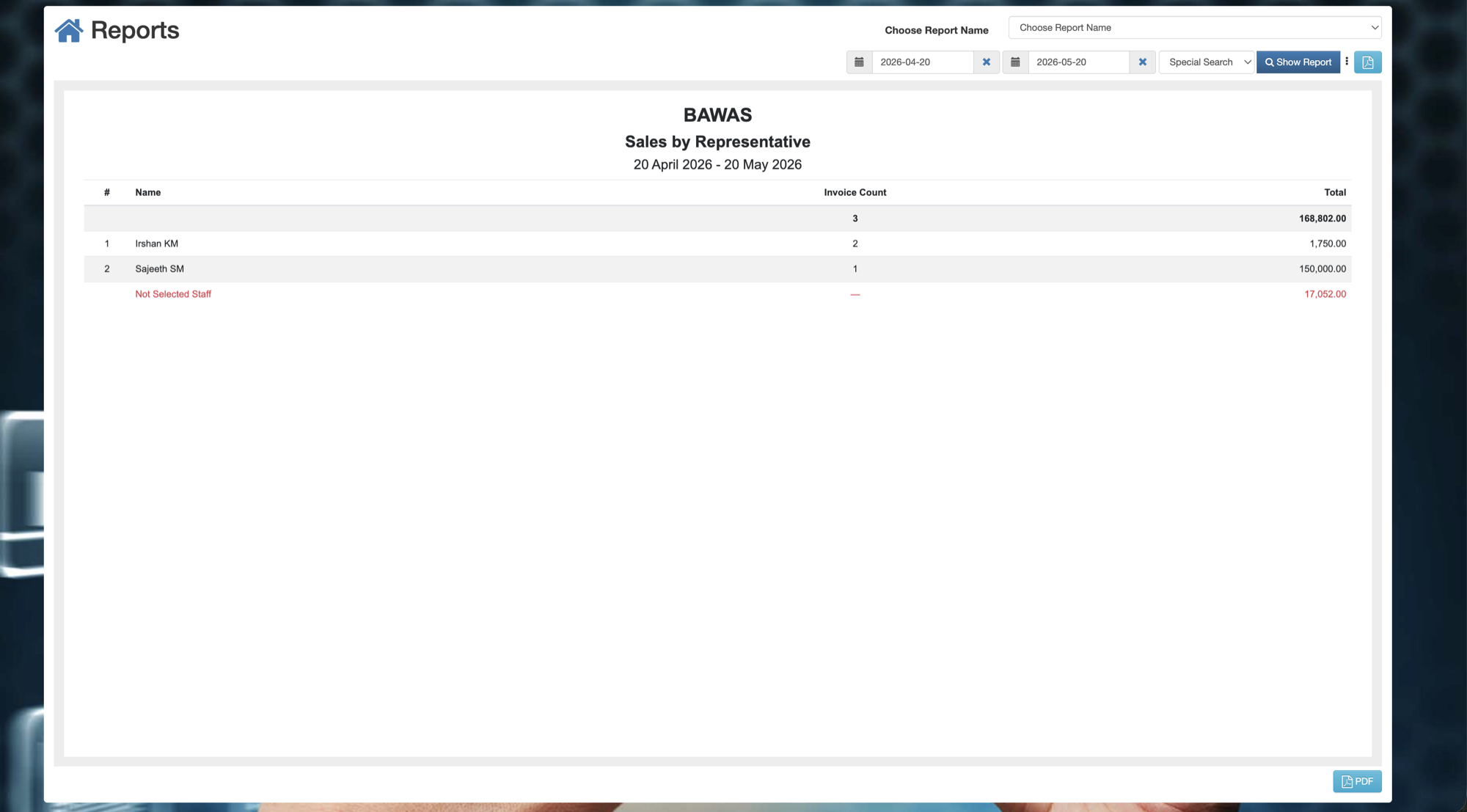
Manage Sales by Representative — list view
Sales by Representative attributes sales to Prepared By staff, with Discount, Adjustment, and Total per representative.
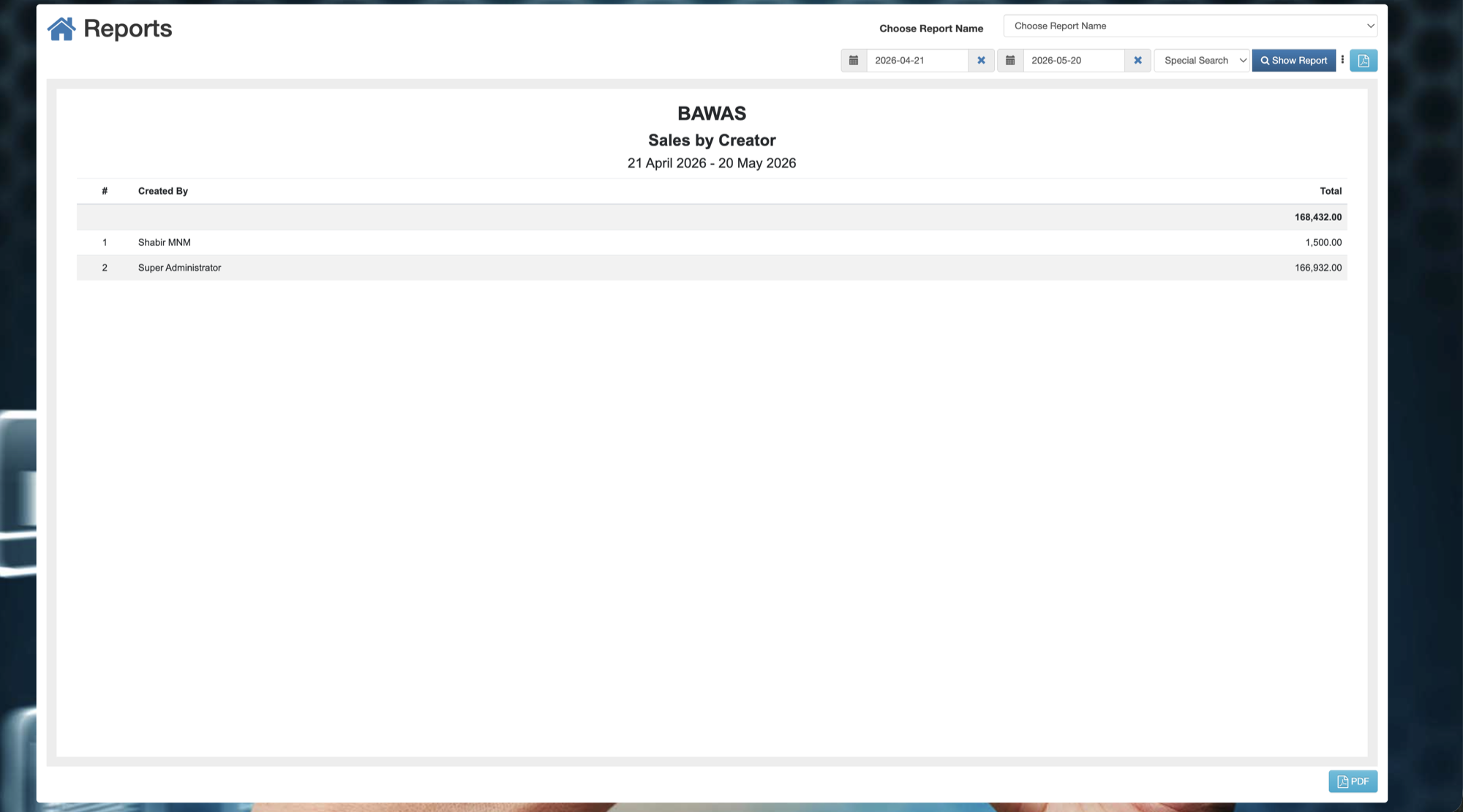
Manage Sales by Creator — list view
Sales by Creator shows who created each sale, with Discount, Adjustment, and Total — useful for audit and commission checks.
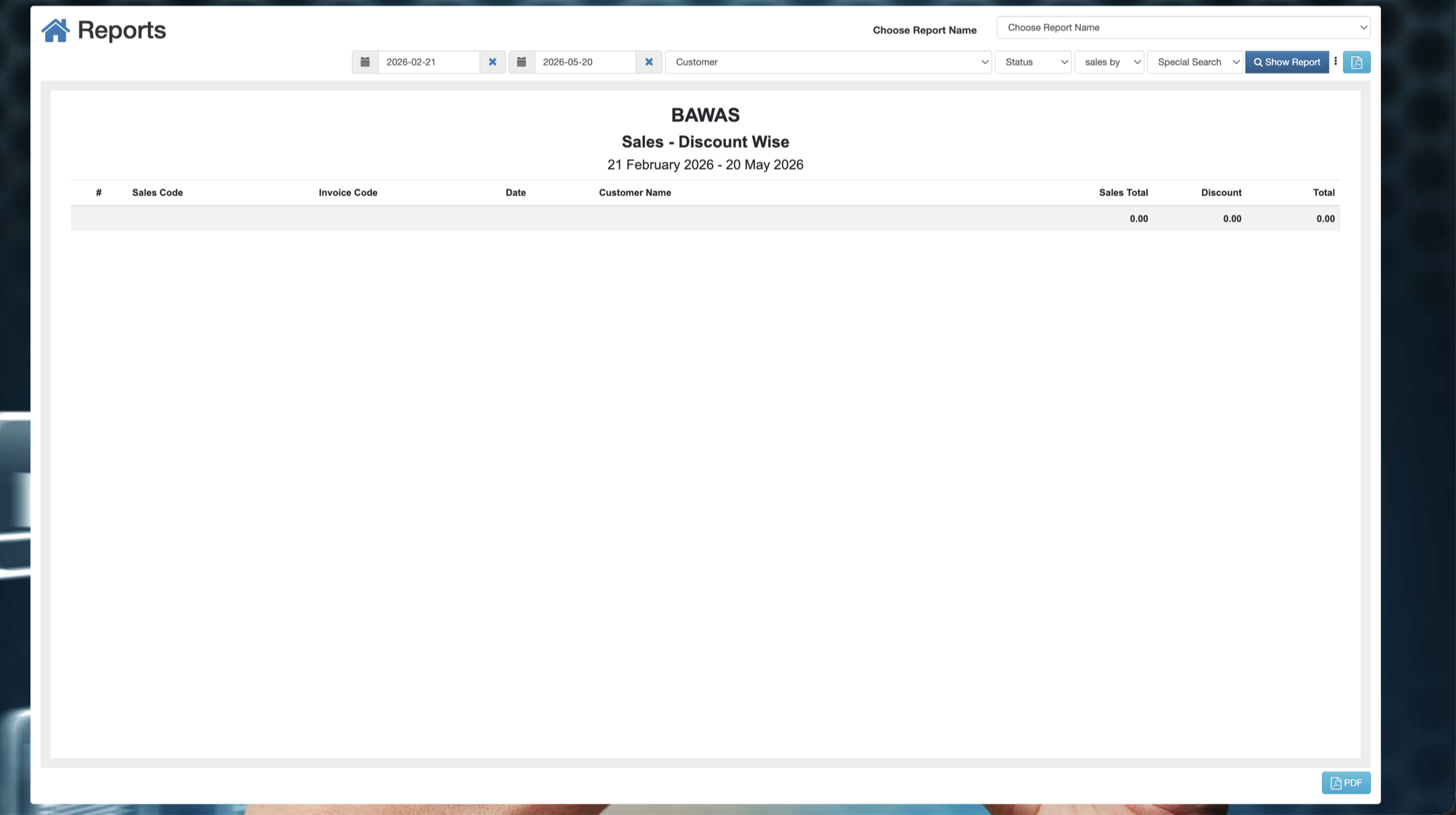
Manage Sales Discount Wise — list view
Sales - Discount Wise lists sales where a bill discount applies. Columns include Sales Total, Discount, Adjustment, and Total. Reconcile with Sales discount & adjustment and Sales management before month-end.