Supplier management
Menu: Purchase → Supplier
[BAWAS] Purchase: Auto-update supplier Unit Price from last confirmed purchase & block manual edit — client requested, 10 August 2026 (for future reference). Unit Price on Supplier Product (and Product → Suppliers) is read-only and syncs from the last Confirmed purchase for that supplier/product.
Suppliers are the vendors you buy stock from. The Purchase module keeps supplier master data, contact and address records, and the product catalogue each supplier supplies with Unit Price values. Those prices feed purchase documents and costing when you receive goods.
Use the supplier list to find and maintain vendors; open a supplier to edit core details, contacts, addresses, and linked products before creating Purchase or Purchase Return documents.
Special features
- Sub-tabs under Purchase: Supplier, Purchase, and Purchase Return.
- Supplier list columns: Supplier Name, Telephone, Email, Contact, Status.
- Status filter and Keyword Search on the list.
- + New to create a supplier.
- Edit screen tabs: Main, Supplier Contact, Supplier Address, Supplier Product.
- Main: name, status, phone, fax, email, website, payment terms, discount %, credit days, GST, remarks.
- Supplier Product: search by product code or title; Unit Price is read-only (from last confirmed purchase); Remarks remain editable.
- Row actions on the list: edit and flag icons; supplier name opens the detail screen.
- Save, Save & Return, and Delete on the edit screen.
Workflows
Start on the supplier list when you need to add a vendor or check contact details. Open a supplier when you must update payment terms or review linked product prices. To change a supplier’s unit price, confirm a purchase with the new price for that product—do not edit Unit Price on this tab.
Steps
- Open Purchase → Supplier from the top menu.
- Use Status or Keyword Search to find a supplier (for example Pidilite Industries (Fevicol)).
- Click + New to register a supplier, or open an existing name from the list.
- On Main, enter Supplier Name, Status, contact fields, and Payment Details (Default Payment Terms, Discount %, Credit (days)).
- Add or update rows on Supplier Contact and Supplier Address when needed.
- On Supplier Product, search products to link them; review the read-only Unit Price (from the last confirmed purchase for that supplier, when one exists). Add Remarks if needed.
- Click Save or Save & Return, then use Back to List to return to the grid.
- Create Purchase documents against this supplier—see Purchase print-align unit. After Confirm Purchase, supplier Unit Price updates automatically for the products on that purchase.
Validation rules
| Rule | Detail |
|---|---|
| Supplier name | Required on active suppliers |
| Status | Active suppliers appear on purchase supplier picklists |
| Payment terms | Default Payment Terms (for example Cash) applies to new purchases unless overridden |
| Unit price | Supplier Product Unit Price is read-only; it shows/updates from the last Confirmed purchase for that supplier and product |
| Product link | Only products linked on Supplier Product are available for that vendor on purchase lines |
| Search | Keyword search matches supplier name and related list fields |
| Record audit | Record Id, Creation, and Modification show who last changed the profile |
Manage Suppliers
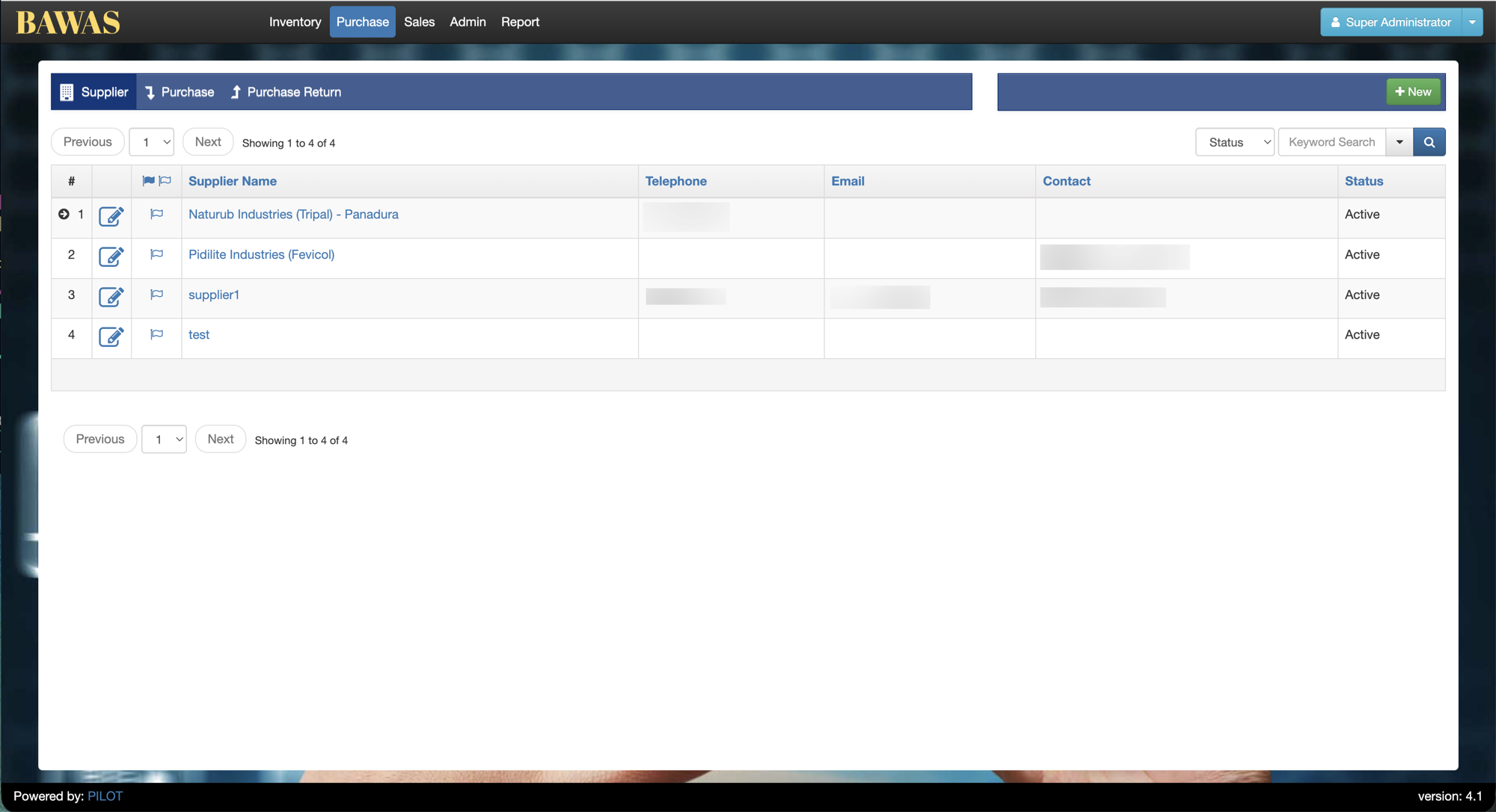
Manage Suppliers — list view
The Purchase → Supplier list shows all registered vendors with Supplier Name, Telephone, Email, Contact, and Status (for example Naturub Industries (Tripal) - Panadura, Pidilite Industries (Fevicol), supplier1, test—all Active in the sample). Use + New to add a supplier, or open a blue supplier name to edit. Status and Keyword Search narrow the grid; pagination shows 1 to 4 of 4 when the directory is small.
Keep telephone and contact fields current so purchase staff can reach the vendor when confirming orders or chasing delivery.
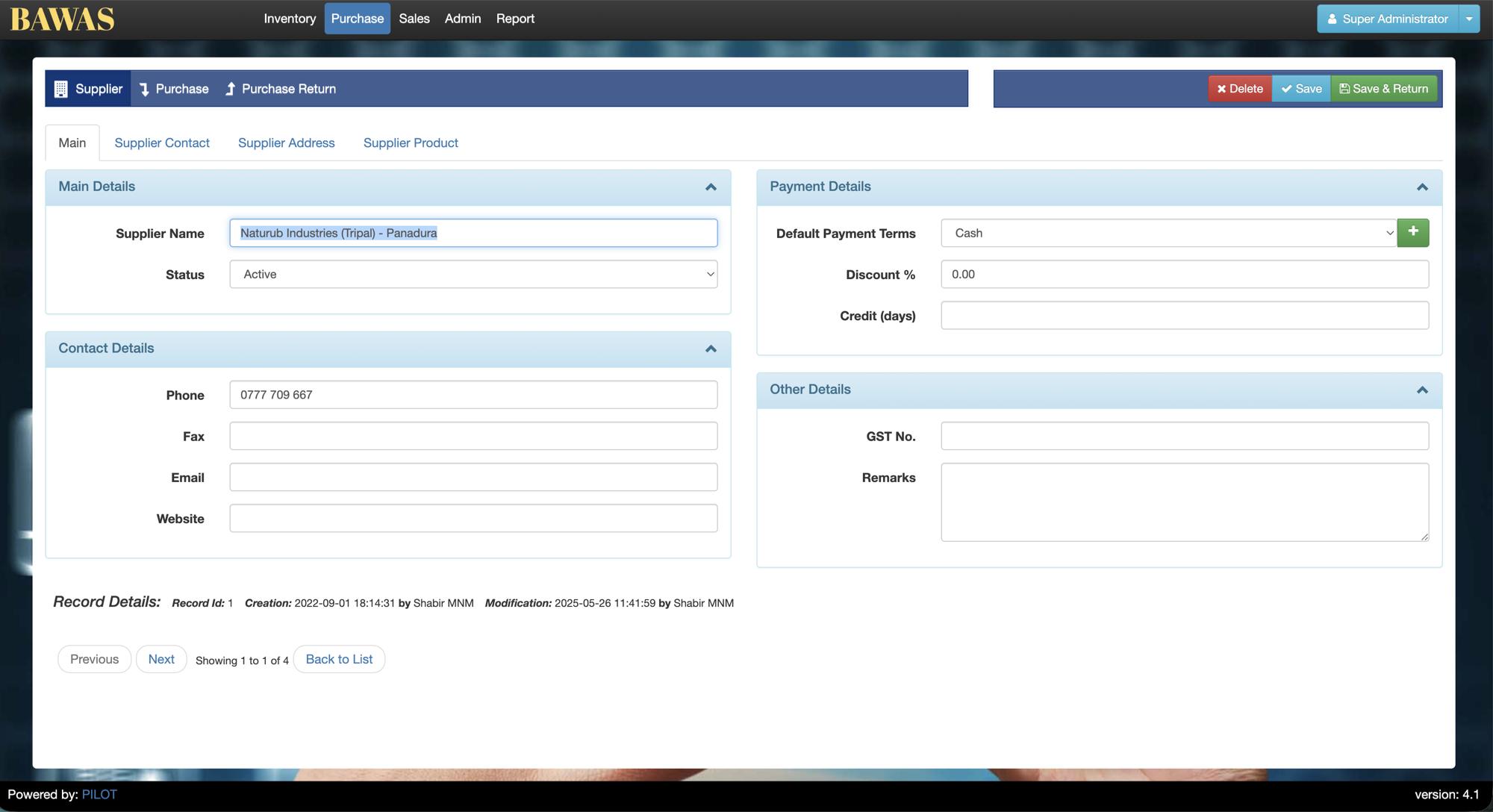
Supplier Details — Main tab
The Main tab holds core supplier data: Supplier Name (Naturub Industries (Tripal) - Panadura), Status (Active), Contact Details (Phone, Fax, Email, Website), Payment Details (Default Payment Terms Cash, Discount % 0.00, Credit (days)), and Other Details (GST No., Remarks). Delete, Save, and Save & Return sit at the top right. Footer metadata shows Record Id, Creation, and Modification for audit.
Payment terms and discount on this tab set defaults when you raise purchase documents for this supplier.
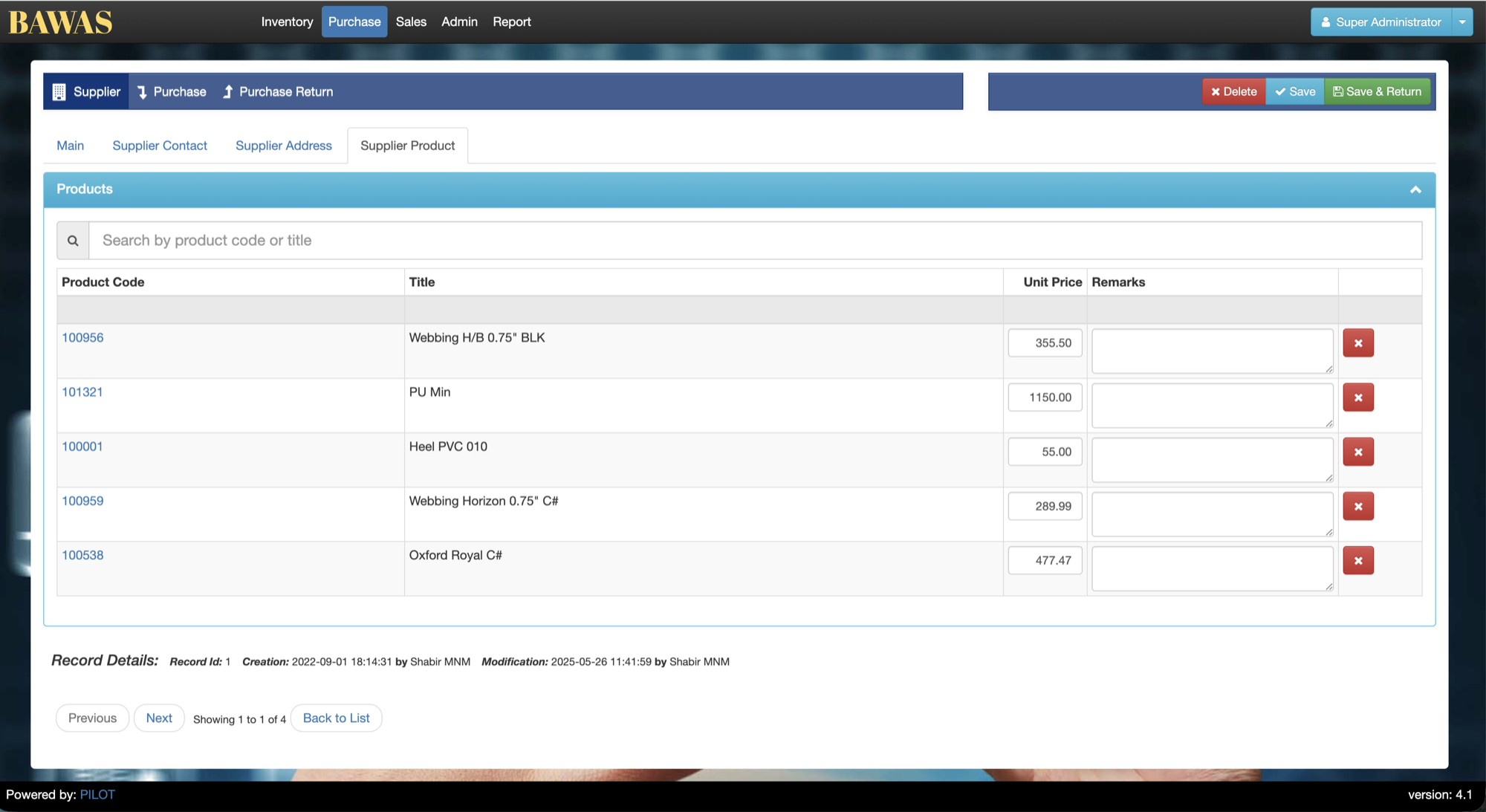
Supplier Details — Supplier Product tab
On Supplier Product, the Products panel lists items this supplier supplies. Search with Search by product code or title. Each row shows Product Code (link to the product), Title, read-only Unit Price (for example Webbing H/B 0.75" BLK 355.50, PU Min 1150.00, Heel PVC 010 1150.00), Remarks, and a remove action.
Unit Price cannot be edited here. It displays the price from the last Confirmed purchase for this supplier and product (or the stored link price if there is no confirmed purchase yet). When you Confirm Purchase, that purchase’s line prices update the matching supplier product prices automatically. Use Remarks for notes; purchase lines continue to seed from these supplier prices.
Related pages
- Purchase print-align unit — purchase list, edit screen, and ORDER / INVOICE print layouts.
- Product — product master and supplier links from the inventory side.