Purchase management
Menu: Purchase → Purchase
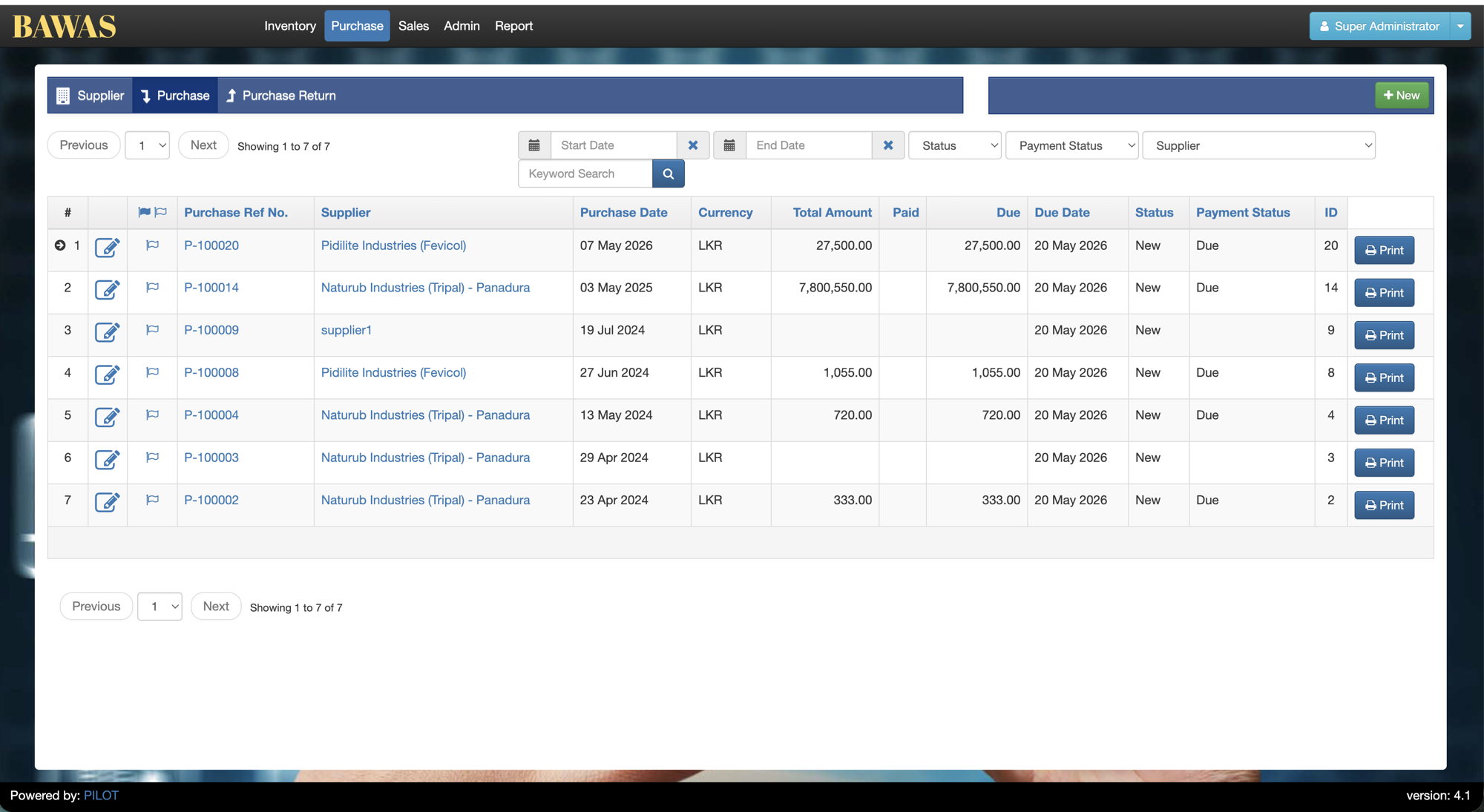
Purchase orders record stock bought from suppliers. The Purchase tab lists every order with reference number, supplier, dates, amounts, status, and print actions. Open a purchase to confirm receipt, enter line items, and print ORDER or INVOICE layouts.
Special features
- Sub-tabs: Supplier, Purchase, Purchase Return.
- List columns: Purchase Ref No., Supplier, Purchase Date, Currency, Total Amount, Paid, Due, Due Date, Status, Payment Status, Print.
- Filters: Start Date, End Date, Status, Payment Status, Supplier, Keyword Search.
- + New to create a purchase.
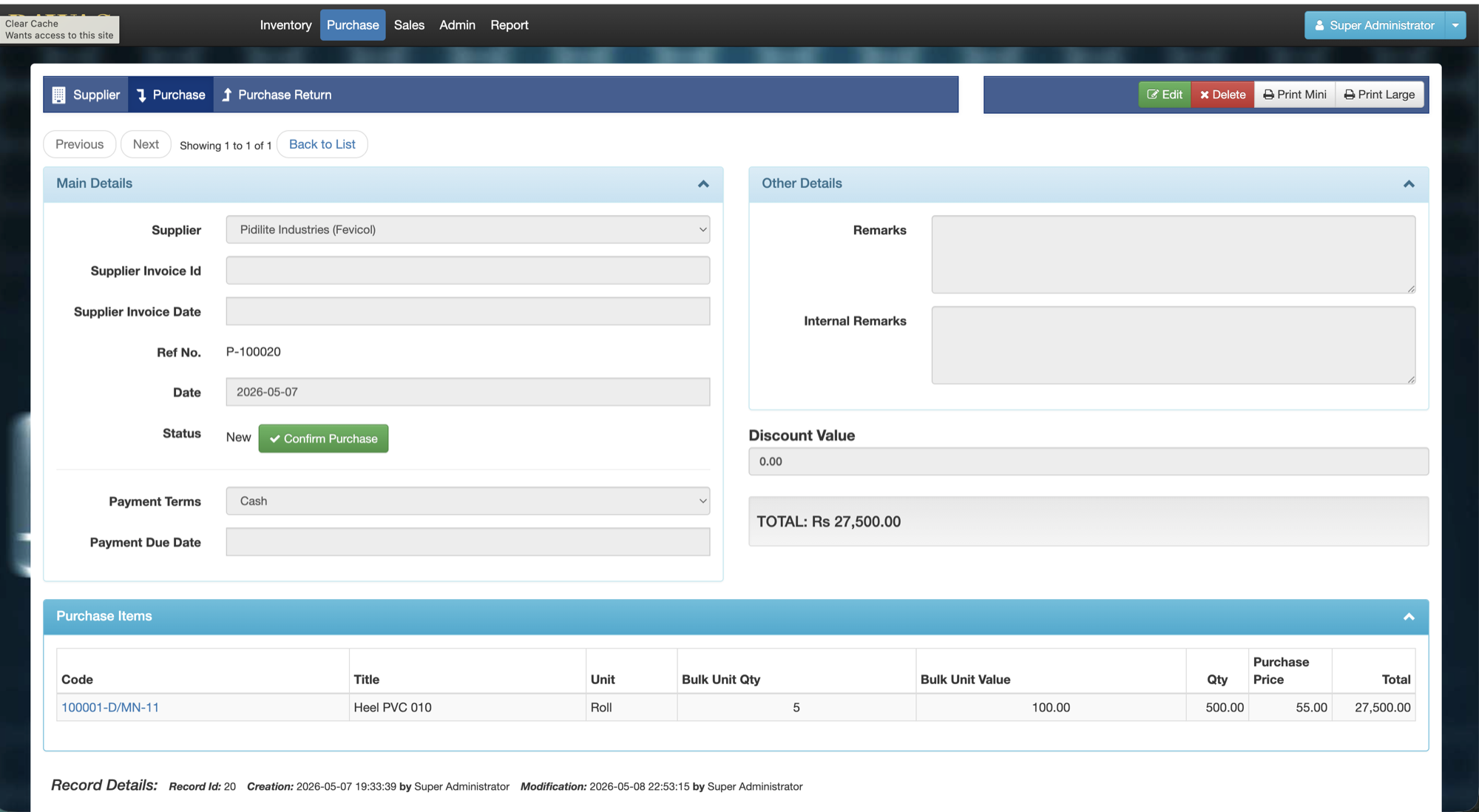
- Detail: Main Details, Other Details, Purchase Items grid.
- Confirm Purchase, Print Mini, Print Large on the detail screen.
- Line items: code, title, unit, bulk qty, qty, purchase price, line total.
- Products with variants: pick the variant SKU on Add Products; stock increases on that variant after confirm (same as sales/billing).
Workflows
Use the list to find open or due purchases; open a row to add items or confirm before printing.
Steps
- Open Purchase → Purchase.
- Set date range or Supplier filter, or use Keyword Search.
- Click + New or open a Purchase Ref No. (for example P-100020).
- Select Supplier, Payment Terms, and add rows on Purchase Items.
- For variant products, search the parent, choose the variant (for example 100538-L/MN), then set qty and price.
- Click Confirm Purchase when goods and totals are correct — stock updates only after confirm, and supplier Unit Price for those products is updated from this purchase’s line prices (client requested, 10 August 2026; see Supplier management).
- Use Print Mini or Print Large—see Print align unit.
- Back to List when finished.
Check stock after confirm
Purchase Items shows what you bought; it does not show warehouse stock.
- Open Inventory → Product → parent product → Stock History.
- Open the variant panel that matches the purchase line code.
- Confirm a yellow Purchase row and an updated NET STOCK on that variant.
Parent Stock on Add Products shows the sum of active variants for convenience. Stock History still keeps separate parent and variant panels. See Product and Product Variants.
Validation rules
| Rule | Detail |
|---|---|
| Supplier | Required on every purchase |
| Status | New purchases are editable until confirmed |
| Payment status | Due when balance remains on the order |
| Totals | TOTAL must match sum of Purchase Items |
| Ref no. | Purchase Ref No. is system-generated and unique |
| Variant stock | Confirmed purchase of a variant updates that variant’s stock, not the parent |
Manage Purchases
Manage Purchases — list view
The Purchase list shows orders such as P-100020 to Pidilite Industries (Fevicol) on 07 May 2026, total 27,500.00 LKR, status New, payment Due. Filter by dates, Status, Payment Status, or Supplier; use Print per row after the order is ready.
Purchase Details
Purchase P-100020 for Pidilite Industries (Fevicol) dated 2026-05-07, status New, total Rs 27,500.00. Line Heel PVC 010 (100001-D/MN-11): 5 rolls, qty 500.00, price 55.00, line total 27,500.00. Use Confirm Purchase then Print Mini or Print Large before sending to the supplier.
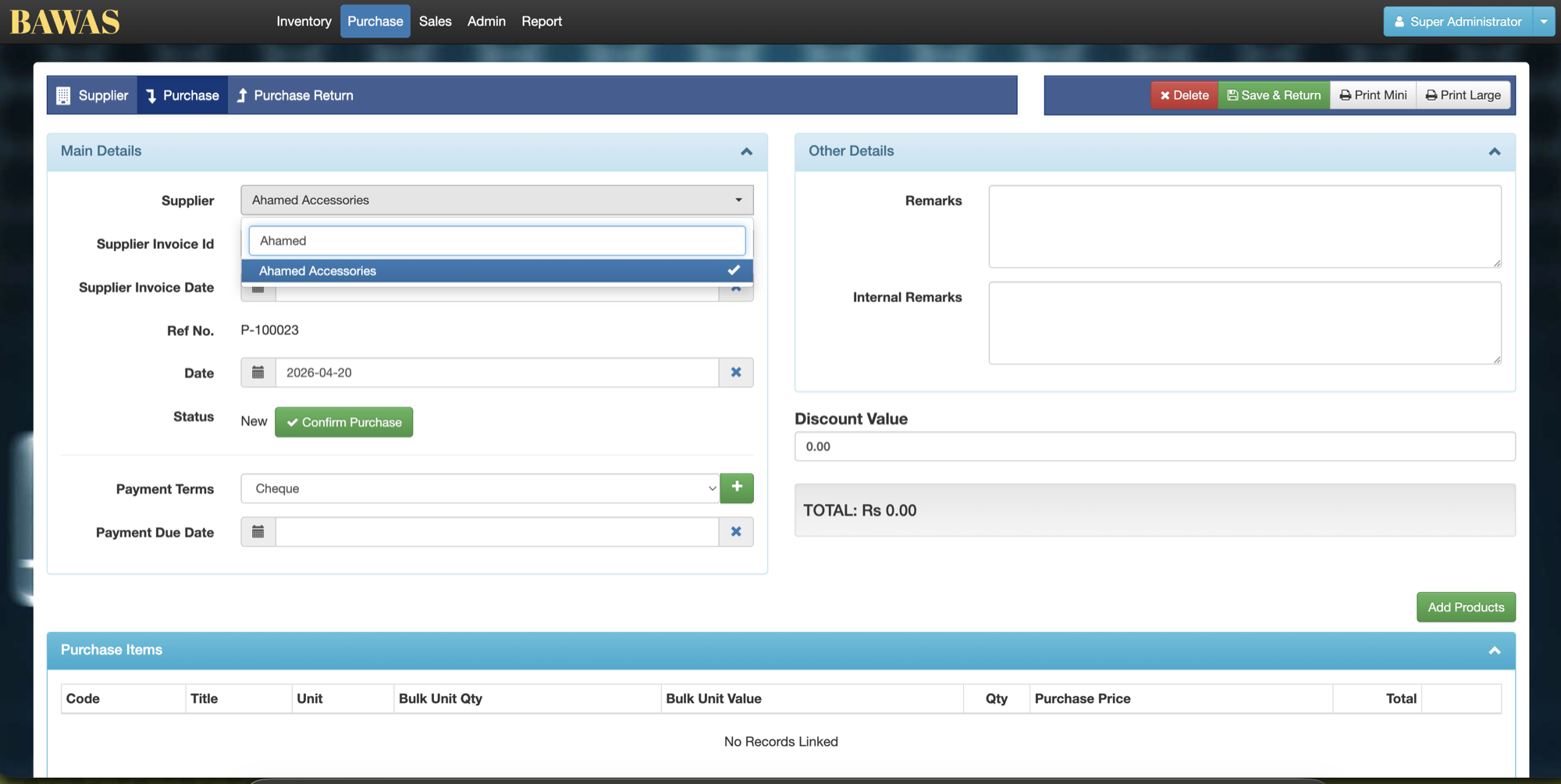
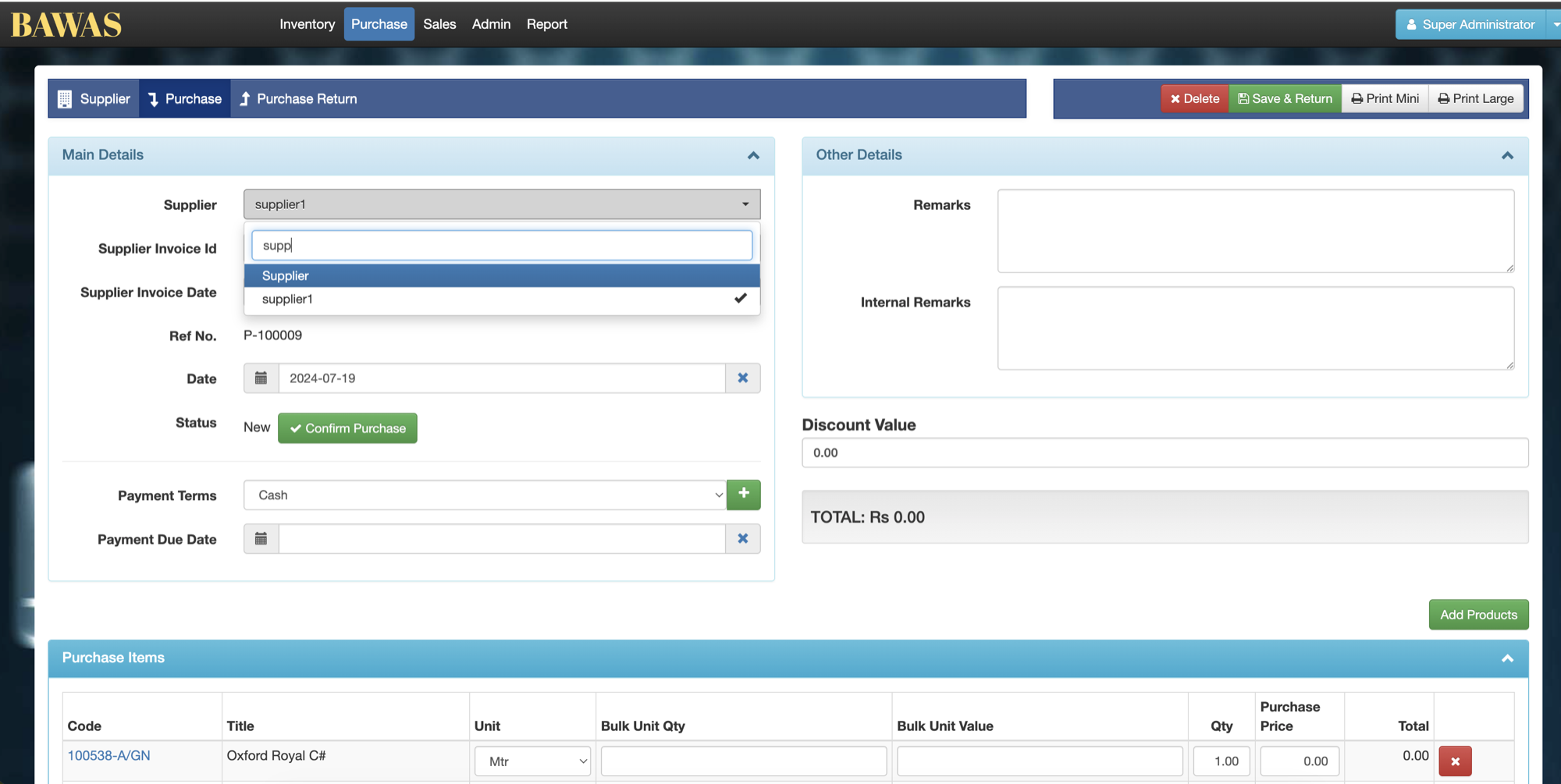
Purchase Details — supplier search
On + New or an editable purchase, type part of a supplier name in the Supplier dropdown and select the correct vendor before adding products.
Related pages
- Supplier management — vendor master and unit prices.
- Purchase return — return stock to suppliers.
- Print align unit — purchase PDF unit display.
- Product Variants — check per-variant stock after confirm.
- Product — Stock History parent and variant panels.