Purchase return
Menu: Purchase → Purchase Return
Purchase returns send stock back to suppliers against an earlier purchase. Use this tab when goods are faulty, over-supplied, or credited by the vendor.
Special features
- Same top Purchase menu with Purchase Return sub-tab active.
- Return header: supplier, reference, dates, status, and totals.
- Line items linked to products and quantities returned.
- Save, Save & Return, Delete, and navigation Back to List.
- Audit fields: Record Id, Creation, Modification.
Workflows
Create a return from an existing purchase or as a standalone document per your site rules.
Steps
- Open Purchase → Purchase Return.
- Click + New or open an existing return from the list.
- Select Supplier and link lines to the original purchase if required.
- Enter return quantities and prices on the items grid.
- Save and confirm status when the supplier credit is agreed.
Validation rules
| Rule | Detail |
|---|---|
| Supplier | Must match the vendor receiving the return |
| Quantities | Return qty cannot exceed received qty on the source purchase |
| Status | Follow your workflow for New vs confirmed returns |
| Totals | Return total should match line sums |
Supplier search on the return list
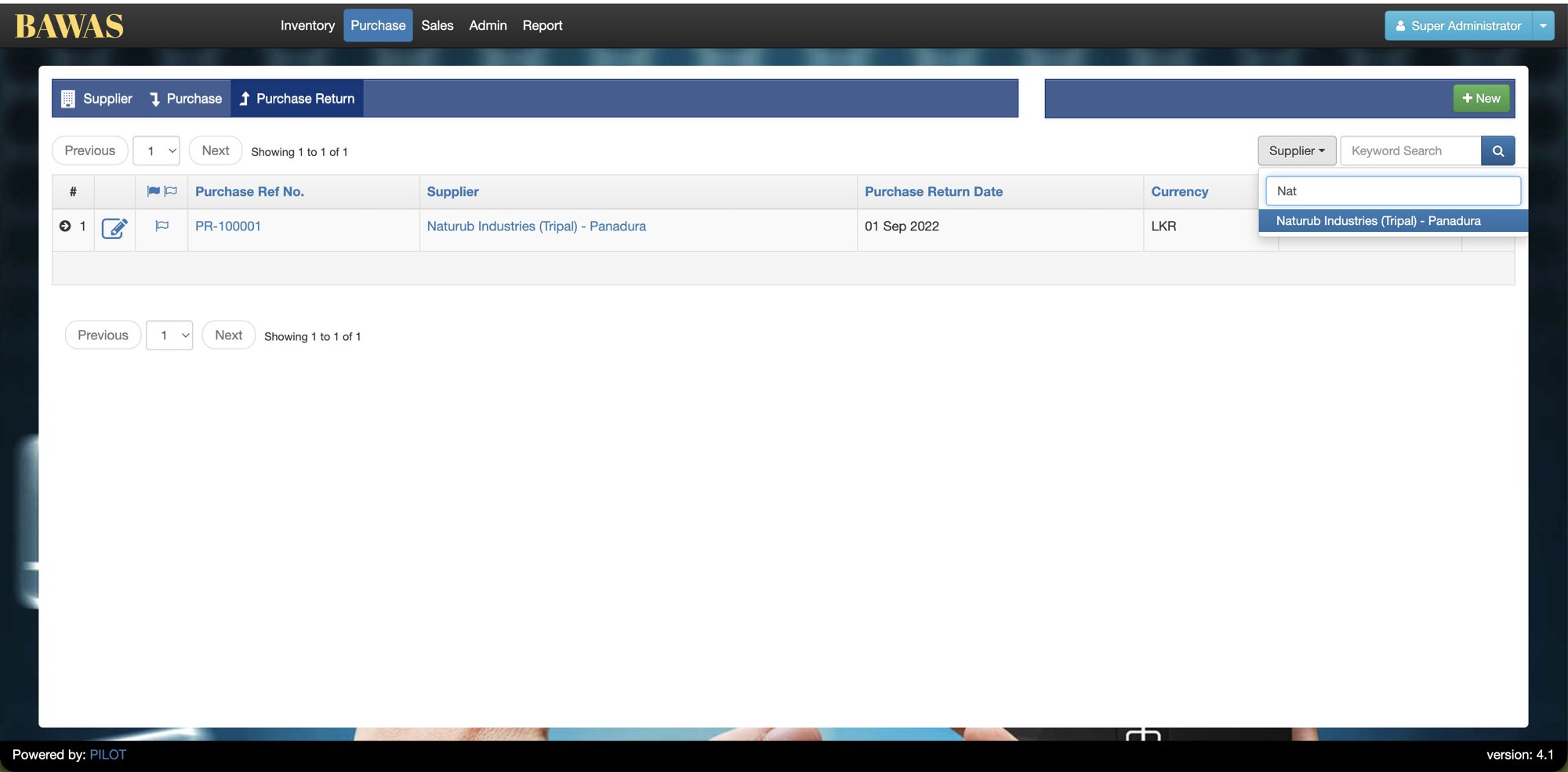
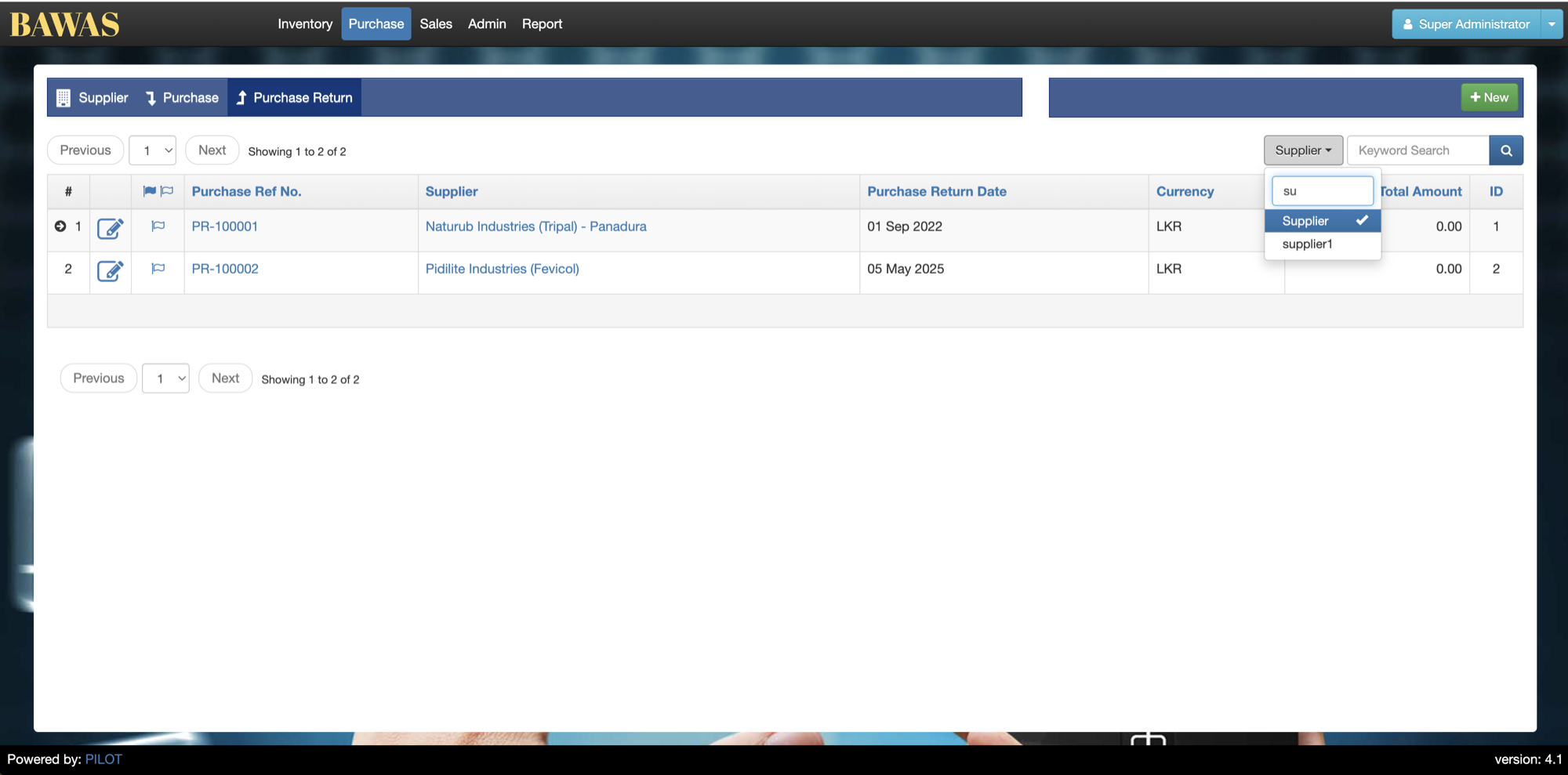
Open the Supplier filter and type part of the vendor name to narrow the choices. Select the supplier to filter the return list. Use Keyword Search when looking for a specific return reference.
Purchase Return Details
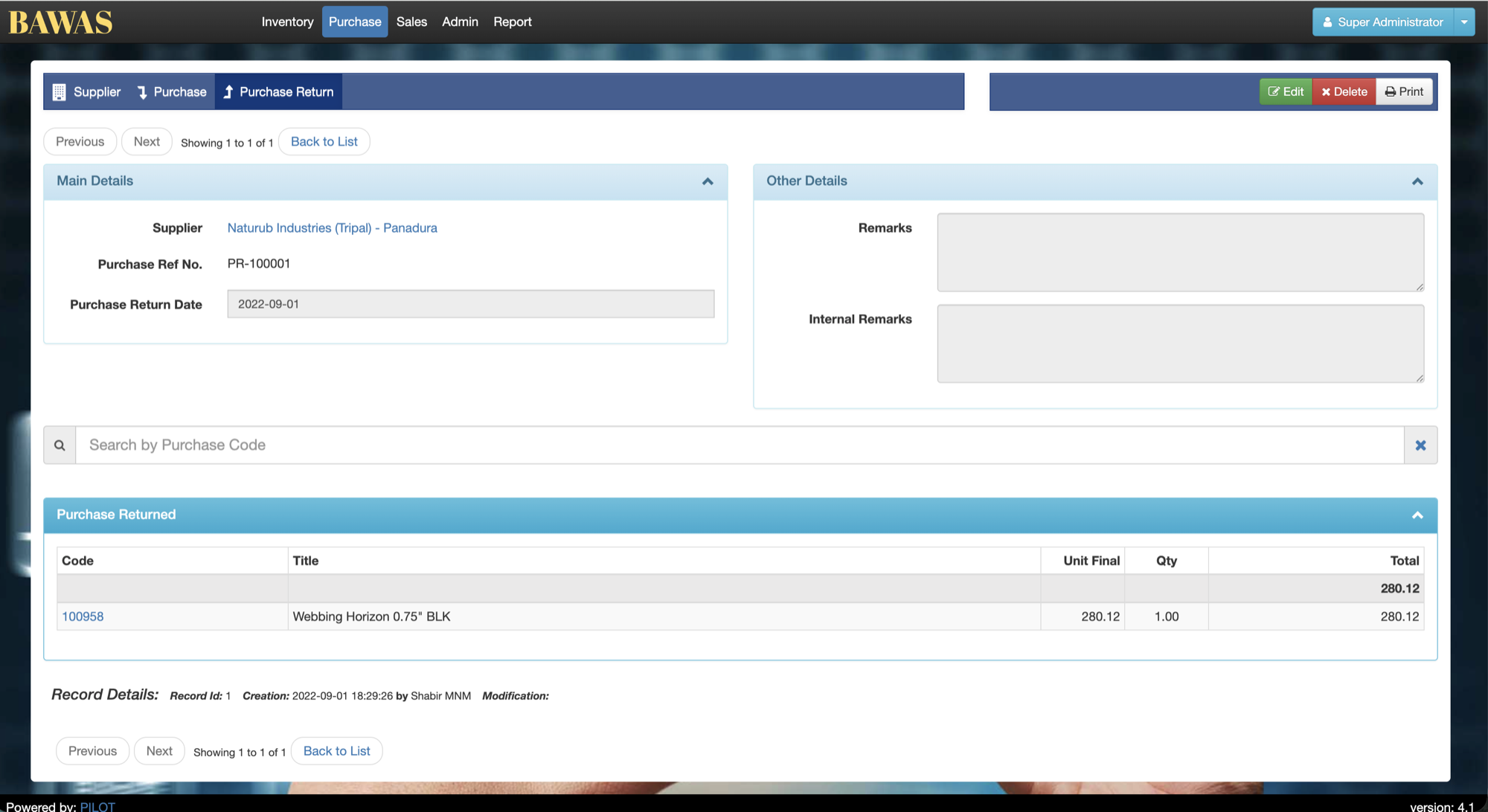
Purchase Return Details
The return detail screen shows supplier context, return reference, item lines, and totals. Complete all lines before saving so stock and supplier balances stay accurate.
Related pages
- Purchase management — original purchase orders.
- Supplier management — supplier master data.