Product Variants
Menu: Inventory → Product → Variants tab
Tab icon: Shopping bag (same product record)
Variants are sellable SKUs under a base product (size, colour, code, sale price). Open any product from Product, then switch to the Variants tab.
Manage Product Variants
From Inventory → Product, open a product (for example 100001: Heel PVC 010) and select the Variants tab. The grid lists Code, Size, Color, Sale Price, and Active. Use + Add for one row or BULK CREATE for many. Row actions are edit (green pencil) and delete (red X). Click Save or Save & Return on the product header when finished.
Product Variant Details
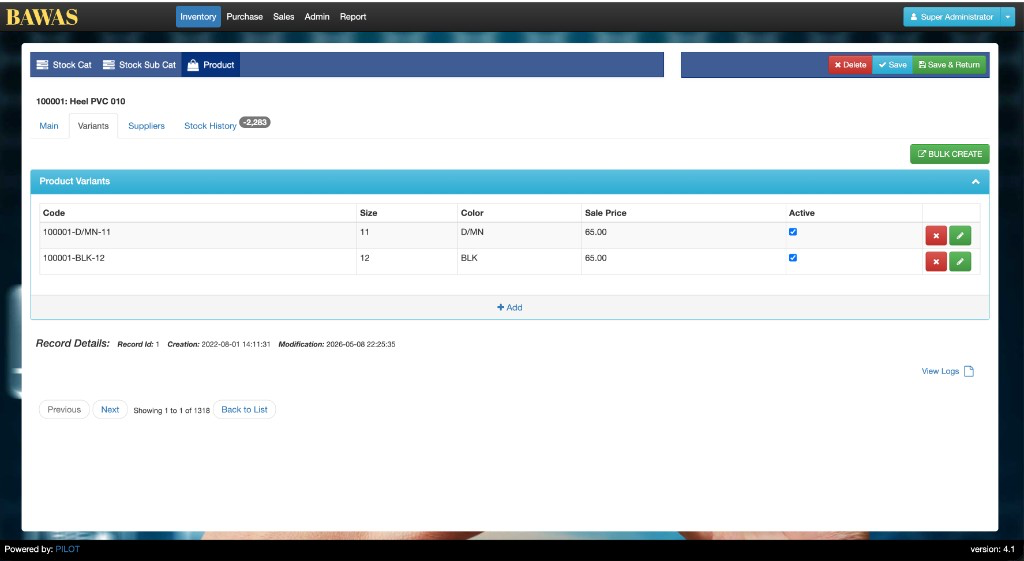
Product Variant Details — variants grid
Example rows for Heel PVC 010:
| Code | Size | Color | Sale Price | Active |
|---|---|---|---|---|
| 100001-D/MN-11 | 11 | D/MN | 65.00 | Yes |
| 100001-BLK-12 | 12 | BLK | 65.00 | Yes |
Inactive variants stay on the grid for history but do not appear on new sales lines. Variant codes feed sales qty display and Variants Short Print when used on orders. Click a Code (for example 100538-L/MN) to open that variant’s product record.
When adding lines on a sale, use Variant product selection to pick multiple variants at once from Add Products.
Check variant stock
Variant stock is not on the Variants tab (that tab is code, size, colour, price, active only).
To see stock for each variant:
- Open Inventory → Product.
- Open the parent product (for example 100538: Oxford Royal C#).
- Open the Stock History tab.
- Find the panel for the variant code (for example 100538-L/MN) and read NET STOCK.
On Sales or Purchase → Add Products, search the parent — the parent row Stock is the sum of active variants. Open the variant list to see each variant’s own stock. See Product → Stock History and Purchase management.
Special features
- BULK CREATE adds many variant rows in one step.
- + Add creates a single variant row.
- Active controls whether the variant is sellable.
- Stock History on the parent product shows per-variant net stock (see Product → Stock History).
Workflows
Add a variant
- Open Inventory → Product and select the product.
- Open the Variants tab.
- Click + Add or BULK CREATE.
- Enter Code, Size, Color, Sale Price, and tick Active.
- Click Save or Save & Return.
- Re-open the product and confirm the row persisted.
Update variant price or retire a SKU
- Open the product → Variants tab.
- Click the green edit icon on the row (or delete with red X).
- Change Sale Price or clear Active, then Save.
- Confirm the variant no longer appears on new sales lines when inactive.
Confirm stock after a purchase or sale
- Confirm the purchase or sale (stock changes only after Confirm).
- Open the parent product → Stock History.
- Check NET STOCK on the variant panel that was bought or sold — not only the parent panel.