Product
Menu: Inventory → Product
Tab icon: Shopping bag
Products are sellable and stock-tracked items. Each row has a Product Code, title, category, sub-category, stock, and prices. For a parent with variants, Stock Available is the sum of active variant stocks (same as Add Products).
Manage Products
Open Inventory → Product. Use Category and Sub Category filters plus Keyword Search to find items. The grid shows codes, titles, stock available, purchase and sale prices, and an Active indicator. Row actions include view, edit, and flag icons. + New adds a product.
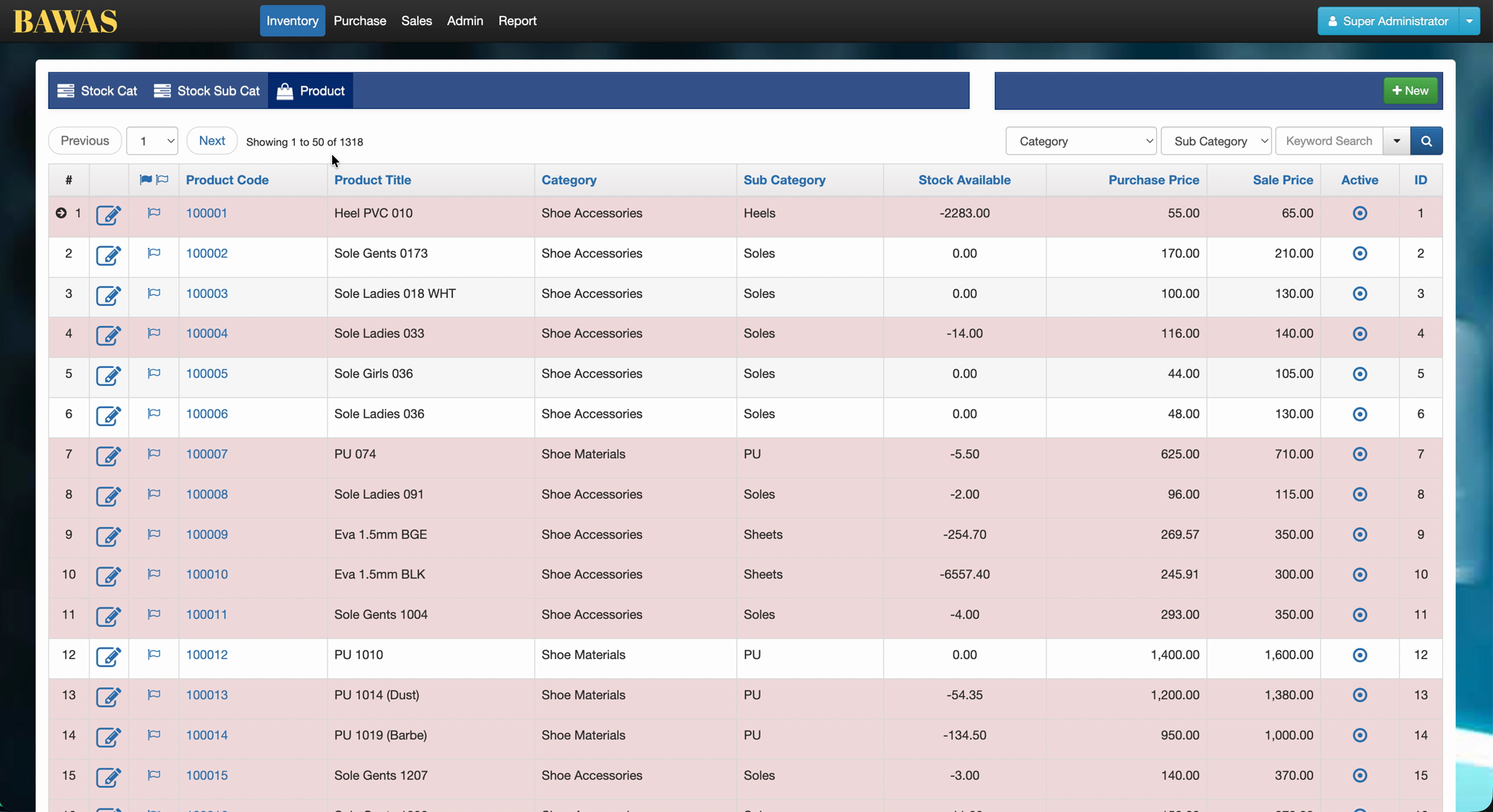
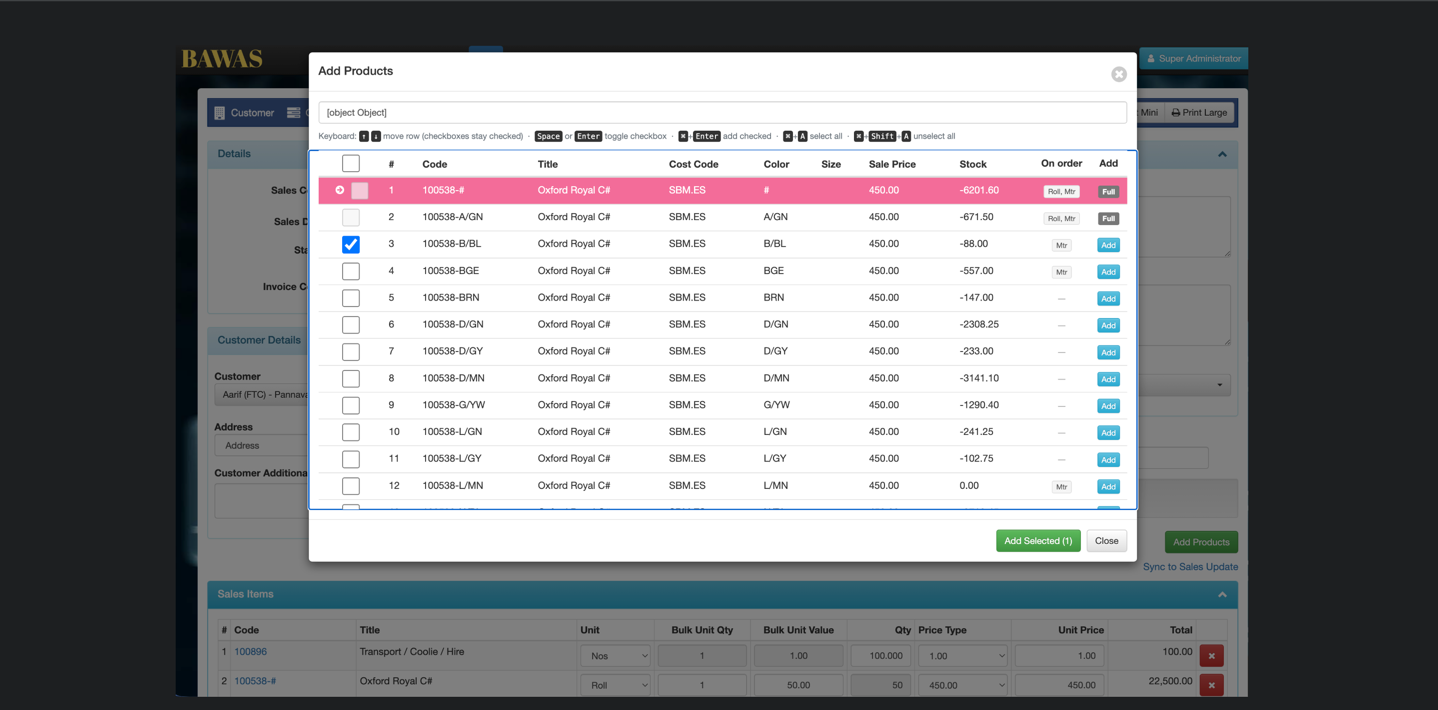
The improved Product list keeps every item readable at a glance: Code, Title, Stock Cat, Sub Category, Stock Available, Purchase Price, Sale Price, and the Active flag. Use the Category / Sub Category filters or Keyword Search when the list is long, and open a row with the view or edit icon to change prices, stock rules, or status.
Product Details
Open a product from Product Code (link) or the action icons. The header shows code: title (for example 100001: Heel PVC 010). Use Delete, Save, or Save & Return at the top right. Detail data is split across Main, Variants, Suppliers, and Stock History tabs. The badge on Stock History shows the product’s display stock: for parents with variants, the sum of active variants; otherwise the product’s own net stock.
Variants are documented on Product Variants.
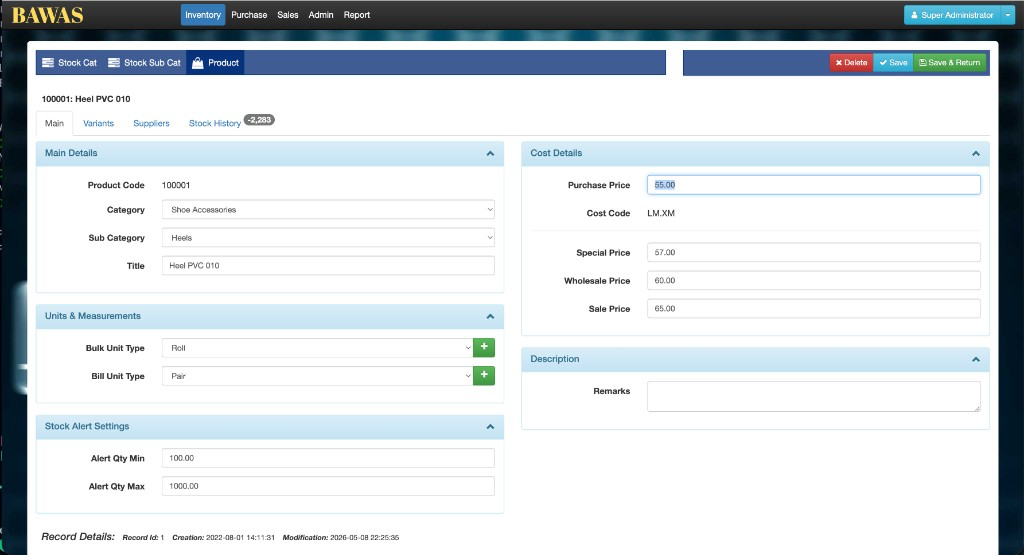
Product Details — Main tab
The Main tab is the default when you open a product. Main Details (left) holds Product Code (100001), Category (Shoe Accessories), Sub Category (Heels), and Title (Heel PVC 010). Units & Measurements sets Bulk Unit Type (Roll) and Bill Unit Type (Pair); use the green + beside a dropdown to add a unit type when your role allows. Stock Alert Settings defines Alert Qty Min (100.00) and Alert Qty Max (1000.00) for low or high stock warnings.
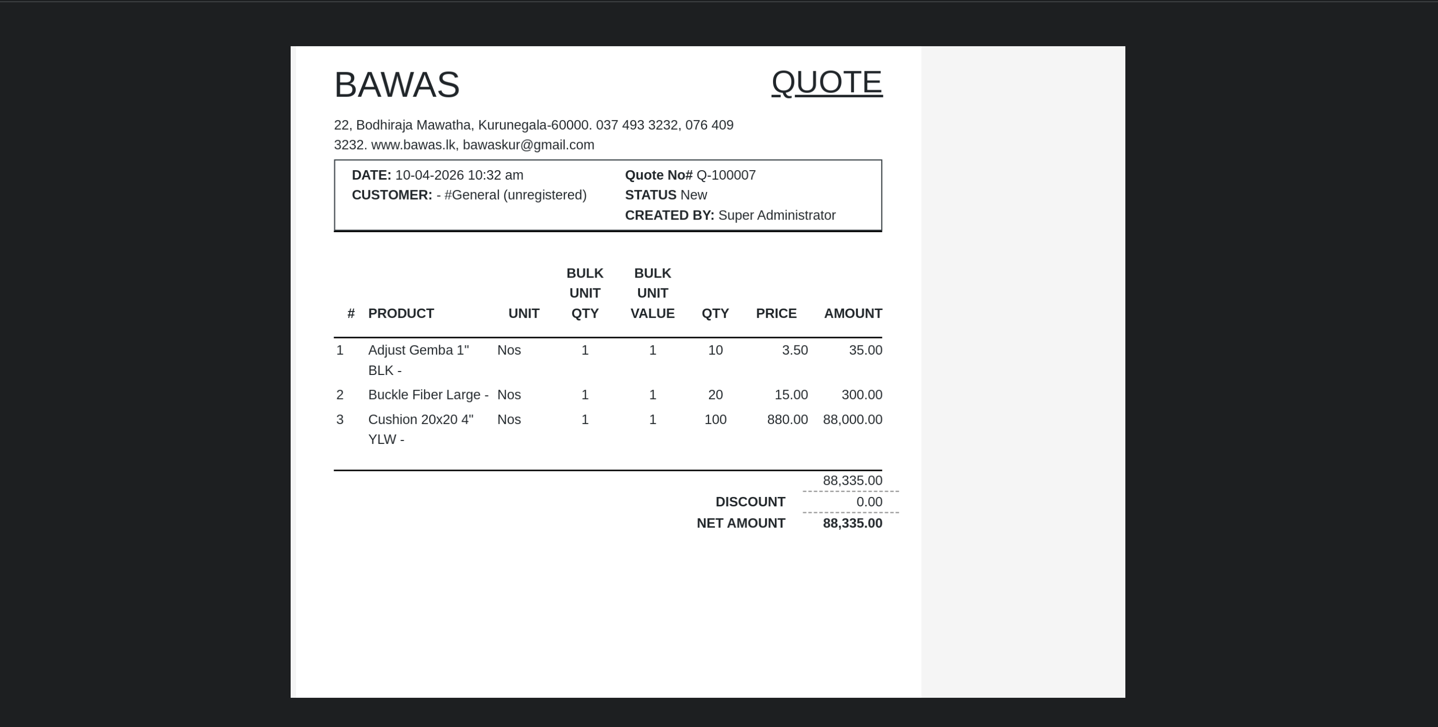
Units & Measurements also holds the Bulk Unit Qty and Bulk Unit Value used on transactions. For example a product sold as Roll with Bulk Unit Qty 5 and Bulk Unit Value 100 means each roll carries 100 units, so sales, returns, and printouts derive the line Qty from these values. Keep the bulk unit values in line with what you actually buy and sell so screens and PDFs agree.
Cost Details (right) covers Purchase Price (55.00), read-only Cost Code (LM.XM), Special Price (57.00), Wholesale Price (60.00), and Sale Price (65.00). Description is a free-text Remarks area. Footer metadata shows Record Id (1), Creation (2022-08-01 14:11:31), and Modification (2024-05-08 22:25:35).
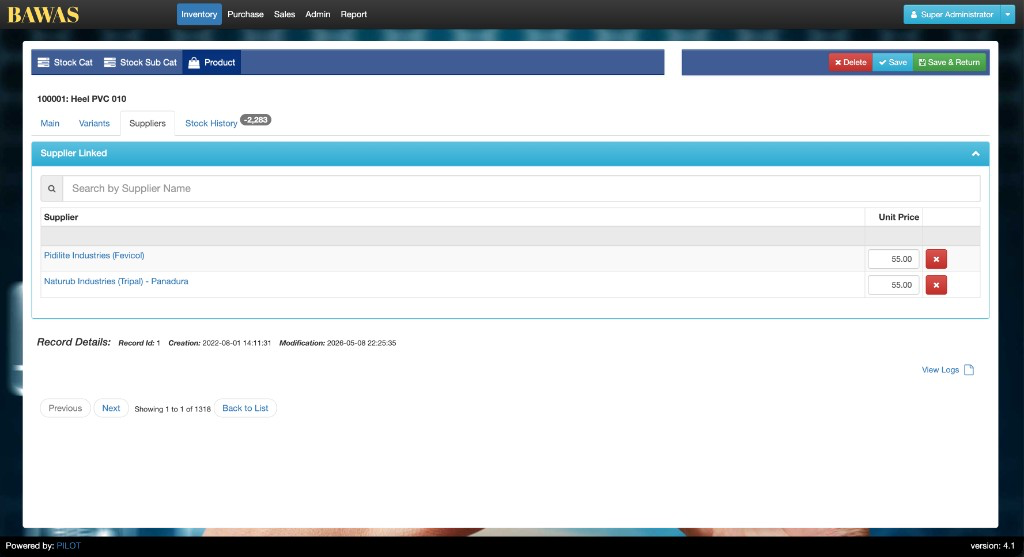
Suppliers tab
On Suppliers, Suppliers Linked lists vendors for this product. Search with Search by Supplier Name. Each row shows the supplier name as a blue link and a read-only Unit Price (here 55.00 for Pidilite Industries (Fevicol) and Naturub Industries (Tripal) - Panadura). Remove a link with the red X on the row. Unit Price is not editable here—it follows the last Confirmed purchase for that supplier/product (client requested, 10 August 2026). See Supplier management.
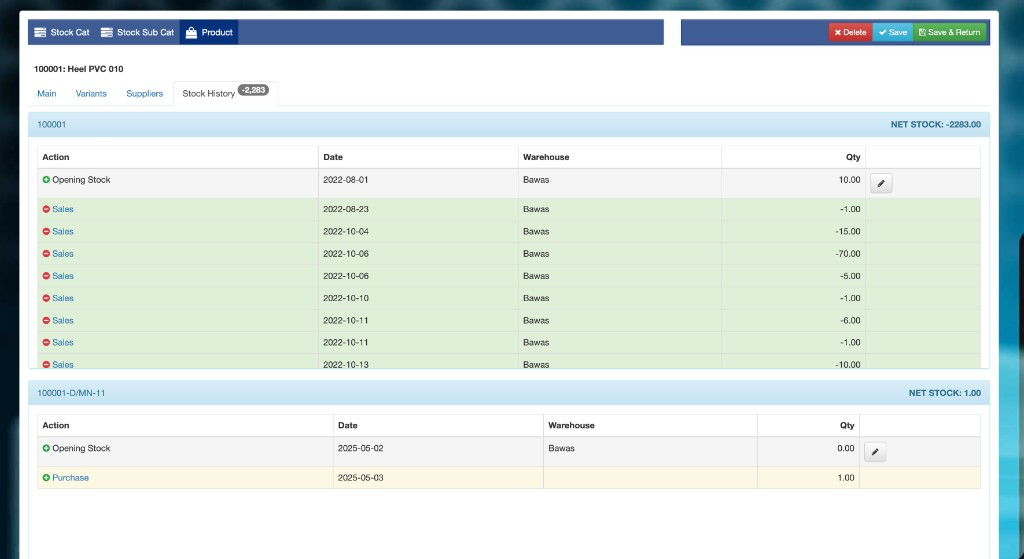
Product Details — Stock History tab
This is the place to check parent and variant stock.
On Stock History, each block is headed by a product or variant code with NET STOCK on the right. The parent product 100001 shows NET STOCK: -2283.00; variant 100001-D/MN-11 shows NET STOCK: 1.00. Columns are Action, Date, Warehouse, and Qty.
Opening Stock rows can be edited (pencil), for example 10.00 on 2022-08-01 at warehouse Bawas. Sales rows (green background) show deductions (for example -1.00, -15.00, -70.00). Purchase rows (yellow background) show receipts (for example 1.00 on 2025-05-03). Use this ledger to trace why list Stock Available is negative or out of sync with variants.
Parent vs variant stock
| Where you look | What the Stock / NET STOCK number means |
|---|---|
| Product list Stock Available (product has variants) | Sum of active variant stocks |
| Add Products parent row (product has variants) | Sum of active variant stocks |
| Add Products / Product list (no variants) | That product’s own stock |
| Stock History tab badge (parent with variants) | Sum of active variant stocks |
| Add Products variant grid | Stock of that variant SKU |
| Stock History tab on the parent product | One panel per parent and each variant, each with its own NET STOCK |
Confirmed Purchase lines increase the selected variant’s stock. Confirmed Sales decrease the selected variant’s stock. Parent and variant ledgers stay separate in Stock History; the parent row in Add Products only displays the variant total for convenience.
Purchase Items on a purchase only lists what you bought (code/title/qty). It does not show warehouse stock — use Stock History (or the Stock column in Add Products) for that.
Special features
- Stock Available is shown per SKU; watch negative balances.
- On the Product list and Add Products, a parent with variants shows Stock as the sum of its active variants.
- Purchase Price and Sale Price columns support quick price review on the list.
- Active status controls whether the product can be used on new transactions.
- Product variants (size/colour matrices) are documented under Product Variants.
Workflows
Add a new product
- Confirm Stock Cat and Stock Sub Cat exist.
- Open Product → + New.
- Enter code, title, category, sub-category, prices, and stock rules.
- Save and locate the row with Keyword Search.
Correct stock or pricing
- Find the product on the list.
- Open detail (code link or edit).
- Adjust stock or prices on Main, Suppliers, or Stock History as needed, then Save.
- Re-check Stock Available on the list.