Receipt-create new
Menu: Sales → Receipt → + New
Manage Receipts
Open Sales → Receipt. The list shows Customer, Receipt Code, Date, Amount, and Status. Filter by date range, Customer, and Status, and use Keyword Search. Click + New to start a receipt.
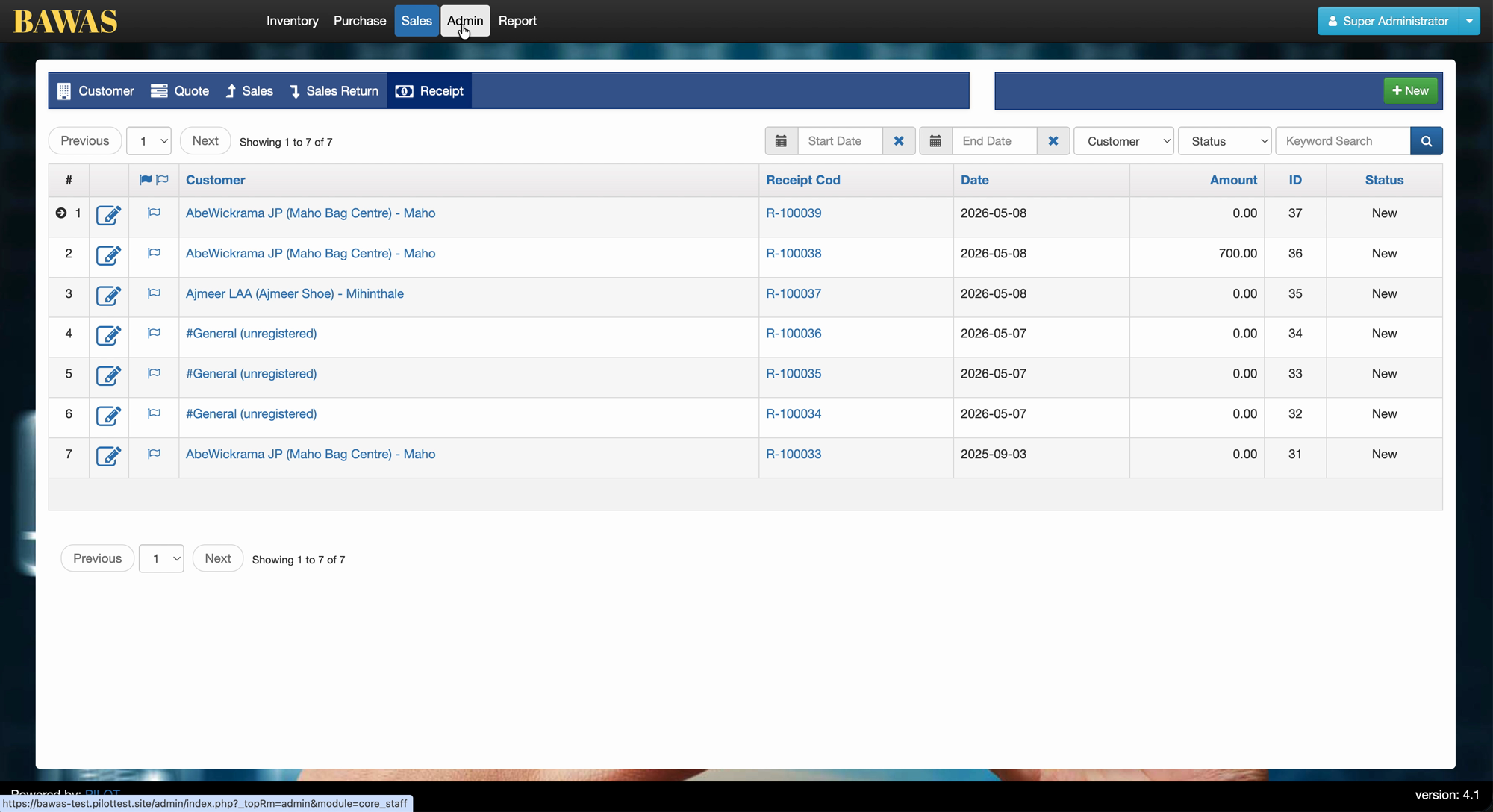
Sales → Receipt records money received from a customer. A New receipt starts with customer, date, reference, and empty payment and invoice allocation sections.
Start the receipt workflow before payments are entered and applied to invoices.
Special features
- Customer, date, Ref No., status New, Confirm Receipt.
- Payments table (empty until lines added).
- Pending Invoices with total due (for example
7,846.00). - Invoices allocation area and Amount Applied / Remaining summary.
- Save, Save & Return, Delete.
Workflows
Staff pick the customer first, then add payment lines, then move pending invoices into the allocation grid.
Steps
- Open Sales → Receipt and click + New (or equivalent).
- Select Customer (for example Aariyathilaka AMP).
- Set Date and note Ref No. (for example
R-100942). - In Payments, click + Add and enter method and amount.
- From Pending Invoices, click Add + on rows to allocate.
- Enter Paying Amount per invoice in the Invoices section.
- Click Save; use Confirm Receipt when totals match (see Receipt-allocation).
Validation rules
| Rule | Detail |
|---|---|
| Customer | Required |
| Ref No. | Must be unique per your numbering rules |
| Total payment | Must equal amount applied before confirm |
| Paying amount | Cannot exceed invoice due per row |
| Status | Stays New until Confirm Receipt |
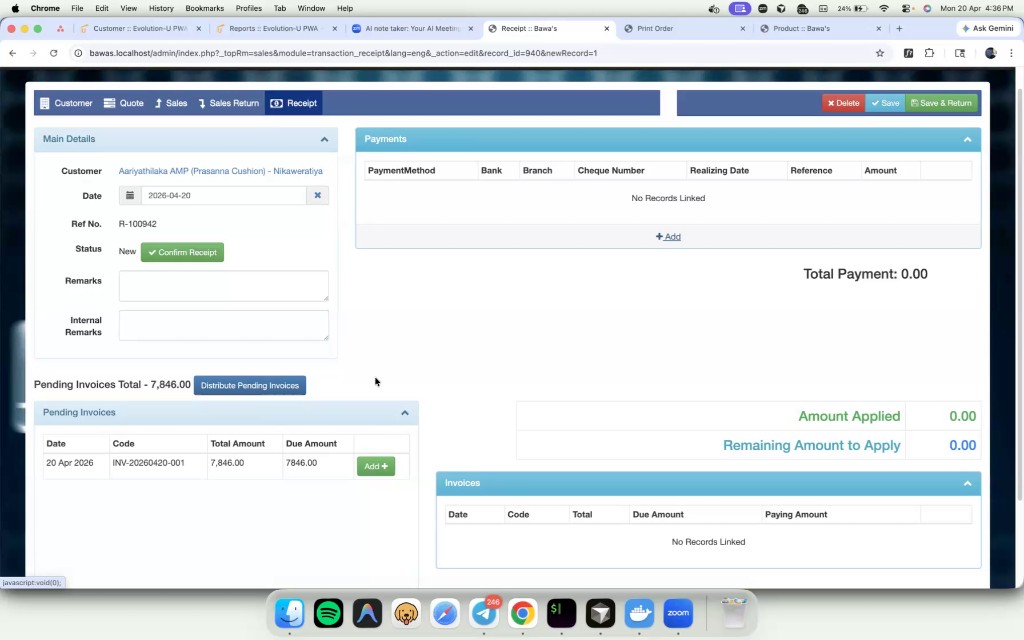
New receipt R-100942 with pending invoice total 7,846.00.
A new receipt is correct when customer, payment total, and invoice allocation all align before confirmation.