Sales-edit transaction
Menu: Sales → open a sale → Edit
The sales edit screen is where staff set customer, line items, remarks, and prepared-by before confirming the sale.
Capture a complete sales order with correct products, quantities, and customer additional info for printing and invoicing.
Special features
- Details: Sales Code, date, status, Confirm Sale, invoice code placeholder.
- Customer Details: customer, address, Customer Additional Info text.
- Other Details: remarks, internal remarks, Prepared By.
- Discount and Adjust / Rounding on the bill summary: enter a percentage (amount calculates automatically); enter adjustment if needed — see Sales discount & adjustment.
- Sales Items grid: code, title, unit, bulk qty, qty, unit price, line total.
- Add Products modal (wider view) with multi-variant checkboxes, sticky headers, and sticky checked rows — see Variant product selection.
- F2 — confirm the sale (same as clicking Confirm Sale).
- Actions: Delete, Save & Return, Print Mini, Print Large.
Workflows
Invoice code is generated only after confirmation. Line totals roll up to the order total shown on printouts.
Steps
- From the sales list, open a transaction (for example
S-604931). - Choose Customer and Address; enter Customer Additional Info if needed (for example
Anwer - Matale). - Set Prepared By and remarks.
- Click Add Products to add lines; for variant products, select multiple sizes or colours — see Variant product selection. New lines default to the first bill unit (Mtr / Nos); press Enter on Unit to move to qty without changing it.
- If needed, enter a discount percentage and/or Adjust / Rounding on the bill summary — see Sales discount & adjustment.
- Click Save or Save & Return while status is New.
- When ready, use Confirm Sale or press F2 (see Payment at sale confirmation).
- Print mini or large after confirmation if required.
Validation rules
| Rule | Detail |
|---|---|
| Customer | Required before confirm |
| Lines | At least one line with qty and price for a non-zero total |
| Invoice code | Empty until status is confirmed |
| Prepared By | Should reflect the responsible staff member |
| Discount | Percentage only; amount is calculated and not editable |
| Adjust / Rounding | Optional money amount on the bill summary |
| Confirm | Cannot confirm with zero lines unless policy allows |
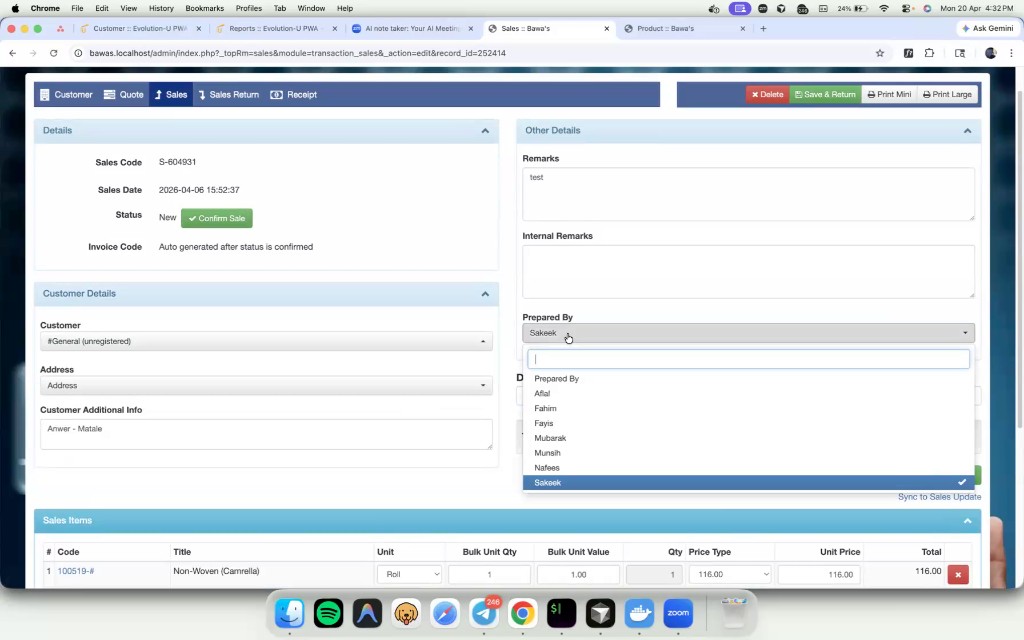
Edit sale S-604931 with customer additional info and one line item.
Correct quantity on a line
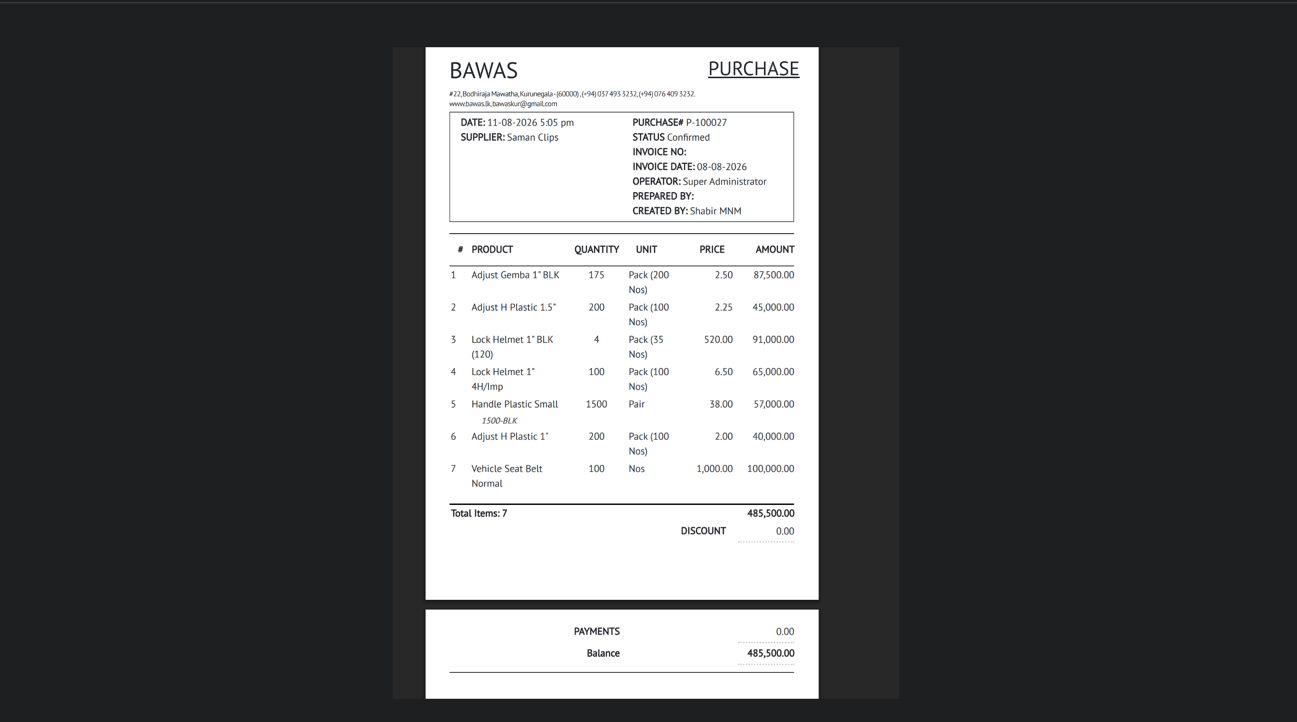
When a line quantity is wrong, click the Qty cell on the Sales Items grid and type the corrected value. The line Total, the bill summary TOTAL, and any discount recompute from the new quantity, and the printed order reflects the corrected amount. Re-check Qty against the physical goods before Confirm Sale — quantity corrections after confirmation are limited by your posting rules.
The edit screen is where order accuracy is decided. Confirm only after customer, lines, and remarks match the physical order.