Sales print-enable remarks
Overview
[BAWAS] Sales/Receipt: Enable Remark in Print-completed. Remarks entered on the sales transaction now print on ORDER PDFs for both Print Mini and Print Large, so staff and customers see the same note that was saved on the sale.
Purpose
Orders often need a short note (delivery instruction, reference, or internal handoff text). Printing REMARKS on the PDF avoids re-opening the sale screen at the counter or warehouse.
Features
- REMARKS label with the sale remarks field value on print output.
- Print Mini (
salesMini): remarks in the header block with order #, operator, prepared by, created by, date. - Print Large (
salesBawas): remarks in the right column of the order box with status, invoice no., and operator fields. - Works with existing customer, line, and total sections unchanged.
- Empty remarks: field is omitted or blank when not set (only prints when populated).
Workflow
Confirm remarks on the sale before printing.
Steps
- Open Sales and edit the transaction (for example S-324068 or S-604931).
- In Other Details, enter text in Remarks (for example
test). - Save the sale while status is still New (or after save as your process allows).
- Click Print Mini or Print Large, or use the report print action (
report_name=salesMini/salesBawas). - On the PDF, locate REMARKS: and confirm the text matches the sale screen.
- Re-print after changing remarks so the PDF stays current.
Validation Rules
| Rule | Detail |
|---|---|
| Source field | Remarks on sales edit / receipt screen |
| Mini vs large | Same remark text on both print layouts |
| Order ref | ORDER# on print must match the sale (for example S-324068) |
| Other header fields | Operator, prepared by, created by, date unchanged |
| Internal remarks | Internal remarks are staff-only unless separately enabled—do not assume they print |
| Re-print | Old PDFs do not update until you print again |
Screenshot-remarks on Print Mini (header)
Overview
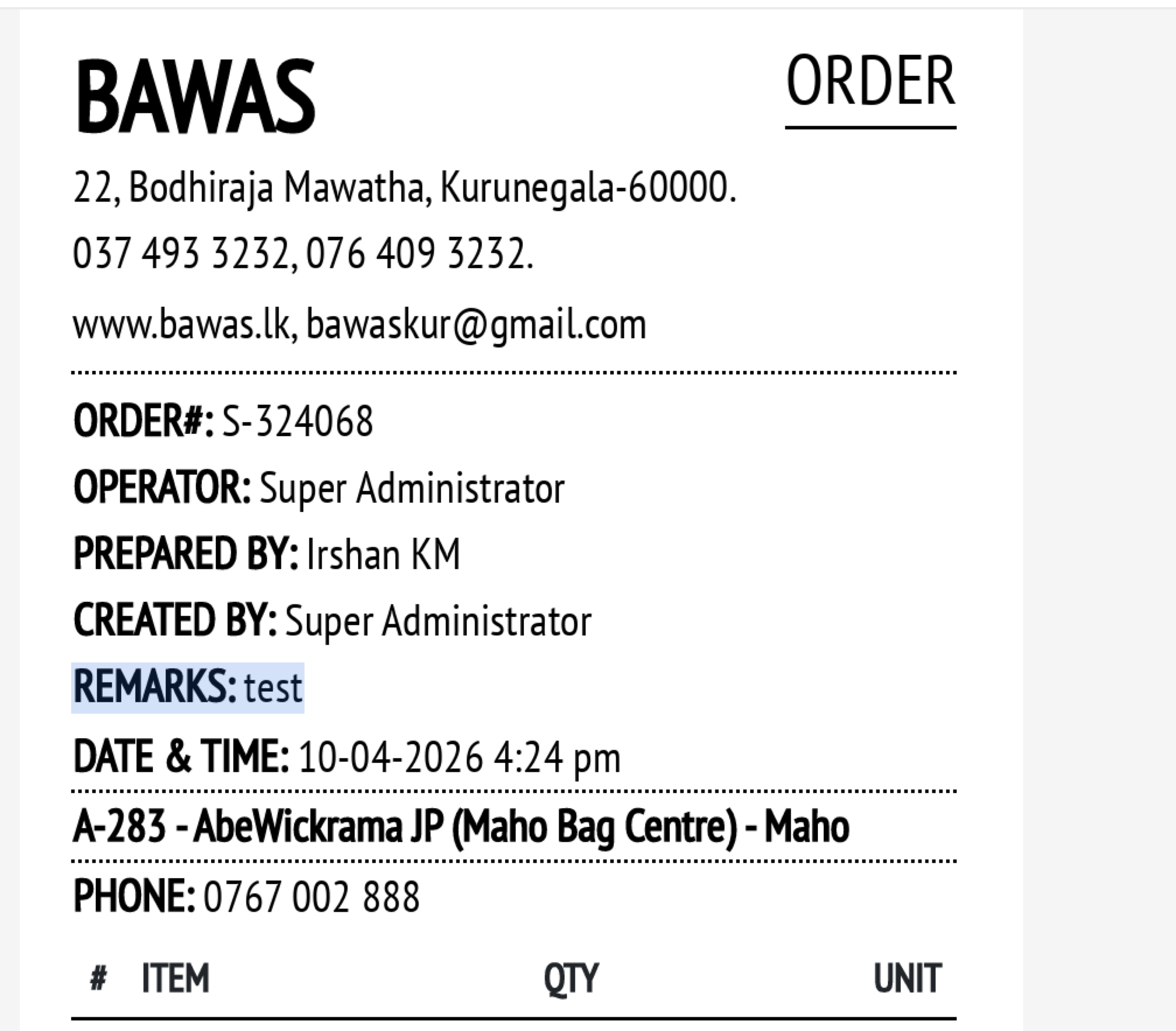
ORDER S-324068 for A-283 - AbeWickrama JP (Maho Bag Centre) - Maho, dated 10-04-2026 4:24 pm. The mini layout shows REMARKS: test between CREATED BY and DATE & TIME, with OPERATOR Super Administrator and PREPARED BY Irshan KM.
Use mini print when you need a narrow receipt-style copy with the remark visible at the top.
Screenshot-remarks on Print Large (order box)
Overview
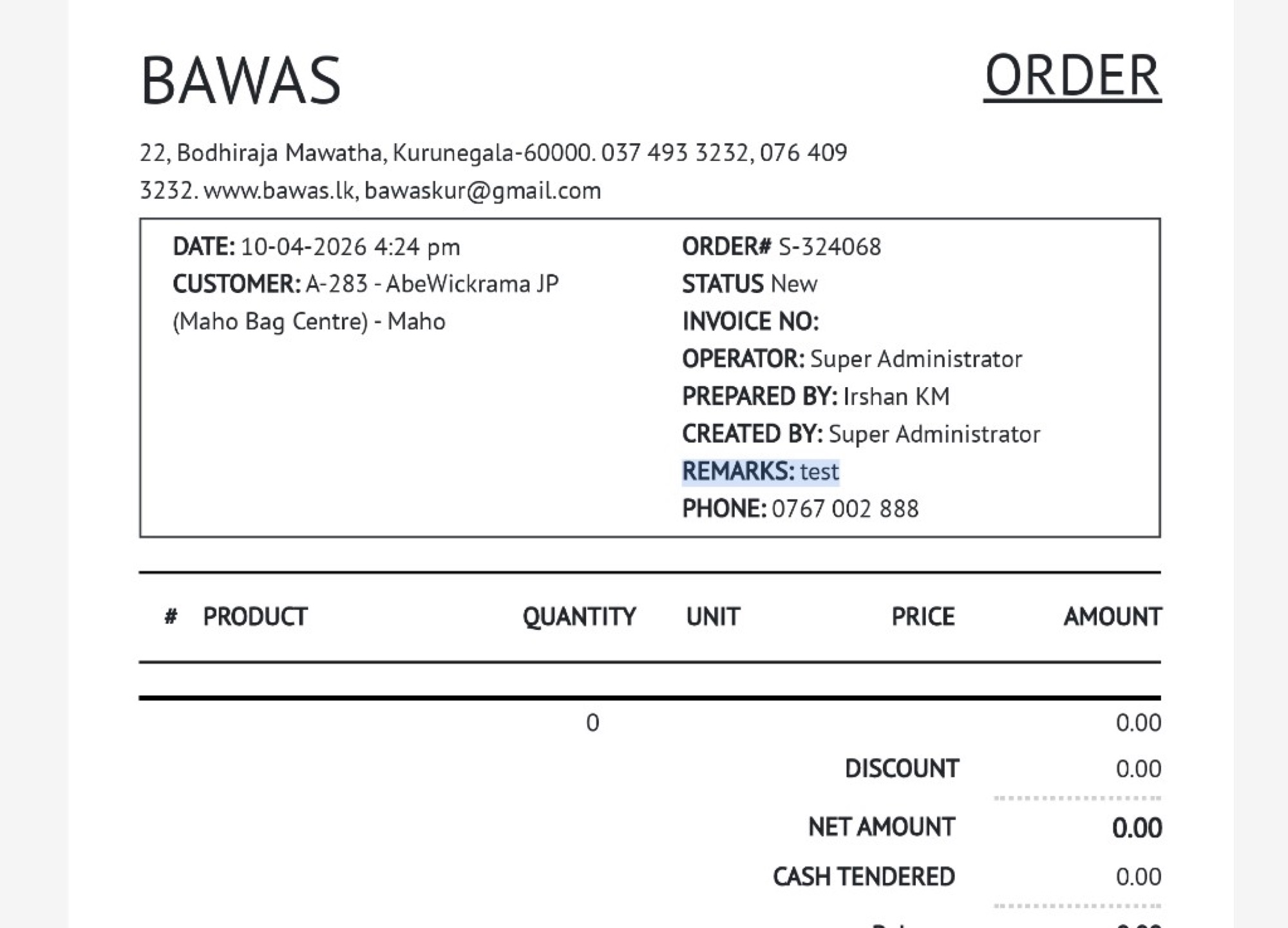
Large ORDER S-324068 with the bordered order box: DATE, CUSTOMER, and on the right ORDER#, STATUS New, OPERATOR, PREPARED BY, CREATED BY, and REMARKS: test before PHONE 0767 002 888.
This matches the full-column layout used for counter checks and customer copies.
Screenshot-remarks on Print Mini with line items
Overview
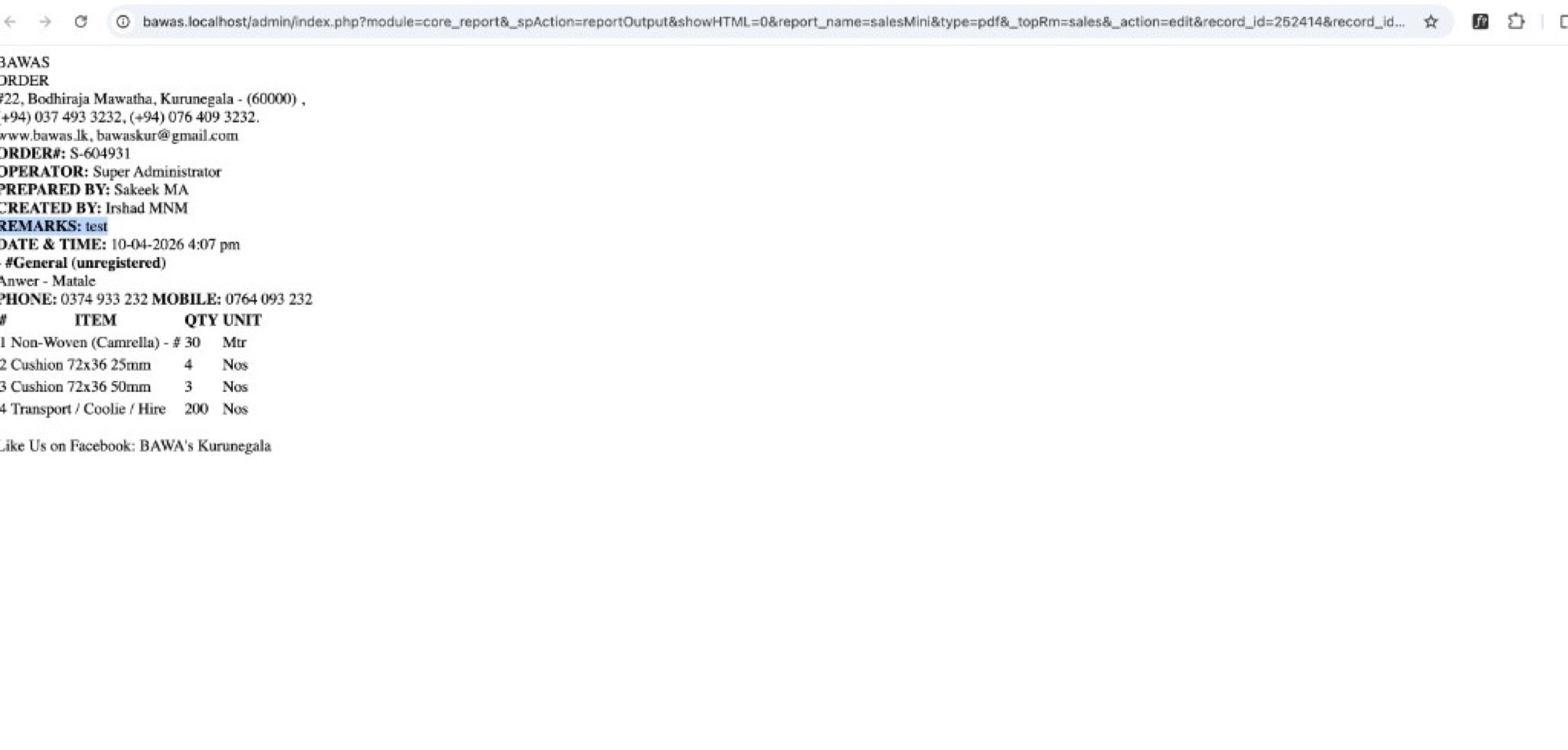
ORDER S-604931 for #General (unregistered), Anwer - Matale with REMARKS: test and multiple lines (for example Non-Woven (Camrella), cushions, transport). DATE & TIME 10-04-2026 4:07 pm; PREPARED BY Sakeek MA.
Confirms remarks print correctly when the order has several items, not only on empty or single-line orders.
Related documentation
- Sales-edit transaction-where Remarks is entered
- Invoice and order print-general ORDER print workflow
- Sales print-phone and mobile-customer contact lines on print
Summary
Sales and receipt ORDER prints now include REMARKS from the sale when set. Keep Remarks accurate on the edit screen before Print Mini, Print Large, or report PDF output.