Sales-edit transaction
Overview
The sales edit screen is where staff set customer, line items, remarks, and prepared-by before confirming the sale.
Purpose
Capture a complete sales order with correct products, quantities, and customer additional info for printing and invoicing.
Features
- Details: Sales Code, date, status, Confirm Sale, invoice code placeholder.
- Customer Details: customer, address, Customer Additional Info text.
- Other Details: remarks, internal remarks, Prepared By.
- Sales Items grid: code, title, unit, bulk qty, qty, unit price, line total.
- Add Products with multi-variant selection (checkboxes, sticky headers, sticky checked rows, keyboard shortcuts)—see Variant product selection.
- F2 confirms the sale (same as Confirm Sale).
- Actions: Delete, Save & Return, Print Mini, Print Large.
Workflow
Invoice code is generated only after confirmation. Line totals roll up to the order total shown on printouts.
Steps
- From the sales list, open a transaction (for example
S-604931). - Choose Customer and Address; enter Customer Additional Info if needed (for example
Anwer - Matale). - Set Prepared By and remarks.
- Click Add Products; for variant products, select multiple sizes or colours (see Variant product selection). New lines default to the first bill unit (Mtr / Nos); press Enter on Unit to move to qty without changing it.
- Click Save or Save & Return while status is New.
- When ready, use Confirm Sale (see Payment at sale confirmation).
- Print mini or large after confirmation if required.
Validation Rules
| Rule | Detail |
|---|---|
| Customer | Required before confirm |
| Lines | At least one line with qty and price for a non-zero total |
| Invoice code | Empty until status is confirmed |
| Prepared By | Should reflect the responsible staff member |
| Confirm | Cannot confirm with zero lines unless policy allows |
Screenshot Section
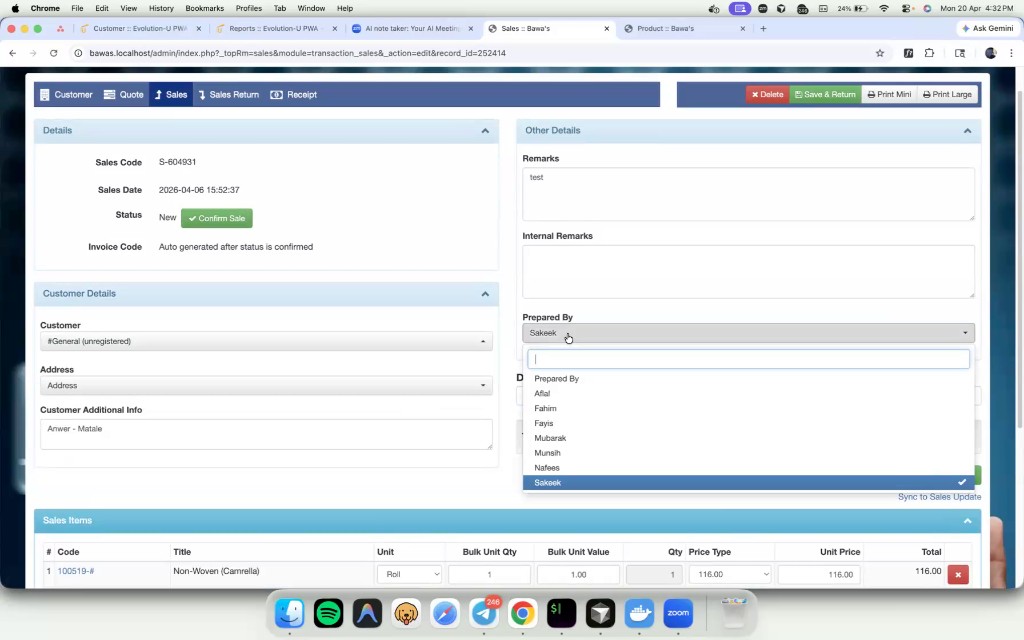
Edit sale S-604931 with customer additional info and one line item.
Summary
The edit screen is where order accuracy is decided. Confirm only after customer, lines, and remarks match the physical order.