Invoice and order print
Overview
After a sale is saved or confirmed, staff can print an ORDER (or invoice-style) PDF from the admin report output. The document shows customer, order number, lines, and totals.
Purpose
Provide a printable record for the customer, warehouse, or accounts team.
Features
- Header: company name, address, phone, web, email.
- Order box: date, customer code and name, order number, status, operator, prepared by, remarks (when set on the sale—see Sales print-enable remarks), phone.
- Line table: product, quantity, unit, price, amount.
- Footer totals: subtotal, discount, net amount, cash tendered, balance.
Workflow
Print uses the reporting module (core_report / reportOutput in typical URLs). Balance negative on the PDF means amount still due.
Steps
- Complete or confirm the sale (see Payment-confirm sale).
- From the sale, choose Print Mini, Print Large, or the report action your build provides.
- Review the PDF: customer, ORDER#, lines, and NET AMOUNT.
- Check Balance against payments and receipts.
- Distribute the PDF per your process (email, print, archive).
Validation Rules
| Rule | Detail |
|---|---|
| Order number | Must match the sales record (for example S-324068) |
| Status on print | Reflects current document status (for example New) |
| Totals | Line amounts must sum to subtotal and net |
| Prepared by / operator | Populated from session and form fields |
| Invoice number | May be blank until confirmed—see edit screen rules |
Screenshot Section
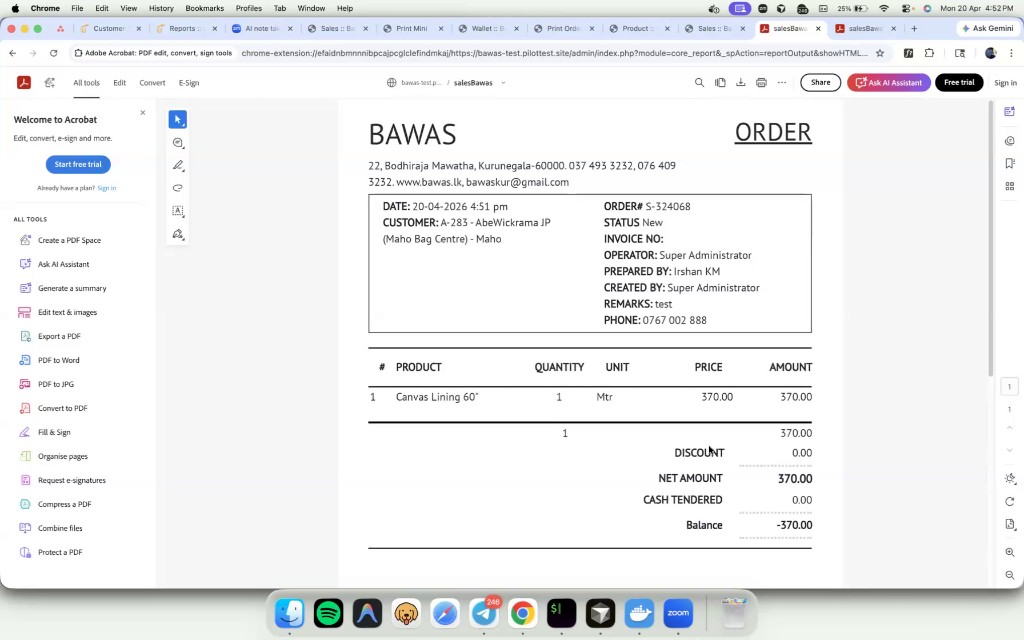
Printed ORDER for customer A-283 with one line and net amount 370.00.
Summary
Printed orders are the official snapshot at print time. Re-print after corrections if totals or customer info change.