Payment-confirm sale
Overview
When staff click Confirm Sale on a New sales record, the Confirm the Status modal records payment type and amount received before the invoice code is generated.
Purpose
Bridge the sales order and invoicing steps by capturing how the customer paid at confirmation time.
Features
- Modal title: Confirm the Status.
- Payment Type: Cash or Credit (per your configuration).
- Amount Received field, usually matching order total.
- Confirmed button to complete the step.
- Background screen shows total, discount, and customer summary.
Workflow
Confirmation locks in payment method and amount. The invoice code then auto-generates per system rules.
Steps
- Open a New sale with correct lines and customer (see Sales-edit transaction).
- Review TOTAL on the right (for example
10,000.00). - Click Confirm Sale in the Details section.
- In the modal, select Payment Type (Cash or Credit).
- Enter Amount Received (for example
10000). - Click Confirmed.
- Verify status and Invoice Code update on the main screen.
Validation Rules
| Rule | Detail |
|---|---|
| Amount received | Should match total unless partial payment is allowed |
| Payment type | Required before confirm |
| Status | Only New sales should show the confirm action |
| Invoice code | Must remain empty until confirmation succeeds |
| Credit sales | Credit type may skip immediate cash receipt—follow finance SOP |
Screenshot Section
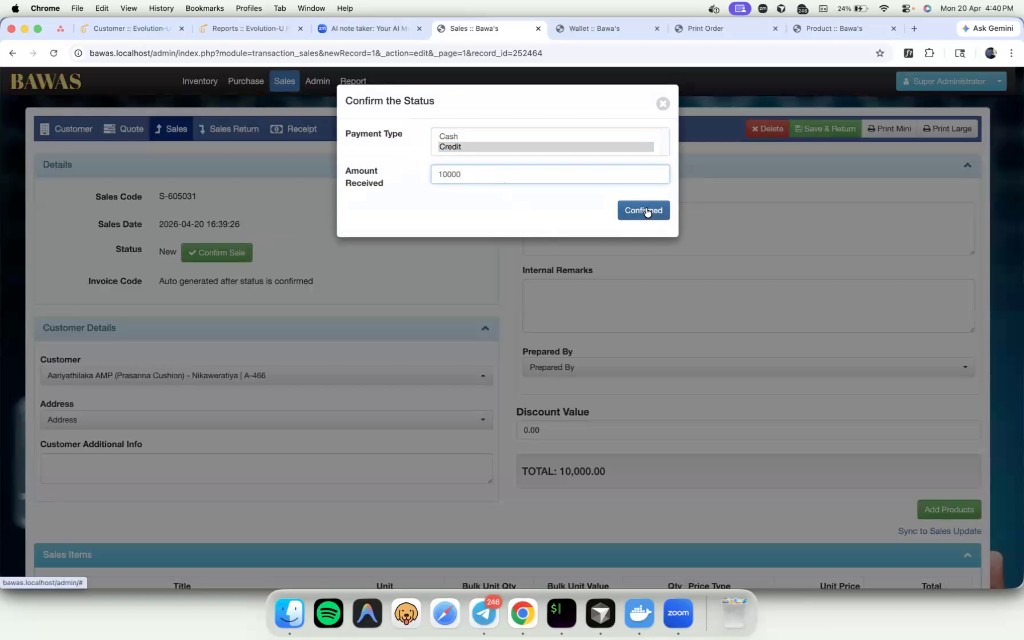
Confirm sale S-605031 with Credit payment type and amount 10,000.00.
Summary
Confirm Sale is a controlled checkpoint. Wrong payment type or amount here affects AR and printed invoices.