Receipt-payment alert and remaining
Overview
[BAWAS] Receipt: Add Alert for Exceeding Payment & Show Remaining Value-completed. When allocating a receipt to invoices, the screen shows Amount Applied, Customer Credit Used Amount, and Remaining Amount to Apply. If you enter a Paying Amount above the invoice due or above what is left to apply, the system alerts you. A Partial Payment confirmation appears when paying less than the full due so staff see the remaining balance on that invoice.
Purpose
Prevent over-allocation mistakes and make partial payments explicit before Confirm Receipt.
Features
- Remaining Amount to Apply-live balance of payment not yet assigned to invoices (blue when non-zero).
- Amount Applied-sum of Paying Amount on allocated invoice rows (green).
- Customer Credit Used Amount-credit applied from customer wallet when used.
- Partial Payment alert when paying amount is less than invoice due (shows due, paying, remaining balance).
- Alert when allocation would exceed Total Payment or invoice Due Amount.
- Works on New receipts before Confirm Receipt; read-only summary on confirmed receipts.
Workflow
Use the summary fields while building allocation.
Steps
- Open Sales → Receipt and create or open a receipt (for example R-100964).
- Select Customer and enter Payments so Total Payment is correct (for example 500.00).
- From Pending Invoices, click Add + or Distribute Pending Invoices.
- Enter Paying Amount on each invoice row (full or partial).
- Watch Amount Applied and Remaining Amount to Apply update.
- If paying less than due, read the Partial Payment dialog (due, paying, Remaining Balance).
- If paying amount exceeds due or available payment, correct the value when alerted.
- Confirm only when Remaining Amount to Apply is 0.00 (unless your process allows unallocated cash).
- Click Confirm Receipt when totals are correct.
Validation Rules
| Rule | Detail |
|---|---|
| Paying vs due | Paying Amount must not exceed row Due Amount |
| Total payment | Sum of allocations must not exceed Total Payment (+ credit rules) |
| Remaining | Remaining Amount to Apply = payment left to assign |
| Partial pay | Allowed; user must confirm via Partial Payment alert |
| Remaining balance | Alert shows invoice due minus paying (for example 9,500.00 left on 10,000.00 due) |
| Confirm | Post only when allocation matches your business rules |
Screenshot-receipt detail with remaining summary
Overview
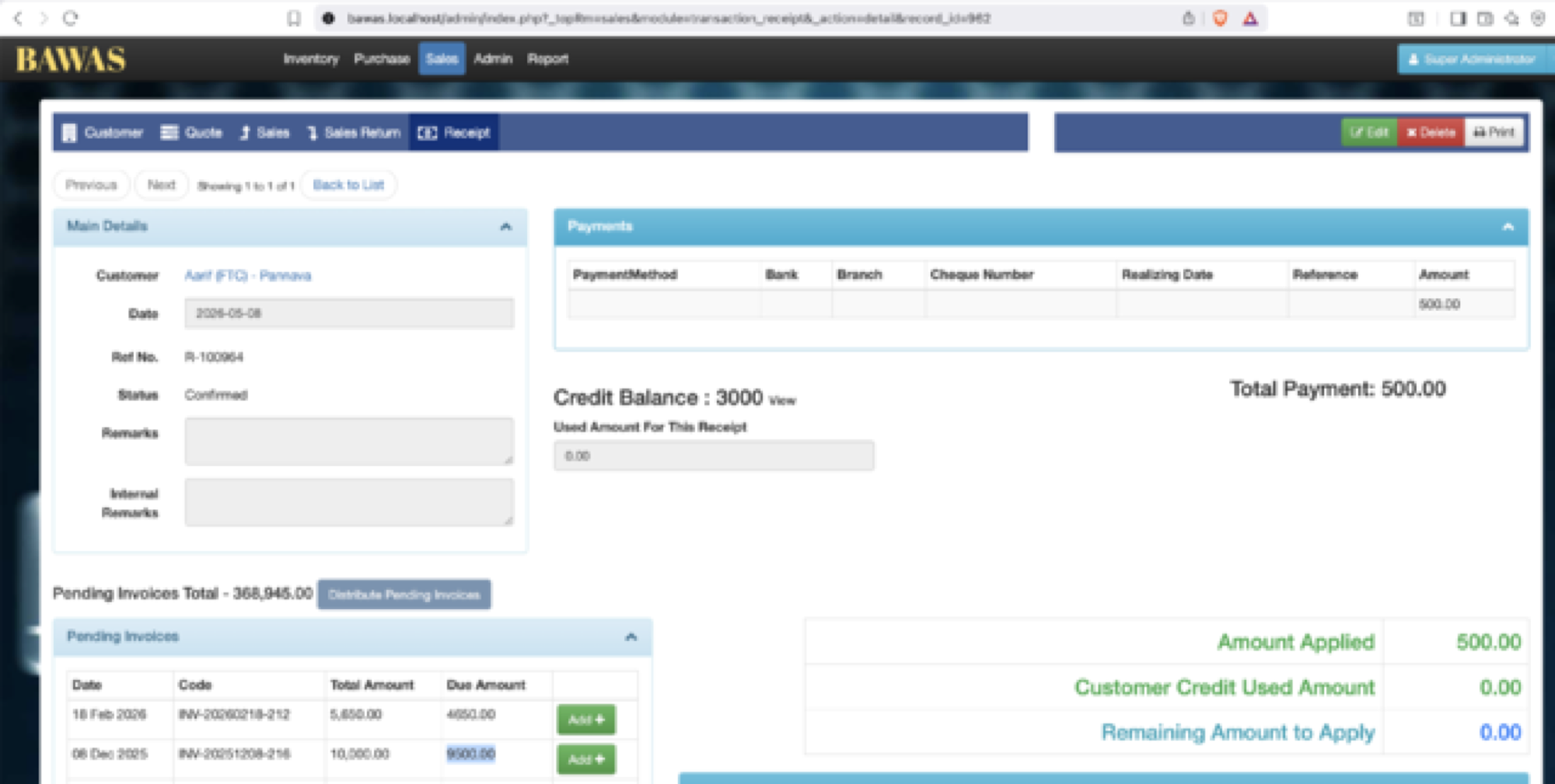
Confirmed receipt R-100964 for Aarif (FTC) - Pannavia, Total Payment 500.00, Credit Balance 3000. Summary shows Amount Applied 500.00, Customer Credit Used Amount 0.00, and Remaining Amount to Apply 0.00 when all payment is allocated.
Pending Invoices Total 368,945.00 lists open invoices (for example INV-20260218-212, INV-20251208-216) for future receipts.
Screenshot-partial paying amount on invoice
Overview
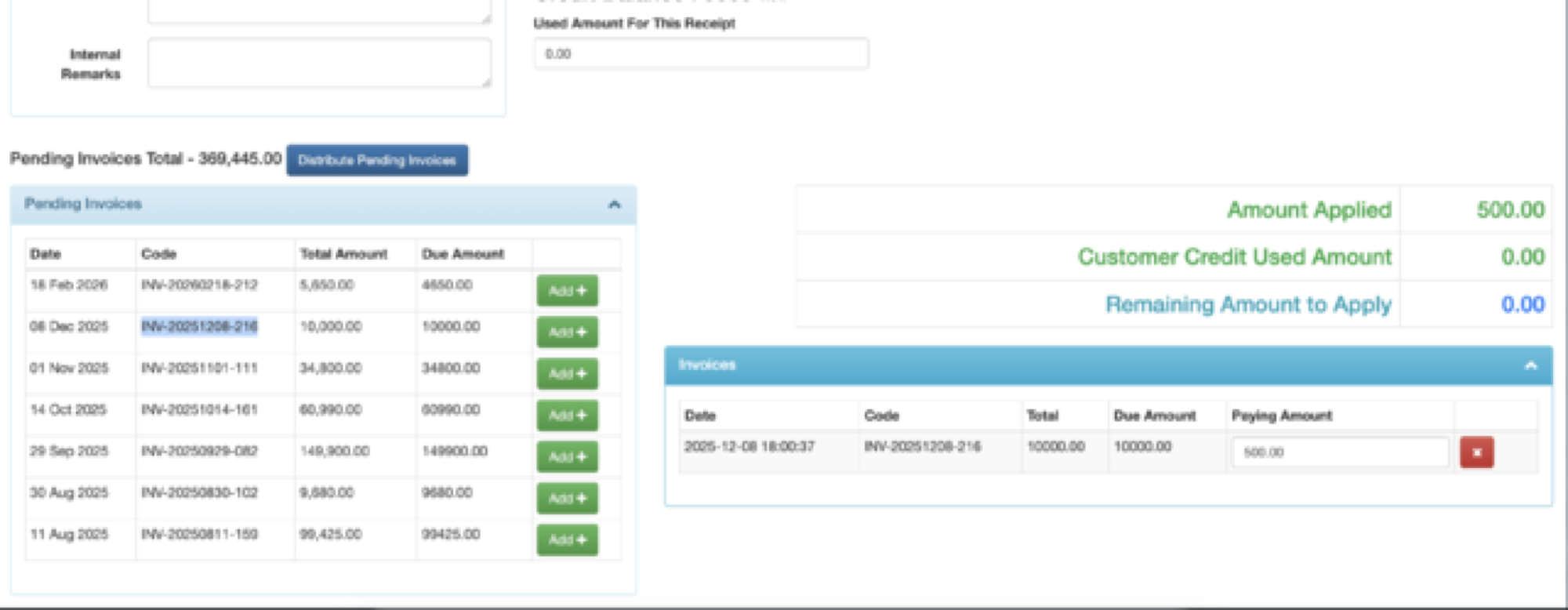
New receipt with Pending Invoices Total 369,445.00. Invoice INV-20251208-216 has Due Amount 10,000.00 and Paying Amount 500.00 (partial). Amount Applied 500.00 and Remaining Amount to Apply 0.00 when the full 500.00 payment is assigned to that line.
Staff can apply one payment to part of a large invoice and leave the rest due for a later receipt.
Screenshot-Partial Payment alert
Overview
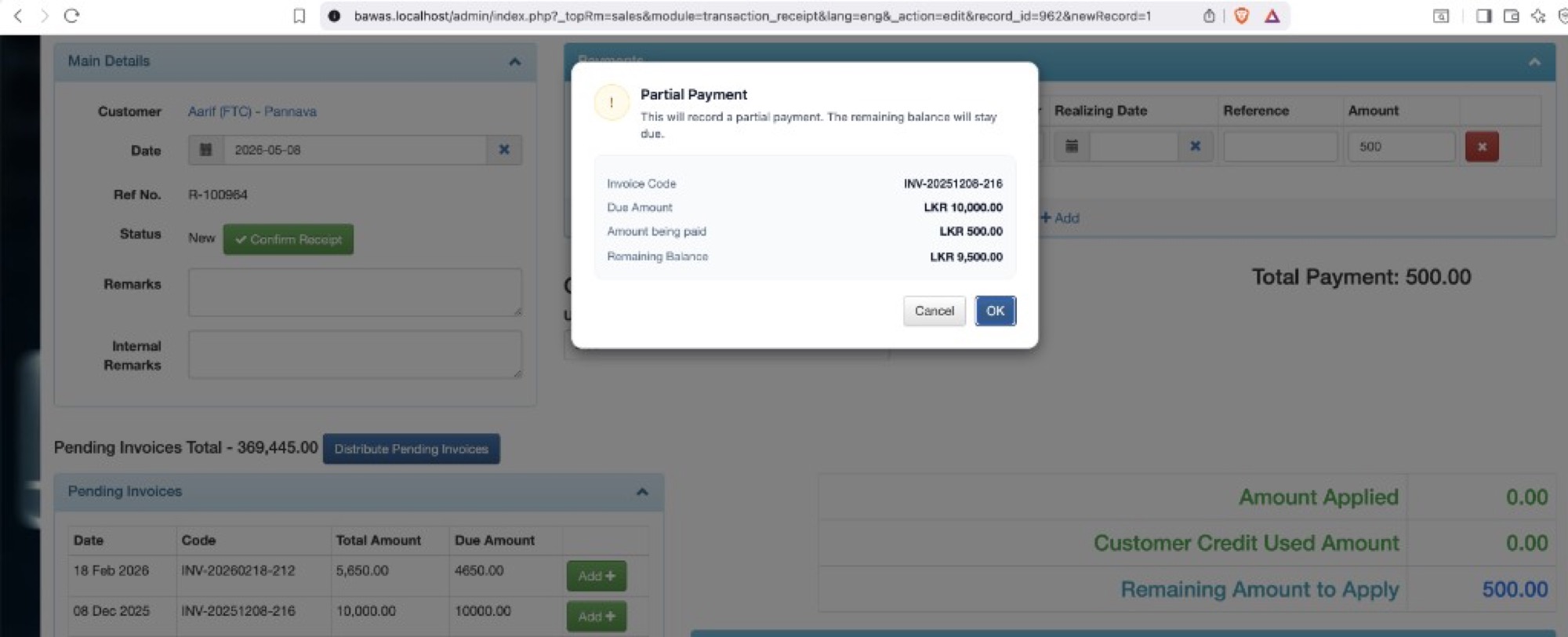
Partial Payment dialog for INV-20251208-216:
| Field | Value |
|---|---|
| Due Amount | LKR 10,000.00 |
| Amount being paid | LKR 500.00 |
| Remaining Balance | LKR 9,500.00 |
Message: This will record a partial payment. The remaining balance will stay due. Click OK to continue or Cancel to change the paying amount.
Related documentation
- Receipt-allocation-distribute and partial allocation rules
- Receipt-create new-start a receipt
- Admin-wallet-customer credit balance
Summary
Receipt screens now show remaining amount to apply and alert staff on exceeding payment or partial payment with the invoice remaining balance. Keep Total Payment and Paying Amount rows aligned before Confirm Receipt.