Inventory module
Overview
The Inventory module organises what you sell and buy. You set up stock categories, then sub categories, then products with codes, prices, and stock levels.
Purpose
Keep product data clean so Purchase and Sales use the same items, categories, and prices.
Features
- Top menu: Inventory with tabs Stock Cat, Stock Sub Cat, and Product.
- + New on each list to add records.
- Search and filters (keyword, category, sub category on the product list).
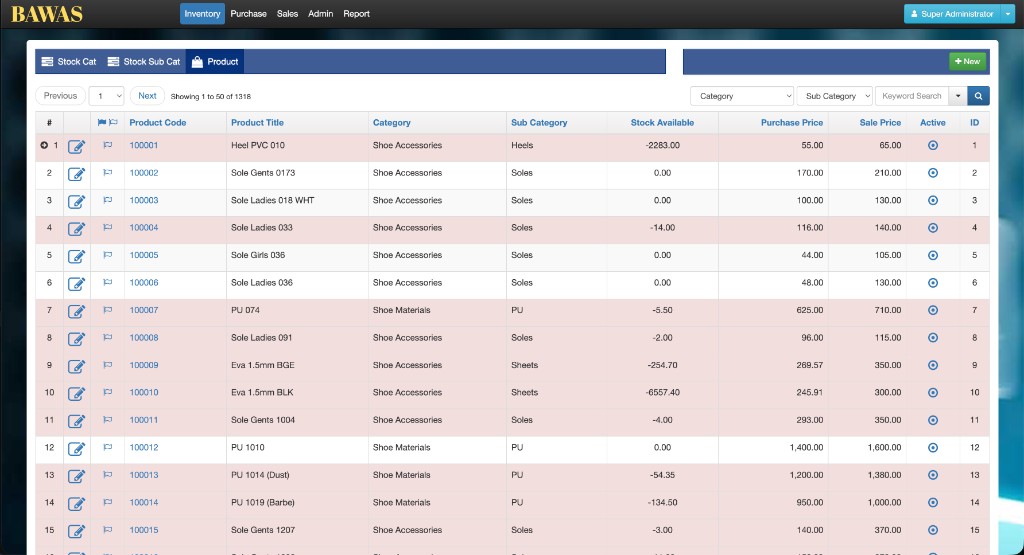
- Product grid: code, title, category, stock available, purchase price, sale price, active flag.
Workflow
Steps
- Open Inventory from the top menu.
- On Stock Cat, create or edit main groups (for example Shoe Materials, Bag Accessories).
- On Stock Sub Cat, add finer groups under each stock category (for example Canvas under Shoe Materials).
- On Product, add products with code, title, category, sub category, and prices.
- Use + New or the edit icon on a row to change a record.
- Use search or category filters on the product list to find items quickly.
Validation Rules
| Rule | Detail |
|---|---|
| Stock category | Each sub category must link to a valid stock category |
| Product code | Should be unique in your catalogue |
| Active | Inactive products may be hidden from new sales lines |
| Stock available | Negative stock may be allowed in your setup—check with finance before relying on the number |
Screenshots
Stock categories (Stock Cat)
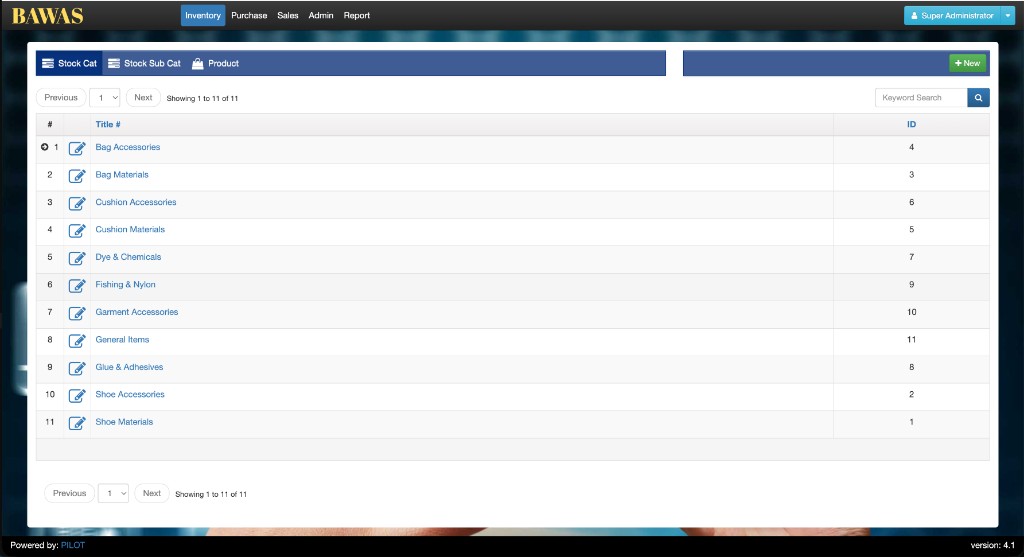
This screen lists your main inventory groups. Each row has a title and ID. Use + New to add a category, or the edit icon to change one.
Stock sub categories (Stock Sub Cat)
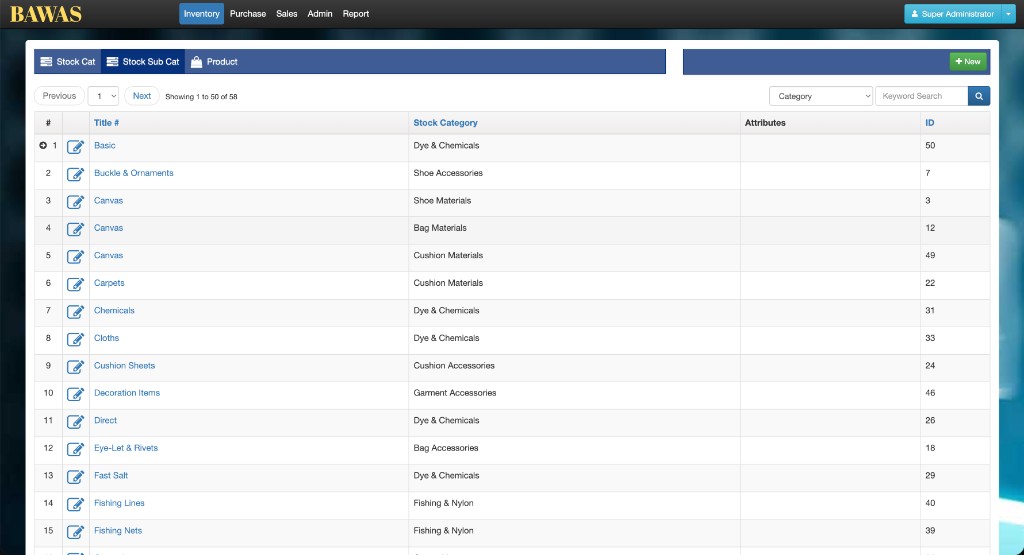
Sub categories sit under a stock category (for example Canvas under Shoe Materials). This helps you group products before you open the full product list.
Products (Product list)
The product list shows every item you stock or sell: code, name, category, stock on hand, and buy/sell prices. Filter by category or search by keyword when the list is long.
Product detail (Main tab)
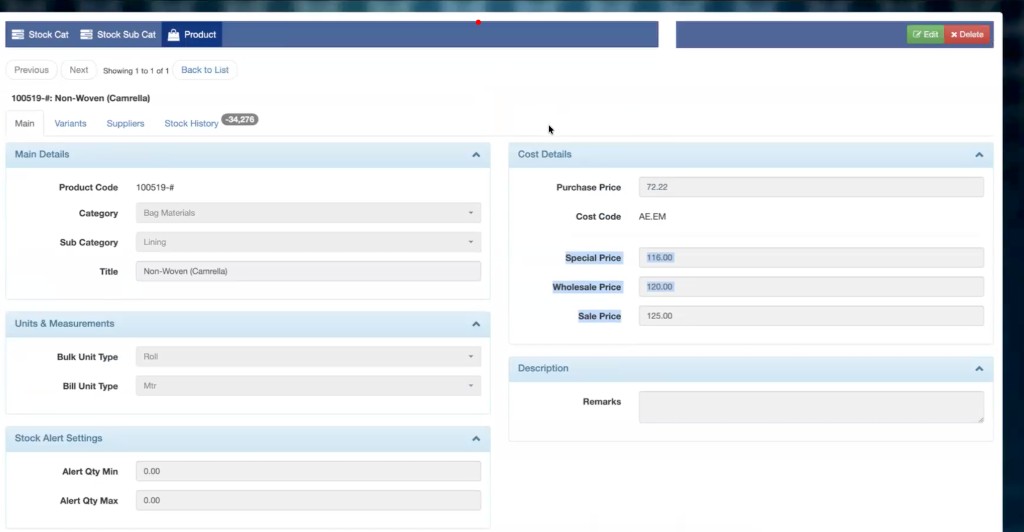
When you open a product from the list, the Main tab shows the full record. Main Details holds the product code, category, sub category, and title (for example 100519-# and Non-Woven (Camrella)). Units & Measurements defines how you buy and sell the item (for example bulk unit Roll and bill unit Mtr).
Cost Details lists purchase price, cost code, special price, wholesale price, and sale price. Use Stock Alert Settings if you want minimum or maximum quantity alerts. Add notes in Description → Remarks when needed.
Use the other tabs on the same screen for more data: Variants (sizes and colours), Suppliers, and Stock History. Edit and Delete are at the top right. Use Back to List when you are done.
Summary
Set up Stock Cat → Stock Sub Cat → Product in that order. For variant sizes and colours on a single product, see Inventory-product variants.