User management
Overview
Admin → Staff lists everyone who can sign in to Bawas. Each person has a name, email, User Group (role), and published status.
Purpose
Control who can access the system and what they are allowed to do in Inventory, Sales, and other modules.
Features
- Admin sub-tabs: User Group, Staff, Master List, Settings, Labels, SystemLog, Wallet.
- Staff grid: First Name, Last Name, Email, User Group, ID, Published.
- + New to add a user; edit icon on each row.
- Keyword search and pagination on the list.
Workflow
Only trusted administrators should create or change Super Administrator accounts.
Steps
- Open Admin from the top menu, then the Staff tab.
- Use Keyword Search to find a person, or page through the list.
- Click the edit icon to change name, email, or User Group.
- Click + New to add a staff member and assign a group.
- Set Published so active users can log in; clear it to disable access.
- Save and ask the user to test login on the correct environment.
Validation Rules
| Rule | Detail |
|---|---|
| Must be unique where your system enforces it | |
| User Group | Defines which menus and actions the user sees |
| Super Administrator | Keep this group small—full access to all modules |
| Published | Users who are not published should not sign in |
| Password | Set or reset through your IT process on create |
Screenshot Section
The Staff list shows all backend users. Check the User Group column for roles such as User, Sales Assistant, Administrator, or Super Administrator. The blue dot under Published means the account is active.
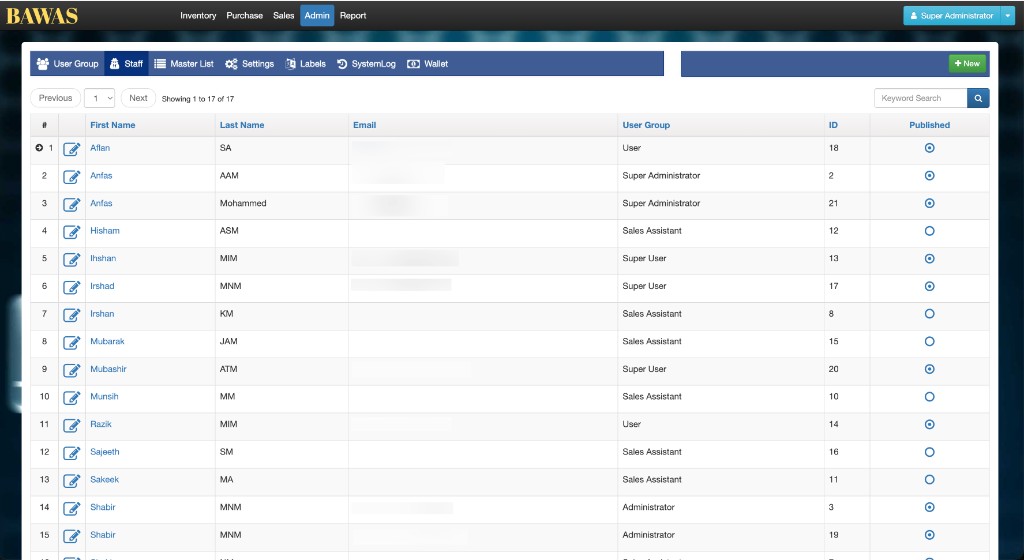
Admin → Staff: 17 users with roles and published flags.
Summary
Review Staff when someone joins or leaves. Wrong User Group assignments are a common cause of “access denied” in other modules.