Settings
Overview
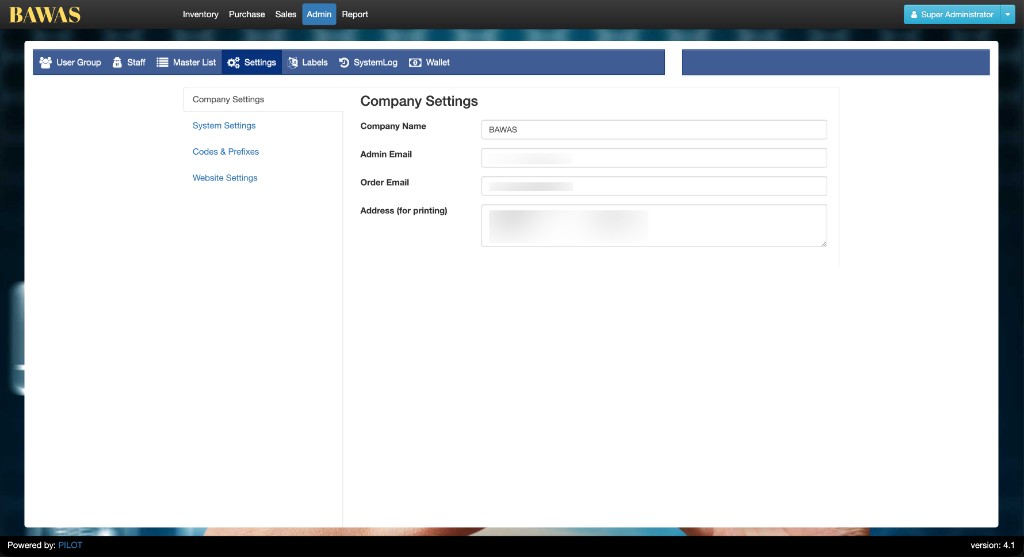
Admin → Settings holds company-wide options. The Company Settings screen is where you set the business name, emails, and address that appear on printed documents.
Purpose
Keep one correct company profile for invoices, orders, and system emails across Bawas.
Features
- Settings sidebar: Company Settings, System Settings, Codes & Prefixes, Website Settings.
- Company Name, Admin Email, Order Email, and Address (for printing) fields.
- Other Admin tabs: User Group, Staff, Master List, Labels, SystemLog, Wallet.
Workflow
Only administrators should change company details. Test printouts after any update.
Steps
- Open Admin from the top menu, then Settings.
- Click Company Settings in the left sidebar (if not already selected).
- Update Company Name, emails, or Address (for printing) as needed.
- Save the form.
- Print a sample invoice or order to confirm the new address and name.
- For codes, tax, or website options, open the other items in the Settings sidebar.
Validation Rules
| Rule | Detail |
|---|---|
| Company name | Required for printed documents |
| Admin / order email | Must be valid email format if your system checks it |
| Address | Used on PDFs—keep line breaks readable for print |
| Access | Restrict changes to Admin or Super Administrator roles |
| Other settings | System Settings and Codes may affect numbering—change one area at a time |
Screenshot Section
Overview
This screen shows Company Settings under Admin → Settings. Company Name is set to BAWAS. Admin Email and Order Email are used for system and order notifications. Address (for printing) is the address block that appears on invoices and similar PDFs.
Use the left menu to switch to System Settings, Codes & Prefixes, or Website Settings when you need more than company identity. After you save here, ask staff to re-print a test document so everyone sees the same header and address.
Summary
Company Settings is the first place to fix wrong names or addresses on printouts. Change other Settings sections only when you know how they affect Sales, Purchase, or Report.