Sales return
Overview
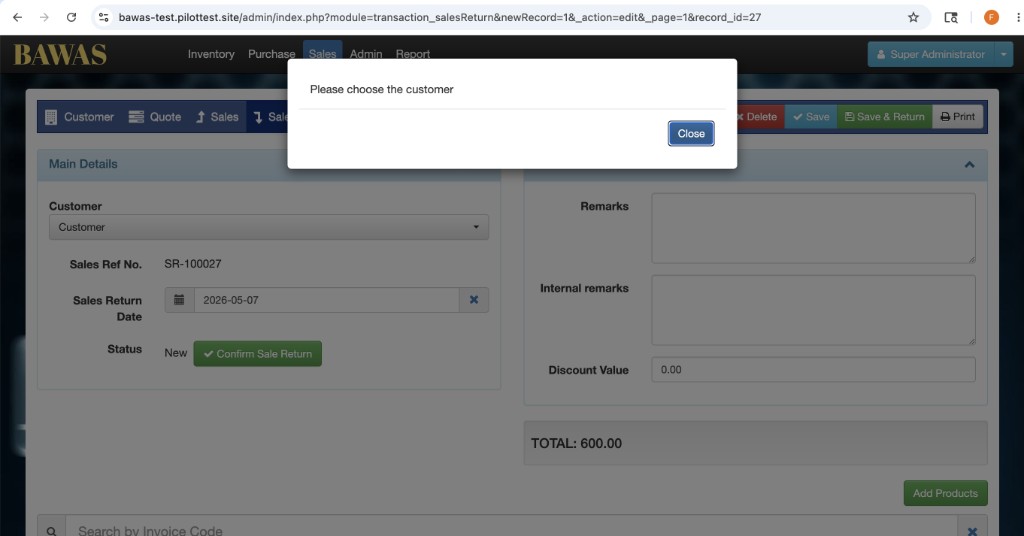
[BAWAS] Sales Return: Does not Allow Without Customer Record-completed. [BAWAS] Sales Return: Implement Discount Handling-completed. Sales → Sales Return records goods sent back by a customer. Each return must have a Customer selected; the system blocks save or confirm when the customer field is empty. Returns also support line items, Discount Value, and a TOTAL that reflects the discount.
Purpose
Adjust stock and customer accounts when products are returned after a sale, with correct line totals and header discount on screen and on print.
Features
- Sub-tabs under Sales: Customer, Quote, Sales, Sales Return, Receipt.
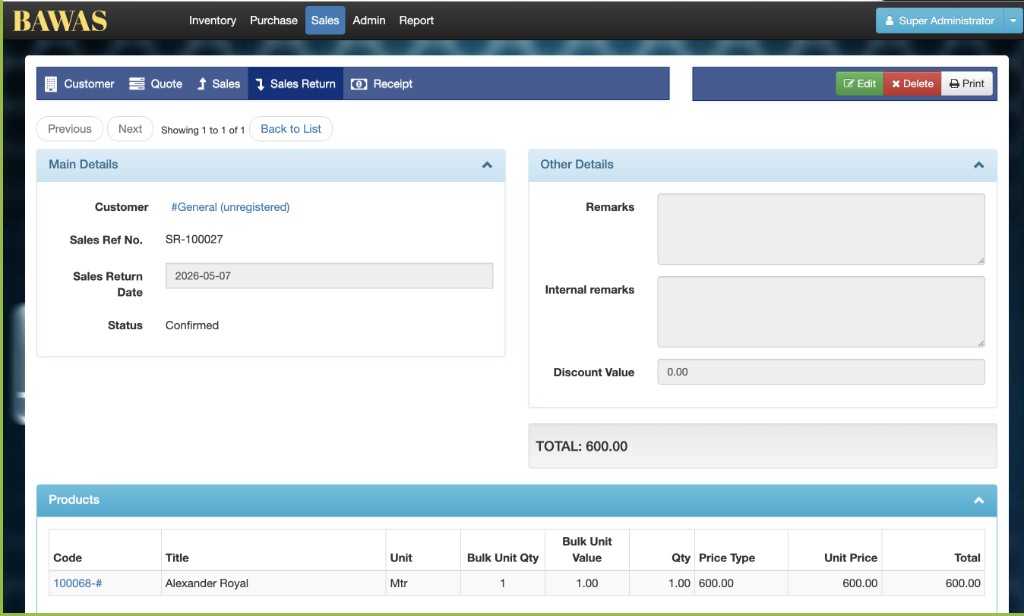
- Main Details: customer, sales ref no., return date, status.
- Other Details: remarks, internal remarks, Discount Value.
- Products table: code, title, unit, bulk unit qty/value, qty, price type, unit price, line total.
- TOTAL bar for the return amount after discount.
- Edit, Delete, and Print on confirmed records.
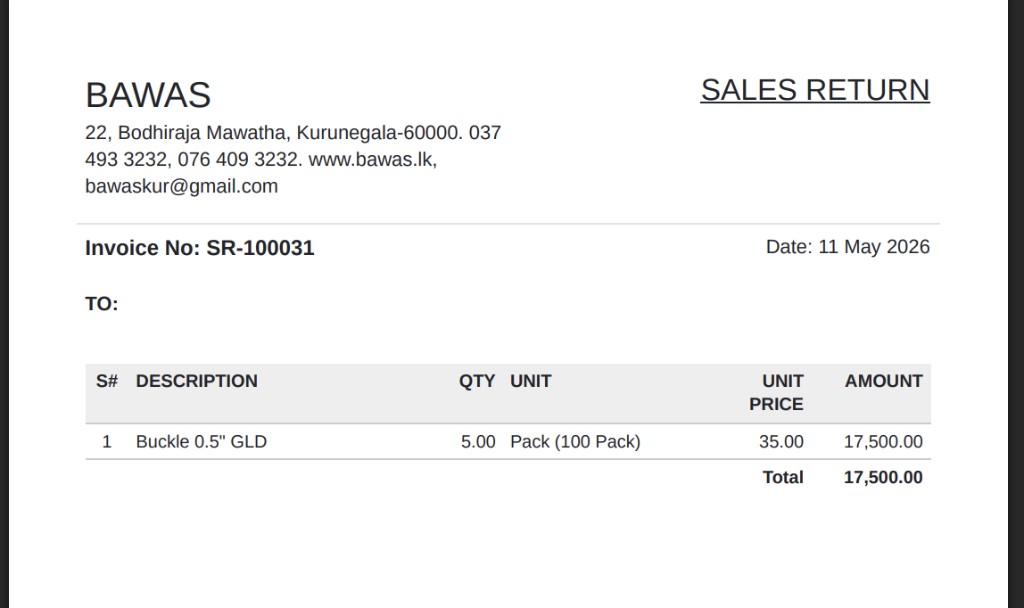
- SALES RETURN PDF with line amounts and document total.
- Validation message Please choose the customer when Customer is blank.
Workflow
Create a return when goods come back from a customer. Apply discount only when your process allows it, then confirm when lines and totals match the physical return.
Steps
- Open Sales → Sales Return from the top menu.
- Click + New or open an existing return from the list.
- Select the Customer (required); enter Sales Return Date.
- Add lines in the Products table (unit, bulk qty/value, unit price).
- Enter Discount Value in Other Details if applicable; check the TOTAL bar.
- Save while status is New; move to Confirmed when correct.
- Use Print and confirm the PDF total matches the screen after discount.
Validation Rules
| Rule | Detail |
|---|---|
| Customer | Required on every return; blank customer shows Please choose the customer and blocks progress |
| Lines | At least one product line for a non-zero return |
| Discount | Discount Value reduces the return total; must not make the total negative unless your policy allows |
| Line total | Qty × unit price should match each line Total before header discount |
| Status | Confirmed returns may be locked from editing |
| PDF Total must match admin TOTAL after discount | |
| Stock | Confirming may update stock—check with warehouse process |
Screenshot-customer required validation
Overview
Return SR-100027 is New with TOTAL 600.00 and lines added, but Customer is still empty. The system shows Please choose the customer in a dialog so staff cannot save or confirm without a real customer record (not a blank or placeholder-only return).
Pick the customer from the dropdown before Confirm Sale Return, Save, or Save & Return. This stops returns that would not tie to stock or accounts correctly.
Screenshot-return detail and discount
Overview
This return is SR-100027 for customer #General (unregistered), dated 2026-05-07, status Confirmed. Other Details includes Discount Value (here 0.00) and the TOTAL bar shows 600.00 for line Alexander Royal at 600.00 unit price. Use Edit, Delete, or Print from the top right when your role allows.
Screenshot-product lines and quantities

Overview
The Products section shows Buckle 0.5" GLD (100133), unit Pack, Bulk Unit Qty 5, Bulk Unit Value 100, and Qty 500 (derived from bulk settings). Unit Price 35 gives line Total 17,500.00. Discount handling uses these line totals first; header Discount Value then adjusts the TOTAL on the detail screen.
Screenshot-sales return print
Overview
The SALES RETURN PDF is SR-100031, dated 11 May 2026. The line shows Buckle 0.5" GLD, 5.00 qty, unit Pack (100 Pack), 35.00 unit price, amount 17,500.00, and document Total 17,500.00. When you enter a non-zero Discount Value on the return, re-print so the PDF reflects the discounted total.
Use Remarks for notes the customer may see on printouts. Use Internal remarks for staff-only notes. After confirmation, use Edit only if your role allows changes to posted returns.
Summary
Sales Return requires a Customer, supports discount on screen and print, and validates before post. Select customer first, match lines to physical goods, set Discount Value when needed, then confirm TOTAL and PDF before you post the return.